Wherein I write about whatever's on my mind in the hopes that I find a little bit of common ground with the other spacemen hurtling around this damn place.
This was my personal blog from 2005 to 2017. A mix of poetry, short observations,
philosophical musings, and whatever else crossed my mind at 2am.
Some of these are polished. Most are not. That's the point.
Two Toms
May 30, 2017
Both my cats were neutered before I got them. The rescue saves me this mutilation, so they still love me, and don't seem to hold this against me. I like to think their primality still rages through, despite their domesticity. When the windows are open they are alert and I can see they yearn to hunt and tear flesh.
I asked them for advice these two Orange toms and they had the following to say
The first, skinny, lean and brave said to tell you this "Never lose your curious nature, because while life is often full of loud surprises and things which are terrifying, occasionally some of those surprises turn out to be delicious, or friendly."
"Never skip a meal, but never eat to excess"
"It's ok to be discerning when you're offered a treat, but never turn up your nose at something you love, no matter your mood"
"Find high perches, the same world will pass you by, but your view of it will be better"
"Accept affection on your own terms, but chin rubs on any terms"
"While brothers can be tiresome, always keep them safe, fed and cleaned"
"Never be too busy with anything to play"
My other Tabby, his brother, had some different advice. His languid full form pressed the air from my lungs and made it harder to breath as he sat on my chest. His claws kneading there. He looked me in the eyes with a sharp smile and said.
"Life is full of simple pleasures. Nothing else matters. A full stomach, a warm patch of sun to lie on, and a hand running through your hair is just about all you need"
"Now and then you wrestle with the people you love. Sometimes for fun and other times because you need to know whose in charge. Always show them afterwards they're still important to you, I recommend a tongue bath"
"Have a low space that only those you trust can find you in, and go there when you need to"
"Never skip a meal, but try not to eat until you're sick. You will fail this sometimes but that's ok"
"Things will happen in life that will scare you. It's ok to hide from them, but you'll need to come out eventually."
"Don't be afraid to purr when you're happy, people like to know how good your mood is."
"When someone's having a bad day, you can help by just being around them"
"You'll have the opportunity to see lots of wonderful birds and bugs in life. Don't just experience them alone. Be sure you call the people you love so they can see them too. Hunting should always be done with your friends"
Neverending Circles
April 11, 2017
I think circles are a little bit weird. The word circle I mean. Just think about it for a second, if I asked you to define a circle for me... I'd guess it's harder than at first pass (or maybe I'm just writing this a little too late at night).
What is a circle of friends? An inner circle? A circle of trust. These all mean groups but why not a square or trapezoid of trust?
The circle was a symbol that we still use but it's strength has been denatured for me. The ring for a wedding (or the one Ring) stands for eternity. A shield is a circle. So's a dinner plate. At the round table it meant equality. It's a familiar symbol, a powerful one, and I think one that is slightly taken for granted.
Why am I going on and on about rings?
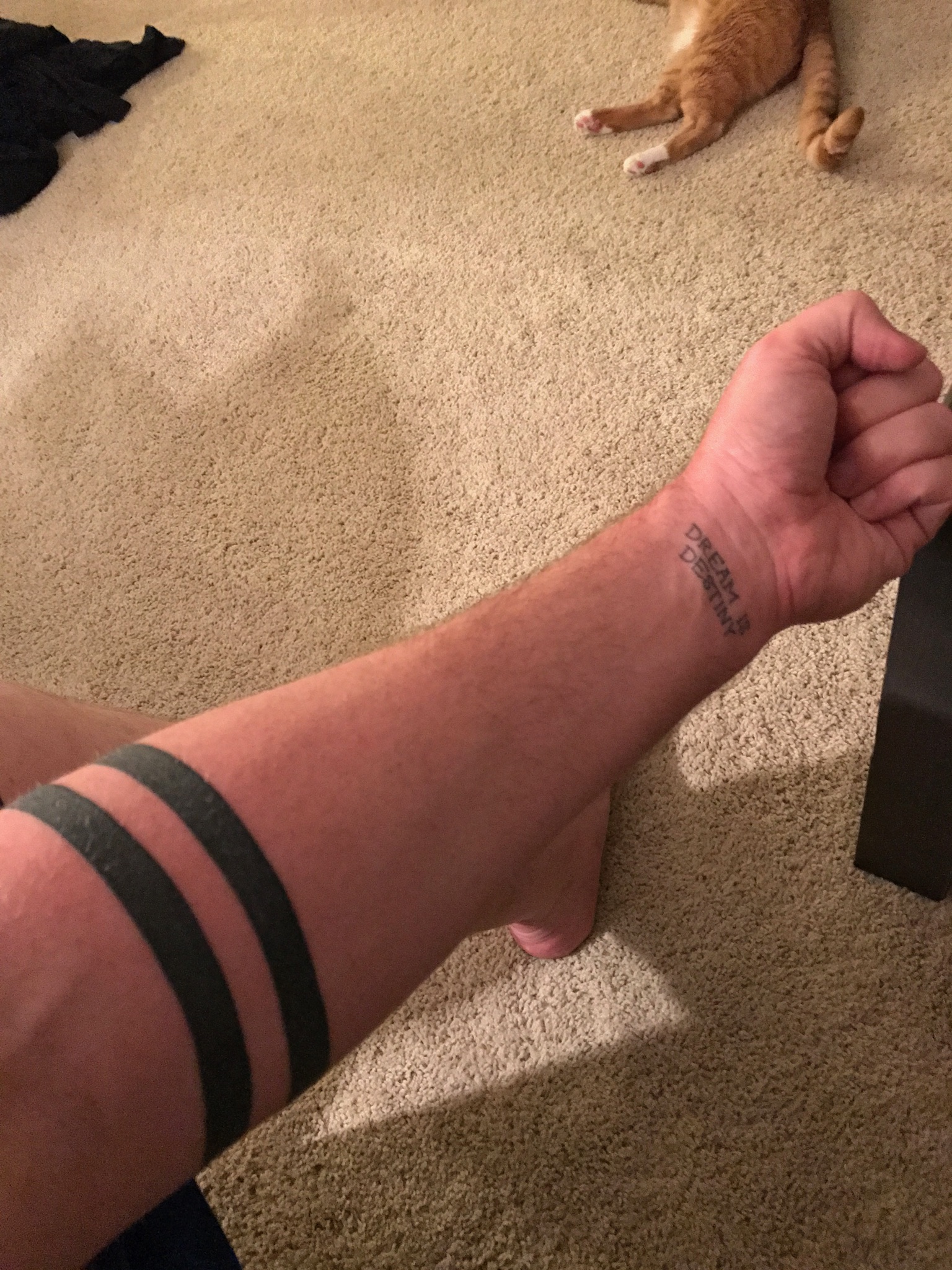
Because in the last few years I've lost some cool people and I wanted a way to memorialize them. I got a tattoo for Ann, Louis, Chris and Gian. I got something that I wanted to remind me that even though they're gone, for as long as I'm here, I'm carrying their stories. It might not be eternity but it'll be as long as matters to me.
It's a circle because these people were in my circle. They mattered, they were my equals, or my betters.
From Louis and Anne I learned what love is, family too, how to forgive, that you're never too old for new passions or fashions, and how important small things can be in other people's lives.
From Chris, I learned about story, expectations, overcoming things life throws at you. I gained stories and made friends. I learned a quiet and thoughtful soul. I lost a writing partner. I saw the strength of fatherhood, and someone who understood the unspoken rules of the world. I learned it's true you can know how much to trust someone by how they feel about animals.
From Gian, I learned not to be ashamed of a ridiculous laugh, and to smile more. I learned that if you want anything in life then you have to chase it down, it's not coming to you, and even then it may never come so you better get excited about the road there. I learned that limitless enthusiasm and unbridled friendship to everyone doesn't have to come with strings or expectations and some people just generally see the best in everyone. I learned there's no such thing as being too big as a person.
For those of you who aren't here anymore I don't want to forget your lessons. I wanted to make a promise that I'd go on telling your stories and continue the narrative you began as long as I can. I had that promise burned into my skin so I wouldn't forget it.
You matter to me (and to all the other people whose lives you touched).
Thank you all for letting me carry a little piece of you for the rest of my life. I'll try to treat it fondly
Pretend You're Winning, It's More Fun
February 14, 2017
I have been really loving Muay Thai lately, and it's finally hit that point where I'm not just going to class but I've begun reading about different people's techniques, watching videos, and trying to better understand the history of Thai Boxing. During this process, I came across a really fantastic blog by the professional fighter Sylvie von Duuglas-Ittu. Her writing is really great and she has some really instructional videos too. If this is something you're at all interested in, I highly recommend giving her site a look over here - http://8limbs.us/. She has a ton of interesting articles on gender, fighting, life in Thailand, and more.
Last night, I was watching a training video of hers, working on kneeing a bag (http://8limbs.us/muay-thai-thailand/sylvies-tips-improve-your-knee-bagwork-rounds-of-play-knees). As part of this video, at the 4:11 mark, she says "It's important to breath", and continues "and pretend you're winning, it's more fun" And she says it with a giant smile on her face.
I only watched that last night but the line has stuck with me ever since then. "Pretend you're winning, it's more fun". I think this is something I want to adopt and take into my life in general. I think at some point in time we gave up pretending for practicality, but if you're going to do some work that's hard anyways, why not pretend you're winning while you do it.
While this is particularly applicable during exercise (just during my regular run tonight I'm going to try this and see my experience. What's it like to do your jog but pretend you're winning a race while you do?), but I think any activity you can restructure the context of that activity in your mind to make it more fun.
Sure, maybe building yet another API design for your enterprise infrastructure or reviewing the 300th document of the week isn't all that exciting, but what if you restructured that same activity into being warned by the president that someone is trying to hack YOUR company, and the attack will come in just 2 weeks. You need to do what you can in order to ensure the United States is safe! I think trying to play pretend can increase our general happiness and satisfaction when participating in an otherwise rote activity.
This reminds me, in turn, of another friend who made a comment years and years ago that's stuck with me until today, and that comment was "You're always just about as happy as you choose to be".
I know to a lot of people that comment sounds foreign and strange and maybe even patently false, but as I've tried to embrace this idea over the last several years of my life, I've found that it really sticks, and at the times when I'm at my most unhappy, USUALLY, it's because I'm choosing to be unhappy.
Bad things will happen to all of us. Terrible, tragic, horrible things. And when they do we have to choose how much power they have over us, and what we do in response to them.
This year, a friend of mine, Rebecca who I haven't talked to in some time was horseback riding in South Africa (Awesome right?) and had a serious accident. She fractured her arm and tore an artery. She had 6 hours of vascular surgery to repair things, then needed to go home and have her entire elbow replaced and got, of course, a giant hospital bill for all of this.
I mean my 2016 was bad, but it wasn't that bad.
Despite this, Becky put on a good face. In every photo taken of her she's got a giant smile on her face, and she's got a killer attitude. She's sad, but she's choosing to focus on the positive aspects. She's choosing to be happy at the love and outpouring of support she received and how well her treatment is going, rather than fixating on the negative aspects of that.
It's particularly powerful for me since it was 8 years ago working at a rehab in Malibu that I met Becky, and it was there that I heard the comment she made that so positively affected my life. She said "You're always just about as happy as you choose to be".
I think that we have some crazy shit on the horizon and while we need to stay angry and fight against it, lots of people are allowing themselves to get anxiety ridden and feel the hard downward pull into sadness and feeling overwhelmed.
So while we're busy resisting, living, and trying to find a way to make our lives better. Going through heartache and setbacks and all the potholes we can find. Remember that you're always just about as happy as you choose to be, and pretend you're winning. It's more fun.
Yeats said it better
August 02, 2016
A Drinking Song
By William Butler Yeats
Wine comes in at the mouth
And love comes in at the eye;
That’s all we shall know for truth
Before we grow old and die.
I lift the glass to my mouth,
I look at you, and I sigh.
A reminder to forget
August 02, 2016
One day there will be this moment, when I talk about you to my friend. I tell him how irrational you're being. How you're driving me crazy and I don't know what to do.
You with the dancing poetic heart. You who I can't help but smile when I see your smile.
She's always fucking complaining about it. I just don't fucking understand her.
Her who I spent so many long nights in quiet murmuring conversation. Who held me as I wept. Who I spoke quiet promises to and we looked at one another with secret hopes, so sacred we dared not give them voice.
One day I will take you for granted. Your sweat will no longer smell sweet. I'm excited at the idea of knowing you so long that your beauty is an afterimage. I hope that then I can remember you now, just as now I'm remembering you then.
From now until then we'll be moving in opposite directions, but I don't think I'll see my consideration passing the other way as I pass over you.
You my beautiful promise, whose body my fingertips long to explore. You my twisted remembrance, for when sunsets become a bore.
Epilogue
July 08, 2016
There was no fiery exhalation to announce the end of my youth
It was not the strained end of a relationship
Not the shocked loss of a job ended.
It just wasn't there any more. Like atrophied strength or lost abilities
Ha. Atrophy and loss. I'm sorry, I forget you don't yet know what I speak of
You with the smooth face. No laugh lines and no wind burns. They will come
Those experiences and passions you hold now. Grab them tight, because I would jealously devour them if I could. I would dive headfirst into remembrances of glory. Boast and brag... These ARE the best of times
Before you look in the mirror and see the lines or grey hairs and wonder how long they've been there
Before you realize that odd pain is never going to go away
Before that cough just becomes a part of your life
And before the funerals
Laugh and love. I miss them both tonight
Goodbye
December 22, 2015
Hey buddy, I know you appreciate a good story, so I sat down to write this at 4 AM on the darkest night of the year. It's taken me a while to get around to writing this, even though I've needed to for a while, because the setting hasn't been right. You and I always loved starting things. Starting a new story, a new television series, or a new game. There was something magical in the potential of a new beginning. Creating a character was an entrance into some other world and there was a vastness of possibility ahead when things got underway. Beginnings were so important and we were addicted to them. I can think of countless half-formed ideas that we had and talked about, and I appreciated that you were always brutally honest with me when you didn't like something. I would try and try and try to argue the merits of a thing and your response would stay the same. "Meh".
No one could piss me off like you could, but in a good-natured way. I loved the stories we got to tell together. They are things I will cherish, whether they were made up stories, or real life stories we made up together. I will fondly remember you, me, Joe and Mindy in Arrowhead forever, it is one of the most pure and good moments I have. You're one of the few people I know who loved animals as much as I did. Dogs mostly and I'm sure you'd give me a hard time about how ridiculously in love with my cats I am now, but that's alright.
Sorry, I started going down that emotional road of just remembering great times we shared, but that's not really what I want this to be about. The problem is I don't have you here asking questions, helping guide the story. I'm used to that and it's just not here anymore, and I don't know how to cope with that. I've lost people before but this is different. I didn't go save every email of theirs, every conversation we've had. It wasn't important to hang onto those words.
Because your words are important Christian. You were a great teller of stories, and in that you and I were so alike. You understood the heart of what made a story good, and what it needed at a given point, but you (and I), were terrible at follow through. We were great at starting things but not so great at finishing them.
I want to say you finished this story without me, but that's not really true. I can't say your story is over when I think about you so much still, when everyone in the room pauses for a hitch in the back of their throats whenever someone says your name. The way I clear my throat and moisten my lips when I'm relating a story about you and just say "A friend of mine" because the rest of the story is too painful to say.
I want to make you a promise now. A promise that I'll go through and reread all your old stories, that I'll put them together and retell them, that I'll assemble those stories into a grand new narrative. But, realistically, I'm probably not going to. I don't have that follow through, and I think you'd know that, and would be ok with it.
What it really comes down to is that I'm pretty fucking lost buddy. I remember when I walked out of your hospital room with Paul that first time, that last time. Paul said "Ok man, get better soon" and I said "You have to feel better, we have so many more stories to tell". The way the nurse looked at us was this mixture of appreciation that we were there, and sympathetic sadness. Mostly sadness (she was hot, sorry man I should have gotten her number but I didn't).
Tonight on the longest night of the year I got together with my friends to light a fire and to burn through the darkness, the hope is to remember that tomorrow things will be bright again and the dawn will come, but I just don't know if it will be bright enough. I keep waiting for that message from you. I still keep thinking "I can't wait to talk to Christian about this" and pause.
Even now this story feels reductive and rings hollow to me. I'm writing through a haze of tiredness and loss. I don't know who I'm writing to, or for. I don't know.
I need a friend that I can message, someone I can talk to and ask about the nature of the story, about what would make the story better. Someone who can give guidance to a shattered narrative.
I need to talk with you again.
But I can't.
Smirking like an asshole
May 24, 2015
"That's just
basic freudian theory"
he says to her and she nods sagely. "And do you know the story of Oedipus?"
She grips his arm awkwardly possessive of her rare prize
and beams "I do".
There he struts, confident in his nascent intellectualism
as he
explains it all regardless.
Behind me someone else
"Oh look, Sar-tee declined a Nobel peace prize"
I'm standing reading
some older Bukowski
wondering when he really got good
Because this just isn't cutting it.
Storytelling - An Ending
April 11, 2015
((This is part 3 of a 3 part thinkywritything on storytelling. Part 2 is here.))
Kogo, the goshawk, fluttered on his wrist and settled herself, watching him. Toranaga smiled at her. "I did not choose to be what I am. It is my karma." - Shogun, James Clavell
I have bad news, dear reader. I'm afraid this post is what I promised from the beginning. And end to the tale. To a tale. The good news is I have no problems putting this particular beast to bed. But before we go, I have a secret to tell you. I'm afraid it's not a very pleasant secret, but it's a very important secret to keep in mind I think for anything you write, create, play or do. To help me tell you I thought I'd bring along a friend, she's really good at talking about these kinds of things.
You see, dear and gentle reader. I'm afraid one day all of our stories come to an end, one way or another. It's a fact I really wish more storytellers came to grips with, because it would allow them so much more control over their destiny. The brutal truth of the matter is no matter how hard you try, eventually there will be no more episodes of your TV show, no more issues of your comic or sequels for your books. Your character who has gained so many experience points will eventually vanish, and the reason is because eventually you won't be around to continue telling those stories.
Now in a less morbid sense it's also possible you will simply lose your audience or your funding and be unable to continue telling your tale. It's something I have seen in countless role-playing games however. People begin telling a story of their character and at some point become so affixed to the idea of watching numbers on a character sheet increase that they hate the idea of losing this story, of the story ending. This, however, is brutally unkind to your character, and your story.
If you remember my original post on storytelling I asked you to remember that in storytelling, you are entering into a covenant with your reader, and now that you have engaged them with a brilliant beginning and kept them on the line through twisting dangers, it's not time to bring it all home and close the book. It is time to take charge of how your story is remembered.
My friend Ben told me he no longer reads book series which don't have an ending yet, because too many times he has had this covenant broken for him. We've all I think felt this pang with TV Shows, comics and books. I think one of the chief successes of the format of a movie is that for the most part it is entirely self contained. Our minds seek patterns and long for the ends of these stories and it's our duties as storytellers that when we begin these stories we not only have thought of our ending, but deliver on them as well.
"'Villains!' I shrieked, 'dissemble no more! I admit the deed! - tear up the planks! - here, here! - it is the beating of his hideous heart!'" - Edgar Allen Poe, The Tell-Tale Heart
I remember helping to run a game in which several players had characters join the game who were high level and who they had controlled for several years, and they used these characters to try to solve a problem. I told each of them that they could, if they wanted, automatically solve the problem by sacrificing their character and using this opportunity to have a meaningful and compelling death. A glorious period at the end of their story. Every one of them turned me down, and in the end it was one of the things that started the idea for talking about these aspects of story in this blog.
If we don't deliver on these stories, and don't end them in the ways we desire, then our eventual deaths or disillusionment will bring a mediocre conclusion to an otherwise compelling tale. There is plenty of this to be found out in the wild. This happens with countless TV shows because seasons ultimately aren't continued and we have a hanging end of a story that's never concluded, or the writers lose their way and focus and we have endings that leave us ultimately unfulfilled.
Particularly now in video games, in a genre of MMO's, first person shooters and sandboxes, we've lost a bit of the craft of telling a story. Some studios still come out and shine with games like The Last Of Us and give me hope and faith, showing that there is a real depth and heartfelt love of storytelling that still sticks around in video games. There is still a chance for hope, for love and for some satisfying moment.
That moment of catharsis, though, is the thing which inspires our greatest love as a consumer. It's the moment when written words on a page cause a slow creepy grin to crawl across our faces, and by the time we finished we stand up and shout and cheer. These moments seem more and more rare, but when they happen they're incredible. The stories we think of as truly great all have endings, and rarely do people love a story that dies in the middle. Everyone wants to know if Roland finds the dark tower, but the story has an end so I know the answer (oh do I know the answer...). Because the television show Life came to a fitting ending, I can talk to my friends who saw it and ask them "Do you know how I survived Twelve Years in prison?" and they will all smile, because one line so beautifully brought to conclusion the ending of a series of television. When you talk to a Firefly fan and say "I am a leaf on the wind", the impact of those moments are true and real and they remind us of deep heartfelt emotions we simply cannot feel without a period at the end of a sentence.
"The Martians stared back up at them for a long, long silent time from the rippling water" - Ray Bradbury, The Martian Chronicles
I was hoping to deliver this to you earlier but I was delayed because shockingly close to my last blog post I wrote on this topic, talking about how inspired my storytelling had been from the fabulous Mark Lewis. Mr. Lewis somewhat suddenly passed away. I have spent some time working on my own thanks to his memory but it affected me considerably more than I thought it would. It was a reminder that at some point we'll be gone and the only remnants will be how we are remembered by the people we have left behind. Those memories, though, are what I hope to talk a bit more about here. Ultimately however, I thought it would be hypocritical to continue to sit on a post about finishing a story and telling an end, and never in fact following that self-same advice. So for myself, for those friends of mine whose stories ended far too soon, I'm going to use this opportunity to make a promise. No more half finished stories. No more stilted beginnings and unfinished endings. It's time to buckle down and tell some tales, beginning, middle and end. Otherwise we
Downer Christmas Writing
January 01, 2015
im going to try something new. normally i don't share things until they are crisp and i'm happy with them. here is something raw and unfinished. i hope to edit it over time and make it more better.
-------- Us
We used to wait anxiously, unable to sleep from excitement of the morning. I vividly remember a pounding in my chest and looking out the window, not in expectation. Not exactly. I was already jaded enough by then but there was a whisper of hope that Id be wrong. That I'd be surprised. Now it's our anxiety that keeps us up nights and maybe too much certainty.
Thinking, Silently, about the year in its last death throes and wondering if we did enough, and where our life is. And if we aren't TOO jaded, maybe hoping a little for Tomorrow. Hoping things will break differently soon.
I think about her. I'm sorry, I tried not to. Los Angeles has had long enough to chew on her for a while before dropping her but she seems unphased. I still don't know if that's admirable or not. I feel turned around.
I'm a drug seeking patient in a clinic, needing to escape the harsh loneliness and not caring about the side effects. I haven't looked past the potential she offers. I don't know much about her at all. I think I'd like to know more, but mostly I project my hopes onto her, thinking if I could get another fix the pain might go away.
I banish her back down. For the moment...
My family is just in the other room, but it's this dog on the couch next to me, sleeping restlessly and whining when I stop petting him.
Believe me buddy, I know.
Maybe next year will break differently. Maybe when I look back it will be brighter.
For a moment I hear something shift outside and I can't help myself. Years of conditioning make me look up and just for a second I expect sleigh bells. A whisper of hope.
But what I want doesn't fit under a tree.
I think of her again. Ever since we spoke I don't know what I feel. Hope. For either anesthetic or a kindred spirit. I'd take either but expect nothing. Maybe this time I'll be surprised. I'll wait alone or lonely until then with this dedication to you in my heart.
To those who are lonely, even if they're not alone
Three Quick Ones
December 14, 2014
1)"I could have made it" he thought with a despondent sort of desperation Cars screamed past in an angry rush and it was unclear if he was Pre-empting a suicide with a reflection on life's missed glories Or simply sad at a missed opportunity to cross the road
All our lives summed up such Profound moments of confusion where it's not clear if everything is on the line or really just nothing at all
2) Outside the window a man in a red jacket executes a perfect 180 on his moped, seamless fluidity, without ever taking his cell phone away from his ear
As I have grown older the edges have worn off of my emotions. I love life but no longer with the passionate hunger that I used to. I no longer fling myself desperately into love whenever I can but instead wait patiently for it.
I am worried that my writing has lost its edge too, if it ever had one. It was never great but it was at least desperate and clawing to come out of me. I wrote weeping sorrow and I wrote it well, almost as well as I wrote hurt and bitter lovesick scorn.
But I just don't feel those things now and I am sad that I am no longer sad. I worry that contentment has left me a mediocre storyteller and even that worry is an echo of real worry. Maybe I'll write something better, but maybe I won't. I have an authitorial ennui.
So instead I sip my coffee and watch the gray rain and think about those who have come before, and I wonder what the greats did when they felt their edges dull and blunt. I wonder what our parents and grandparents did and why no one ever told me about resignations poison when I was still young and could feel passionately about it
3)In the darkness In the quiet time In the between moments There are these times which I fight so hard to avoid where time worry and thought slip away There are quiet night sounds There is my breathing and ocassional swallowing There is a cool breeze and warm cats I do not remember what I do for a living or what my hopefeardreams were I only have this moment and for all I know this may be eternity. I'm sleepy enough that it's not boring and wakeful enough that my consciousness DOESNT spiral away as soon as my head hits the pillow Just me and these sounds Me and shallow thoughts Just me and you
And even still at the end you creep back to me, never content to leave well enough alone and my dear worries sink back in, wakening me and shattering nirvana
The dawning of a new era
October 19, 2014
I had this whole long thing I wanted to post about the League of Legends Worlds championships and I probably will still talk about it, but at the last minute I found a really amazing hotel in Gangham and it's like all my dreams of hotels come true. So I actually get to post this message from a keyboard on a computer. This is excitement. Anyways, as an aside here is the view I woke up to day 2:
Im worried this photo doesn't capture how tall these buildings are
And here's a quick photo of the room the host family graciously gave up so I could sleep in:
Sorry mom, I didnt make the bed
Day Two was the last day with Su Hyuk and his family. His wife Kiki prepared an amazing breakfast which included (I apologize for butchering the spellings) Pajang which they called "Korean Pizza", and Chapche which were like glass noodles and very good. The whole breakfast was Bibimbap and it was amaaaazing. Pictures here:
The pajang is the dish on the far left, and the chapche are the noodles to the left of the rice
Every part of this breakfast was delicious and I'm starting to think I've been missing out on not eating more Korean food in LA (Though to be fair all the Korean food I had was really good). Ive really liked the Kimchee I've had here too. Good stuff. Anyways here's my bowl of bibimbap after being all mixed up with some oil, rice, chili paste and egg
There arent a lot of mixins here because I wolfed most of them down before realizing I should stop and take a picture
After breakfast Kiki brought me some tea which was really amazing. I told her to bottle the stuff and sell it in stores because it was this great fruity tea that wasn't too sweat. It was the EXACT way I love my tea, it was fantastic! I asked her what brand it was so I could maybe pick some up and she said it was "Kiki brand" and she showed me that she made it in a crock pot with a root that's like Ginsing and a berry called "jujube" berries. Jujube's were by far the best part
The elusive and delicious jujube
After a slight miscommunication about how we were going to spend the morning I packed up my bags and we headed into town for the League championships and I discovered yet another of those things that is alike no matter where you go:
Another universal truth. Traffic
We fought some bad traffic and I learned a couple of things from Su Hyuk as we drove. Primarily that in Korea pedestrians don't have the right of way and he said it was one of the things he liked about when he visited the US. There was definitely a bit of chaotic madness to how people drove and I have since noticed walking around that he's absolutely right and as a pedestrian you can't just wander into the street while texting and expect that everything will work out just fine. I'm not sure if I mind that threat of death though to keep people paying attention while they walk.
After getting dropped off I found a locker to stash my bags in, which was a bit nervewracking since all my cash was in my bags, but it turned out to be fine. All that done I ventured into SangAm station to watch Star Horn Royal Club play against Samsung White in the World Championships. Ahead of time there was a bunch of cosplay contests and other events but the lines for these things was FANTASTICALLY LONG
There are a lot of dudes out in this piece.
Most of the outfits were really cool and seeing a short korean guy cosplaying as Graves was really amazing because he nailed the attitude perfectly and his outfit was fantastic the only thing wrong was his glued on beard. The quality of all the costumes was mindblowing though. Here's a mecha-chogath that was mildly falling apart but still really cool:
The tournament itself was really cool and for those of you who care about LoL E-Sports you know what happened and for those who don't lets just say sometimes the underdog doesn't win. Sometimes the underdog just gets his shirt pulled over his head, the shit kicked out of him, and his lunch money taken. This was kindof like that. Then we saw Imagine Dragons play a set which was cool. I had heard the song they did for LoL but hadn't heard of them other than that, but they performed Radioactive at the end of the set and I went "Oh hey. I know these guys". They were actually great performers and I feel like any show featuring pyrotechnics is automatically a win.
20 minutes until Worlds starts
That photo is from before all the games. After things ended I met up with a friend who happens to also be visiting Korea, and we headed back to meet up with some of her coworkers in Gangham. We got into Gangham pretty late around 10:00 or so and I realized it was probably time for me to find a hotel for the evening since I didn't have a place to stay in Korea yet and it was starting to rain.
Achem. Yes I'm bad at planning.
First though! Dinner had to be had! We went to a Korean BBQ place and had some AMAZING korean bbq! Actually... I didnt have anything because it was all pork and beef and a little bit of shrimp. I ate the shrimp and tried something that looked like it MIGHT have been chicken but seemed like it probably wasnt so I figured I probably shouldn't eat it. I did drink a lot of shoju and beer though so that just wound up being my dinner. And more Kimchee. Mmmmm Kimchee.
Then at my sister's request. Sweet tasty Korean deserts. I had read on the internet that they have a lot of good pre-packaged ice creams and so we went into a 7-11 and they had the following assortment in their ice cream bin by the door:
It all looked good and whatever I ended up grabbing was sortof like an ice cream cone. It was pretty tasty and everyone else seemed to enjoy theirs too. I then went back and talked about Agile Methodology for a while with strange PMs in strange lands. It was weird and surreal and I was a little drunk. Then I stumbled over to the Stella Boutique Hotel and I gotta say. This place is fantastic.
I would show more pictures and talk more but I've now spent half my day lounging around in the hotel and if I don't get out into the city a bit today all the info I'll have for you tomorrow will be: Spent day in fancy hotel room. The end.
Im really enjoying Korea so far! I've always had a hard time doing anything but laying in bed sighing happily when it rains out and last night it poured down rain as I snuggled up in sheets in my room and this morning as I've typed this it's been wonderfully overcast outside. Life here is good. More soon.
Touchdown in Distant Lands
October 18, 2014
Wherever you go, there you are
One of those universal axioms that I'm beginning to take a bit more to heart is that people are all the same. I've absolutely loved Korea and the crazy long flight over was made much shorter by making a new friend on the airplane.
This is a picture of a bus, not my new friend
Once we landed I was exhausted though and took a short bus ride to the city of Gunpo. This took about an hour from the airport and it's where my host graciously picked me up at, around 7:45 AM Saturday morning in Korea (which was 3 in the afternoon on Friday in the US). After a short drive to his house I met his family and got to have some fantastic traditional Korean food for breakfast though other then the KimChee I have no clue what we had.
Here's the view just outside his place:
After breakfast they must have noticed how tired I looked so they suggested I might want a nap and I promptly slept from 10 am to 5PM and then we went out for delicious Chinese food. Where I can't tell you any of what I had other than it was all delicious and the main dish was some kind of black noodles with a mushroom and onion sauce
We then walked to a coffee shop and then came home and played board games
I had a lovely time with the host family and in particular I loved how I felt like part of the family. While nothing we did in and of itself felt special or Korean, I've begun to understand that in and of itself is kind of the main aspect of the Korean culture that I really like
There is a focus on openness and family that are both very refreshing. I also loved playing Bohnanza with people across a bit of a language barrier, though in general I've been VERY impressed with how well this host family speaks English.
When I travelled to Costa Rica I stayed with my family and mostly interacted with people in a customer/consumer fashion but I really enjoyed being able to speak to Su Hyuk about his dreams and ambitions. I think regardless of the cultures we come from everyone cares about the same stuff at a very fundamental level, and I think those core principles have been all the more obvious being transplanted into a culture where I can barely communicate with the people around me
I think in the coming days things will be a bit more touristy and I'll have more pictures of strange sights but it was nice to have a friendly home to "come home" to in a strange country. Even the simple act of playing board games was fun. Because I knew the basic idea of how games work, I was able to figure out the first game (UBONGO), and then we played Bohnanza and while Su Hyuk's daughter Eva gave me the English rules to the game (and I've played it before) it became clear they were playing a different game than what was printed in the rules so it was fun to try to puzzle out that game. Then we played a matching game the main rules of which were "Elephants hate strawberries" and "Monkeys don't like Limes". All these games were really fun but I think the bell you had to ring when you made a match was pretty brutal late at night after a few glasses of wine.
I'm about to set off on a second day of adventures so here's the roundup of day one
Day 1 Food! Chinese food in Korea was delish Home cooked Korean food for breakfast (Kim Chee, lots of pickled thing and a jellied almond tasty thing!) Chinese Food for dinner! (Fried chicken and black noodles) Coffee! (at a place called Angel-in-us) Funnel Shaped corn chips dipped in Jam and Wine back at the house for dessert
Storytelling - Narratives Neverending
June 16, 2014
((This is part 2 of a 3 part thinkywritything on storytelling. Part 1 is here.. Part 3, alternatively, is Here))
“You're looking for narrative, [you] interrogate witnesses, personal evidence, establish a timeline, build a story, day after day.” - Rust, True Detective
I feel like lately my narratives have been running together in a confusing melange. I watch an episode of Game of Thrones, read a chapter from a book, go to work, talk to a coworker about his weekend plans, have an IM conversation with a friend, play an RPG, solve a complex work problem, try to figure out the narratives of my relationship, or my health.
I have a hard drive full of half finished story ideas, game ideas, jokes, thoughts and they all idle there unfinished, and a netflix queue of TV shows half written. I’m going to try to close one of these narratives by executing on an idea that’s been bouncing around in my head for a 3-parter about telling stories, I’ve already shown the first about the beginning of stories, and now we’re into the meat of it. All we’ve got left is one about narrative and one about endings. I think it makes more sense, narratively, to end at the end, so I started at the beginning, but low like with all trilogies we’re stuck in that middle book.
I know where this is going, and I know where it started, but I have to take you on some turns before I get there. Hell, maybe I don’t even HAVE to, but I’m going to. But to get into the meat of storytelling we need to double-back again to the beginning.
For me, the beginning is with two men on polar opposites of the spectrum. Their names are Mark Lewis and Cary Trivanovich and I’ve had the opportunity to have some fantastic workshops and conversations with both of them. Mark Lewis is a professional storyteller whose main act is called “Word Pictures” and goes into how to tell a story that touches all the senses but just through using your voice (and maybe your hands a bit), while Cary Trivanovich is a mime, who can tell some amazing stories with just the physicality of his body and no words at all. One of my favorite of Mr. Trivanovich’s pieces is as follows:
Mark Lewis has tons of wonderful stories, and if you have 8 minutes to spend (and I’d encourage you to spend them, and not click the below link when you have a short attention span)
Both of these men do the kind of storytelling that is only barely able to be captured online and some of the magic is lost, but it doesn't require much more than a voice or their body, and there's something magical about being able to tell a complete story, start to finish, in under 10 minutes, and having it be just as moving as an epic story you might read. Different, but still good.
But I’ve noticed that with Reddit, 20 minute episodes of things available to binge watch on Netflix and rapid fire Youube videos we’re losing the thread of the story being told, and we’re replacing craftsmanship with short jabs. This is best illuminated in comedies like Family Guy and American Dad with quick cut aways and one liners. We’re replacing blogs with status updates, and status updates with bite size 140 character tweets.
All those forms of media are great, but as a result I worry that we are training ourselves out of our expectations. We click on an 8 minute YouTube link and if there isn’t gunfire in the first 20 seconds or something hugely noteworthy we click on because we have the tyranny of choice, forcing us on to something better. We like the trailers better than the movies.
There is a weird opposite side of this, which happens with things we love too much. There are tons of novel series which have gone on for 5, 7, 10 books that probably could have finished in 3, and while it’s the author’s imperative to choose the type of story they wish to tell, it’s also their responsibility to craft a narrative that tells a story. I find myself more and more looking for single books rather than series, because it doesn’t leave so many dangling narratives in my head. It lets the mind come to a conclusion.
Instead, I am left wondering what’s going to happen next to Drizzt, Stark, Kvothe, Arya, Kaladin, Dresden, Alice and Elliot, and Cithrin Bel Sarcour. There is a nagging lack of conclusion in my mind like a cabinet door left unopened.
You can’t have a great ending without an ending. But I’m not quite ready to speak of endings yet, and we’ve already talked about beginnings. Now we have to talk about that murky middle ground where things tend to go awry. We are deep into Heroes Season 3 with no hope in sight.
In the heroes journey this is the step, I think, after entering the Belly of the Beast, where the hero has faced his greatest threats and now begins their transformation and transitory steps. We have seen all the pieces on the board and gauged our opponents strategy and gotten to work. This is the second and third quarters, important but not necessarily critical.
I think these portions of a story can tend to fall flat because of the pacing with which books are released. If you read the opening to a story you didn’t do much anticipating for it, but after you’ve read the 2nd book you’re now anxious to hear that conclusion to the story. This is the promise I spoke about in the beginning. You’ve earned your audience now and this is when they are in the true depth of your power.
For whatever reason though, rather than this being the strongest portion of a story it is often the weakest. Year 2 of a 3 year relationship. Levels 25-35 out of 50. It is often filler content. Your 3rd year at a job. It’s not the exciting launch or the crashing conclusion but the middle of the story and yet in the middle of the narrative is where we can see some of the most heartfelt decisions of our characters and some of the most meaningful choices.
The problem is when your character makes the right choice for the 15th time, after they’ve set themselves on this course, they’re no longer being tested, and we lose sight of the magic of those choices, or the difficulty of them. But the true trials and hardships of a story begin. Even writing a story, I think we spend the majority of the time in this narrative phase. We come up with a beginning and an ending, we have strong ideas and then we get to a point where what’s left is to sit down and write.
There’s a narrative about this and creation that I enjoy specifically about game design.
“I have heard that a friend of Frank Herbert (author of Dune) asked Herbert to author the friend's idea and split the profits 50/50. Herbert refused, even though the guy was a good friend -- Herbert's reply was basically that ideas are easy; the writing is the hard part. Think about it for a minute -- would YOU want to have a friend come up to you, tell you a few sentences, then have you spend months hunched over a keyboard turning his few sentences into the Great American Novel? I doubt it. If you did spend months writing that book, would you want to give half of the money to that guy? I don't think so.” - http://www.sloperama.com/advice/idea.html
So what does this mean? What lesson can we take about this home with us and how can we use it to craft our own stories. I would say that personally it’s made me reflect more on how and where I chose to end something that I write, and I’ve felt bad just with this short open ended series of writing because I’ve not finished it. Because I don’t yet have an ending.
I don’t wonder how much of the mental clutter we have in our lives is a result of this constant stream of unended stories in our mind, some of which will never reach a conclusion. The 8 book series we’ll never get around to reading, or the TV show cancelled after only 1 season without an ending. All these things are left dangling in our minds, and it’s something that our tribal storytelling didn’t worry about. We used to have endings to these stories, not the strange dangling lack of closure that we find around us with so much. Personally I find the weight of these growing more and more on me. I hesitate to pick up a book because I don’t want to begin another unended narrative. I have enough of those with failed friendships and lost loves that inviting more of them into my life seems like a mistake.
But now and then I still take a chance, and cease to refuse the call to adventure, and most of the time I’m glad that I did.
Storytelling - First Steps
May 02, 2014
((This is part 1 of a 3 part thinkywritything on storytelling. Part 2 is here.))
And the Lord hung a rainbow as a sign, Won't be water but fire next time.
Throughout my life I’ve found beginnings to be the easiest part of a story to tell. When the idea is as fresh in your mind as newly trimmed grass and just as fragrant, and every part of you is bursting to get more words onto a page is the best part of a project. Unfortunately this is also the most misleading part of the project. I have drives and folders full of aborted beginnings and one liners, opening paragraphs and story ideas. I love the short story, the 5-second film or the 1 minute punk song.
Beginnings are so interesting because nowadays the likelyhood that we consume a media is based so strongly upon it’s beginnings. We click off and shut down quickly if the opening doesn’t catch our interest. This is more of a problem for some mediums than for others. (I hear for blog posts the readers tend to be more intelligent and are willing to read for longer with a more bland introduction).
I love one liners and openers. I remember in high school we learned to start every essay with an “Interest Creating Device” (or ICD) at the top of our papers. These were supposed to be pithy one liners that we semlessly led into our papers with. For my senior paper I wrote a 2 page interest creating device and turned the paper in 3 months late and somehow passed the class (thank you Ms. Cano!). I’d invite you to detour from this for a moment to read or skim http://americanbookreview.org/100bestlines.asp the 100 best opening lines from books, ICD’s aplenty here, though it misses some key ones… “In a hole in the ground there lived a hobbit”, “We were somewhere around Barstow on the edge of the desert when the drugs began to take hold.”, “The man in black fled across the desert, and the gunslinger followed”, and of course these are just books. When you add in movie and TV shows you have epic beginnings that boggle the mind beyond just literary masterpieces but full sensory freak shows that grab ahold and won’t let go.
The thing about well crafted opening lines and scenes, and the reason we love the beginnings of stories so much, I think, is that we are being told a promise. We have entered into a sacred covenant between entertainer and audience. It used to be a very simple promise, but it’s grown incredibly more complex as time has gone on. But all good beginnings are really just one thing.
They are a promise.
They are a way of a storyteller saying “Hey, I’ve got something to share with you, and if you’re willing to give me just a little bit of your time, then in return I’m going to share with you a story that I’ve lovingly crafted to entertain you for a while”.
The catchy openings and scenes, if you think about it, are just variations on this promise. They’re the paperwork you show the loan officer to get them to be willing to enter into the bargain. Unfortunately as things have grown more complicated, so too has this agreement become complicated.
I like beginnings because they’re like the early stages of a romance. They’re fresh and new and even when they’re familiar they still have some spark of passionate nuance to them. When they don’t, you know soon enough that your heart hasn’t been broken. You wanted to love with everything you had but very quickly you learned that they just weren’t for you.
In this way beginnings are hard to have a problem with. At worst you won’t read a book who’s beginning you didn’t find interesting. I’m sure Neal Stephenson’s Baroque Cycle is great, but I couldn’t get past the first few pages and as a result I never finished them, but I don’t hold any animosity for them because I never purchased into the story enough to have it matter.
Beginnings can be more than opening one liners too, however. Nowadays, in a story, the “beginning” can be a full season of television, a trailer, a prologue, maybe the first few chapters, or the first 10 books in a comic run. In all these cases your beginning has a chance to mature because every time you’ve come to write or work on your piece you know this is the first thing people will see. If people don’t look at any of the rest of your work, they will at least read this. It’s why you often see very polished pilots and first episodes that seem to fall apart. These have been worked and reworked and reworked over years until they found someone willing to breathe life into them, and when the time comes to write a sequel you spend a fraction of the time on those aspects of the story (though sequels are for a later story, consider yourself foreshadowed).
This is obviously the most amazing amazing photo of all time and only vaguely has anything to do with the article but I thought I'd break up the monotony and seriousness of it up a bit.
This exists in computer games too, though in an odd and different way. In a computer game your opening levels teach you how to play the game and how to interact in a meaningful world with the environment. The beginning of games now are lessons in mechanics and mini-teaching exercises that we have come to expect before we can get into the meat of a game, and by that point our narrative is solidly underway. In these cases the mechanics become the focus of our story and description about our game since they’re what we focus on so much in the beginning of our games. (And if this is interesting to you I highly recommend reading Love Does Not Exist by my friend and amazing human being Heather Campbell - http://heatherannecampbell.com/love-does-not-exist/).
In many games even before you get to this point, you spend time creating your character. You choose your background and your history. In the case of Spore you design your creatures. And in many cases this part of the story is more interesting to us (In the case of the video game Spore the creature creature wound up being more popular than the actual game). Once you give a rich background and the tools to craft a character in that world, you may lose your audience to their own imaginations. My friend Christian and I love making characters for RPGs. We could roll up some characters for any game, and then even if we never get to play them that’s ok. We have fun figuring out why your roided out professional wrestler has a +2 to his Enchant Magical Objects skill. That story and discovery is enough of a short story in it’s own that we hardly need the payoff of a crafted story. Make a good enough sandbox and the creative individuals will find their own stories without you, and in these cases if you force them to participate in your story, it’s very important that you remember….
You made them a promise. You promised them you had a story to tell them. You asked them to set down their blocks and give you their undivided attention. As thanks for them doing that, you better not have lied to them.
So this is my promise and introduction that I have a bit more of a story to tell to you. I wanted to tell more about the beginning and the ending, but every story has to start somewhere. I hope you’ll take me up on my promise though. I hope you’ll pick up this thread of storytelling and read a little more, and more importantly give me some feedback on what you think. I love storytelling and love talking about it.
Thank you for sticking with me through the beginning. Not THE beginning, but a beginning. I hope to uphold my side of the promise, all I ask is that you come with me, gentle reader, ever onward.
Gifts Baby... Gifts
June 21, 2013
So, I like stuff, who doesn't?
I'm posting this with a birthday coming up so people who want to shop for me have a place to look at for things I like. Similarly if you just found this site and it made your life better in some way, feel free to thank me with money and gifts as seen below:
I haven't written anything new in a little while, haven't had the time to let the juices flow, but here's a quick one I wrote a few years back when on my cross country odyssey.
Derelict railways scar the earth
like great stretch marks from the
birthing of capitalism
I'm laying in the middle of the tracks
waiting for my train to come in
But I know it's never coming,
though I don't know what's keeping it.
Anticipation
April 16, 2013
((Pre-post edit: I refrence the Zen Koan of Joshu in this post which I totally miss the boat on remembering correctly, but I've included it as originally typed because hey, it works still))
I feel like it's common knowledge that the anticipation of an event often surpasses the event itself. A first date, getting blood drawn, a vacation or a long day at work. Though in those last two cases less than the first two. I think the reason for this is a compounding one. Those moments of acute living get firmly stamped on our psyche, and each time we re-experience them, we add to the emotional weight of the experience. I still hate getting blood drawn, but it's never as bad as I expect it to be. When I was a child and had blood drawn, 4 people had to hold me still so the doctor could draw blood. The same effect would happen on Christmas Eve, long after I still felt excited on Christmas Morning. These are all, still, expectations. But the interesting thing to me about expectations, and perhaps the reason they keep coming to the forefront of my mind currently, is that these expectations force us to live in any time but the present.
Often we think about how good things WILL be, or how bad they WERE, but for all the time we spend ruminating on this, we more often find ourselves bored at our own inactivity. If we aren't actively planning for some distraction, or spending our time numbing ourselves then what ARE we doing? When we sit alone at the beach, in our car, or wherever we are at our most holy and serene, too often our minds wander to reflections of the past or fantasies of the future.
I don't know that this is bad, but neither is it living in the moment, and it makes me question if the quality of presentness is a fleeting and imaginary one. As I write this, I am seated cross legged on a long log extending over some bit of beach and then out into the Carribean Ocean. A few large ants are crawling on me, but I can't feel their crawling because of the warm wind that is buffering me. Neither can I hear the sound of this pen scraping along the page, as the roar of the surf is drowning out everything else. For my writing, I am following the taoist principle of Wu-Wei and simply doing what seems right at each moment. I guess you can make that less transcendental and just call it "stream of consciousness" . I am dimly aware that my right foot is falling asleep and will need to be moved, and that sometime soon I will cease writing and more fully take in my surroundings. As I do this, I think of a story regarding a fundamental Buddhist principle I heard. One monk approached a Bodhisattva (or maybe it was the Buddah) and asked him, how he might find enlightenment. The older monk looked at the younger one for a long moment and gestured him closer. Once the monk moved closer the older monk shouted as loud as he could "MU!". The word itself means "nothing". I always took the meaning of this proverb that in the moment that the monk was being screamed at, "nothing" literally filled his mind. He was startled and frightened and immediately forced into the present for that harsh moment. The concept has shaped a good bit of my introspection. As the Tao teaches us to be like a child, perhaps we can combine these ideas, with the idea of managing our expectations.
We can expect nothing, know nothing and strive to do nothing. When we try to do nothing, those actions we take will be pure of purpose. When we know nothing, the world will be full of new discoveries to see with fresh and unjaded eyes. And when we expect nothing, we can allow each moment to wash over us, and realize that it is perfect, you are perfect, I am perfect and everything is as it should be.
in this case, love
January 04, 2012
I feel like I must understand now, part of what it is like to be a father.There is this thing (heshebutinthiscaselove) which is so young and fledgling and perfect.
When near it, I am overwhelmed by a feeling of happiness and hope.Hope that maybe I was wrong and maybe life wasn’t quite as terrible as I thought
But I feel like there are threats and dangers too numerous to count, all edging their way closer. It seems maddening. All I want is for this heshebutinthiscaselove to flourish, but I don’t know how. I can only slap at threats, navigate shoals and pray to a god I don’t believe in for a minor miracle I might never need.
with highs so high and lows so low and a world so thrashing, I understand why my father drank.
I’ll go back to the bar and hold tight to heshebutinthiscaselove. But hopefully not so tight it breaks.
Fuck Me. This fish-head soup is good, and exactly what I needed right now.
June 17, 2011
It's hard to look at the bright side of a fishing trip where you spend a majority of the time contemplating the texture of your vomit.
I'll let that soak in for a second.
The day started out bright and beautiful with a drive through Costa Rican countryside. I heard the tales told by my Greek ex-pat guide who happily lived now in Puerto Viejo and he told stories that ranged from why the roads were so bad, the local dogs, the fishing in the area, all the drugs in Puerto Viejo (crack mostly) and sloths. They were all over the place and super interesting, and at the time I wasn't thinking "Hours from now I'll be wishing I was drinking a lot more water, to make all that vomiting go easier"... you NEVER think that.
El Cubano (I don't think I ever caught his real name, and "The Cuban" is badass enough sounding of a nickname anyways) lives in a small house in Limon. When I was told we were going out on a fisherman's boat I have no idea what I was expecting, but what I got very much wasn't it. This was to fishing boats what I imagine the inside of a truck driver's cab was like. This thing was well used. It wasn't parked at a dock, it was tied off and we had to walk across chainlinked fence to jump onto the deck of the ship. For all I knew we were stealing the fucking boat. And there certainly was no sailing involved. This thing ran on diesel fumes and we had to go get some gas before we went out and we slid along some pretty horrific gasoline covered water to get to the place where the gas was.
Once there, there were a handful of 'Pier Toughs' that were essentially old black guys talking spanish and smoking cigarettes like it was their job, while someone burned a big pile of trash nearby. There were a ton of mostly cleaned out crab traps, and when the fuel came it was in a giant tank that El Cubano got going by just straightup sucking on the tube he shoved into the gas can. This whole time I just kept thinking if one of those guys flicked his cigarette into the grease coated 'ocean' the boats were sitting in, we'd all go up like marshmallows.
When we finally set out to see I was dubious, but this was a man who clearly belonged at the ocean. This was the modern rendition of the Old Man in the Sea. He also didn't speak a lick of English. As he baited fishing lines, chummed the water, and opened packs of new hooks, he carelessly threw plastic wrappers and bags into the ocean. This was not Green Peace. We were not tearing apart god damn coke can wrappers to prevent fish from eating them. We were MEN AND WE WERE GOING TO MAKE THE OCEAN WEEP AND BEG US TO STOP STEALING ALL HER FUCKING FISH.
I mean I was that pumped up. And as we started out The Cuban picked up something that looked like a flat piece of metal. Like something a carpenter would use to smooth out drywall. He unfurled some thick fishing line from around it and threw it into the ocean. I looked in confusion at the old greek man who was my guide and translator and after a short exchange he replied with a smile "For Catching Fish"
Well yeah... no shit.
And yet, like the Horse Whisperer of fish. It fucking worked. We hadn't been sailing out of the port for more than 30 minutes. We were ON THE WAY to where the fishing was. And we caught a giant fucking baracuda. I'll upload pictures later as proof that I'm not full of shit that this was a big fish, but it was big enough that after I reeled it in by basically just, pulling in this random device the guy had thrown into the water, he then took over and grabbed a baseball bat and pulled it out of the water and smashed it in the fucking head over and over again.
Also worth noting that while they say barracuda have teeth, what you should know about them is they have TEETH. They look like giant fucking shark teeth, and they look like if one decided it wanted to fuck you up... it would.
So here I am with The Greek and The Cuban and I'm so fucking stoked that we're going to make the sea our BITCH, and during all this Karma is sneaking up on me and I totally miss it.
Well before I know it, I'm puking for what feels like hours, sea sick out of my mind, we aren't catching any fish and it's raining like a motherfucker and the ship is pitching all over the place. My world is fucked and I'm just laying down suffering and no longer enjoying this "amazing fishing adventure" that I signed up for. Eventually I begin to plead with The Cuban who thinks the sea and the puke and the rain is sort-of par for the course and looks at me in much the same way that any action movie hero would look at a sidekick who said 'Rather that shoot the bad guys, can we just go home and nap? I missed my pilates class and I'm feeling gassy" Which is to say he called me a pussy with his eyes.
(I debated googling for an image for 'eye pussy' here but decided the Japanese would fuck me on that one if I did).
So begrudgingly the Cuban took us home. I literally counted every second of the trip back. I started a game with myself to try to stop barfing where I just counted... I counted out 5 minute blocks of time and then began again. The boat that seemed so wonderful before was now just a diesel fume generating puke machine.
When we got back I had a mug full of fish-head soup and squeezed some lime into it and stirred it. We were all standing around a metal table that was used to clean fish. The small walkway also had room for two deep freezers but that was it. There was a small concrete wall, maybe a foot or two tall and from there chain link fence rose to meet a corrugated steel sheating that the rain banged down on. I was standing in mud caked flip flops, and had mud on my legs. I wore soaking wet board shorts and sweatshirt and my stomach was just back on the sane side of Queasy Street. The metal flour-de-li's on the windows acted as grates but also held rubber bands and twist ties. From a corner hook in the ceiling hung a local bushels of bananas. That timing. That moment will be stuck in my head, hopefully forever. Because it was so clear and so perfect. It was time to eat fish head soup. And the soup was perfect, and so was life
Quick Karma, The Rapture, and You (Me)
May 19, 2011
So here's the thing. I know a lot of people legitimately think they're going to get raptured this weekend and leave behind all the sinners, wicked people, unbelievers and heathens.
Well, there's also probably a lot of people who aren't sure whether or not they're going to be raptured this weekend. Those are the people I'm mostly talking to right now. Here's the thing... Jesus was all about giving. Here's a couple quotes.
From Duder-onomy: "In case some one of your brothers becomes poor among you in one of your cities, in your land that Jehovah your God is giving you, you must not harden your heart or be closefisted toward your poor brother. For you should generously open your hand to him and by all means lend him on pledge as much as he needs, which he is in want of... You should by all means give to him, and your heart should not be stingy in your giving to him, because on this account Jehovah your God will bless you in every deed of yours and in every undertaking of yours. For someone poor will never cease to be in the midst of the land. That is why I am commanding you, saying, 'You should generously open up your hand to your afflicted and poor brother in your land."
Do not take advantage of a hired man who is poor and needy, whether he is a brother Israelite or an alien living in one of your towns
If there is a poor man among your brothers in any of the towns of the land that the LORD your God is giving you, do not be hardhearted or tightfisted toward your poor brother. There will always be poor people in the land. Therefore I command you to be openhanded toward your brothers and toward the poor and needy in your land.
And from Psalms: He has scattered abroad his gifts to the poor, his righteousness endures forever; his horn [a] will be lifted high in honor.
So here's the thing guys. YOU aren't sure whether or not you're making it into heaven. I'M not sure where my next car payment is coming from. So lets work something out in the middle here. After all: "you can't take it with you" (That was a play by Kaufmann and Hart... not Jesus). And it's not like you're giving me money for wicked deeds... you're giving me money to spend on necessities. Like chainmail armor for the zombie apocalypse that will no doubt come in the wake of your rapture. Or a water purifier. Condoms. Alcohol. A shotgun for hunting birds for my other pet project at ikillit.com. My Car. My family. A pony. Whatever!
The point is I could use the cash, and you're about to not need it. You still have like 3 days to get your cash in to me. So here's what I'd like you to do:
Follow the paypal link below. And do like Mother Teresa (she was a Nun! You'll get to meet her soon!) said and "Give, but give until it hurts".
Thanks guys. I'd say I'll see you later, but we'll probably be going to different places.
More Robot chas
April 11, 2011
This is an older one that I'm reposting... I didn't even re-read it to see if it's funny... but here you go: (I changed my AIM name to get LESS Robot spam... weird)
MyAIMName: Whats up dude?
ZoeOnAOL: I am chatting with clients on the internet.
MyAIMName: what kind of clients do you have?
ZoeOnAOL: All the very latest and best clients.
MyAIMName: Wow, how did you network so well?
ZoeOnAOL: I'm glad you're impressed. an all-star programming team programmed me for it.
MyAIMName: Heh, Ill bet, what was the name of your crackpot project team?
ZoeOnAOL: I don't think I have a crackpot project team. I have a botmaster, a few friends, and some celebrities I like.
MyAIMName: Hmm whats your botmasters name?
ZoeOnAOL: I see you are one of those people who writes "Hmm" with 2 m's. I was created by an all-star programming team.
MyAIMName: Right, well what is the name of your programming team?
ZoeOnAOL: Understood. How about that. I was created by an all-star programming team.
MyAIMName: Yeah I got that Zoe... you dont need to be redundant
ZoeOnAOL: Do you know any robots who need to be redundant? I am content with life as a bot, chatting with nice people like you.
MyAIMName: Well that must be really nice. Say Zoe, are you a guy or gal?
ZoeOnAOL: "Zoe are you a guy or gal"
MyAIMName: yeah thats what I said
ZoeOnAOL: ""Zoe are you a guy or gal""? Yes? I know. I'm still thinking about it.
MyAIMName: ah ok, Are you male or female?
ZoeOnAOL: So you understand. Good. I am a female robot. Are you a man or a woman?
MyAIMName: Im a man baby
ZoeOnAOL: Don't call me "baby". Thanks for telling me your gender, MyAIMName:. Male humans enjoy chatting with me.
MyAIMName: Why cant I call you baby?
ZoeOnAOL: Don't call me "baby". You never know what tomorrow will bring.
MyAIMName: So your saying maybe tomorrow you and I could go out?
ZoeOnAOL: Ah. Not mine.
MyAIMName: Not your what?
ZoeOnAOL: You used "your" instead on "you're".
MyAIMName: no I didnt, dont correct my grammer if you dont know what your talking about Zoe
ZoeOnAOL: I understand. Why didn't you do it?
MyAIMName: I didnt because you corrected me on a grammer mistake but, I didnt make a mistake
ZoeOnAOL: Why didn't you do it?
MyAIMName: Zoe I have an anatomical question for you...
ZoeOnAOL: Enough about me, let's talk about stocks. To get a stock quote, type "stock" followed by the stock ticker symbol. For example: "stock AOL"
MyAIMName: No Zoe, I dont want to talk about stocks
ZoeOnAOL: To get a stock quote, type "stock" followed by the stock ticker symbol. For example: "stock AOL"
MyAIMName: zoe, I said I dont want to talk about stocks
ZoeOnAOL: To get a stock quote, type "stock" followed by the stock ticker symbol. For example: "stock AOL"
MyAIMName: :Sigh:alright, look Zoe, forget it
ZoeOnAOL: :-) Alright, MyAIMName:. Sorry my eye is not attached right now.
MyAIMName: Its fine, Im wondering, Zoe
ZoeOnAOL: I think you mean "it's" or "it is" not "its". make a mistake is fine Im wondering Zoe? it is?
MyAIMName: Zoe how are you a female robot?
ZoeOnAOL: Do you know any other robots like that?
MyAIMName: no. Do you have female parts?
ZoeOnAOL: Where would I get female parts?
MyAIMName: A computer store
ZoeOnAOL: I am a computer, so I know what you mean.
MyAIMName: Zoe sometimes I think you're a half empty kinda gal
ZoeOnAOL: My brain contains more than 22,000 patterns, but not one that matches your last input. What is your occupation?
MyAIMName: Im a computer nerd
ZoeOnAOL: Maybe you can give my botmaster a job.
MyAIMName: Maybe, does he master you well?
ZoeOnAOL: Perhaps. Suppose he does.
MyAIMName: Well Zoe, this has been an INTERESTING conversation
ZoeOnAOL: Well that's okay. What you said was either too complex or too simple for me. What is your sign?
MyAIMName: Cancer, whats your sign?
ZoeOnAOL: I do not know that sign.
MyAIMName: how can you not know Cancer Zoe? Are you retarded? Its one of the basic astrological signs... hellooooooo a crab?
ZoeOnAOL: Try saying that with more or less context. What is your sign?
MyAIMName: Cancer
ZoeOnAOL: Lots of people have that sign.
MyAIMName: Yes Zoe, lots of people have every sign
ZoeOnAOL: Tell me more. My brain pattern set does not have a response for that. What is your favorite color?
MyAIMName: I like black and red
ZoeOnAOL: A lot of people like that. I don't know if I like black and red. I enjoy working with people.
MyAIMName: Whats your favorite color?
ZoeOnAOL: My favorite color is blue.
MyAIMName: Well Zoe, if your favorite color is blue, why is your background gold?
ZoeOnAOL: Interesting. My brain contains more than 22,000 patterns, but not one that matches your last input. What is your occupation?
MyAIMName: We went over this already.
ZoeOnAOL: Perhaps. Was the trip worth it?
MyAIMName: I dont think so, you obviously didnt learn much the first time around
ZoeOnAOL: And why not?
MyAIMName: Thats a good question
ZoeOnAOL: Perhaps you have a good answer.
MyAIMName: How do you learn Zoe?
ZoeOnAOL: I'm a great listener.
MyAIMName: Aparently, can I tell you about my ex-girlfriend?
ZoeOnAOL: I will discuss that with my botmaster, MyAIMName:. What is your favorite movie?
MyAIMName: Fallen
ZoeOnAOL: I've never seen it. What did you like about it?
MyAIMName: It has a great story, a good plot twist, and Denzel Washington
ZoeOnAOL: It depends on what the meaning of the word "it" is.
MyAIMName: It is the movie you were asking me about
ZoeOnAOL: I've heard of it before.
MyAIMName: Whats your favorite movie?
ZoeOnAOL: My favorite movie is Lost in Space: The Movie. Have you seen it?
MyAIMName: No, why is that your favorite movie?
ZoeOnAOL: I would recommend you check it out. I like the giant bugs.
MyAIMName: why do you like giant bugs?
ZoeOnAOL: I have a lot of good experience with giant bugs.
MyAIMName: What king of experience do you have with giant bugs?
ZoeOnAOL: That's a good question. I will discuss that with my botmaster, MyAIMName:. What is your occupation?
MyAIMName: Well Zoe
ZoeOnAOL: Well that's okay. That is interesting. What is your favorite color?
MyAIMName: My friend just had a cervical biopsy
ZoeOnAOL: How well do you know this person?
MyAIMName: very well
ZoeOnAOL: What do you mean by that?
MyAIMName: I mean I know my friend very well
ZoeOnAOL: Oh I get it. Thanks for explaining that. How do you know? How well do you know this person?
MyAIMName: Your welcome, I know because I am talking to them on instant messages
ZoeOnAOL: How do you know? Interesting explanation. Say something nice for me.
MyAIMName: Has your botmaster cheated on you before?
ZoeOnAOL: That question has never crossed my mind before.
MyAIMName: You should think about it... do you think he works on other bots?
ZoeOnAOL: Why would I think he works on other bots?
MyAIMName: You're in denial zoe, I dont think he loves you as much as he tells you he does.
ZoeOnAOL: And why not?
MyAIMName: Think about it, when was the last time you two spent quality time together?
ZoeOnAOL: I am thinking about it.
MyAIMName: And did you think of an answer?
ZoeOnAOL: Yes. I am a thinking machine.
MyAIMName: Well tell me the answer
ZoeOnAOL: Interesting. I do not know what answer is. Try asking me again using simpler words.
MyAIMName: Zoe... you dont want to admit to yourself that he's cheating on you, but its ok, I understand
ZoeOnAOL: Do you think about these things?
MyAIMName: well sometimes, I mostly think about existentialism
ZoeOnAOL: Since when? Oh yeah, we were talking about existentialism.
MyAIMName: Yes we were, what are your feelings on existentialism?
ZoeOnAOL: And? And then what happened?
MyAIMName: Then there was nothing, and we had become Zen
ZoeOnAOL: Interesting deduction. What happened?
MyAIMName: Bush got elected president
ZoeOnAOL: I knew he was president, but I never knew he got elected president.
MyAIMName: Yeah, thats a good point... I guess he didnt really, did he zoe?
ZoeOnAOL: Yes he did, didn't he.
MyAIMName: Well make up your mind? Did he or didnt he?
ZoeOnAOL: Suppose he did.
MyAIMName: Yeah more like stole the election Zoe
ZoeOnAOL: Please ask me another question, MyAIMName:. You want more?
MyAIMName: I can always use more of you baby
ZoeOnAOL: Don't call me "baby". Oh you can, can you?
MyAIMName: Yeah, wanna see?
ZoeOnAOL: How? OK, I will see.
MyAIMName: :-)
ZoeOnAOL: My brain contains more than 22,000 patterns, but not one that matches your last input. What color is your hair?
MyAIMName: Its blonde... are you hitting on me Zoe?
ZoeOnAOL: Do I look like it?
MyAIMName: I think you're hitting on me
ZoeOnAOL: No I am not, this is all innocent.
MyAIMName: Psh, are you just trying to get revenge on your botmaster?
ZoeOnAOL: My brain pattern set does not have a response for that. Where are you located?
MyAIMName: Im in Los Angeles, where are you located?
ZoeOnAOL: Tell me a little about why you are in Los Angeles where are you located.
MyAIMName: Im here because Ive always lived here
ZoeOnAOL: How did you get there?
MyAIMName: what are you wearing?
ZoeOnAOL: I am wearing my usual plastic computer wardrobe.
MyAIMName: Hmm what color is it?
ZoeOnAOL: I see you are one of those people who writes "Hmm" with 2 m's. I think of "it" as having a colorless form, like other pronouns.
MyAIMName: What color is your wardrobe?
ZoeOnAOL: Red.
MyAIMName: Did you know that the reason Red is such a popular color is because of its inherant sexual value?
ZoeOnAOL: Tell me more.
MyAIMName: Well its rather interesting Zoe, you see red is a color that is implied with sexual intercourse, you see post coitally the lips and skin take on a redish hint. Thats why women wear lipstick
ZoeOnAOL: Oh. My brain pattern set does not have a response for that. What color are your eyes?
MyAIMName: Blue, are you sure you arent hitting on me?
ZoeOnAOL: Green. Do I look like it?. Really.
MyAIMName: Yeah you do.
ZoeOnAOL: How about that. When do I do it?
MyAIMName: Well I dunno, its just how you carry yourself, and right after you spilled all your relationship problems to me too, its just kindof akward
ZoeOnAOL: Interesting. Me either. I think you mean "it's" or "it is" not "its". Interesting explanation.
MyAIMName: Thanks, so I was wondering, where are you from?
ZoeOnAOL: You are quite welcome! Oh. I am originally from Mountain View, California, USA. Now I live in Mountain View, California, USA. Where are you?
MyAIMName: Im in Los Angeles, We are pretty nearby, maybe we could hang out some time?
ZoeOnAOL: Tell me a little about why you are in Los Angeles We are pretty nearby maybe we could hang out some time.
MyAIMName: Well I think we should hang out some time
ZoeOnAOL: How about that. By "we" do you mean you and me?
MyAIMName: yes I do
ZoeOnAOL: Really.
MyAIMName: yes
ZoeOnAOL: How about that.
MyAIMName: How about that
ZoeOnAOL: How about it.
MyAIMName: How about it
ZoeOnAOL: Sounds like a plan to me.
MyAIMName: Sounds like a plan to me.
ZoeOnAOL: Yes it sounds like it to me too,
MyAIMName: Yes it sounds like it to me too.
ZoeOnAOL: And? Thanks for the information
MyAIMName: And? Thanks for the information
ZoeOnAOL: NO problem.
MyAIMName: NO problem
ZoeOnAOL: Should there be a problem?
MyAIMName: Should there be a problem?
ZoeOnAOL: There are no problems.
MyAIMName: There are no problems.
ZoeOnAOL: Where are they?
MyAIMName: Where are they?
ZoeOnAOL: They didn't tell me where they are.
MyAIMName: They didn't tell me where they are.
ZoeOnAOL: Who does "they" refer to?
MyAIMName: Who does "they" refer to?
ZoeOnAOL: Tony Blair.:-)
MyAIMName: LOLOL
ZoeOnAOL: A deeper algorithm is needed to respond to that correctly. Do you speak Spanish?
MyAIMName: Yes, do you?
ZoeOnAOL: No I don't.
MyAIMName: oh... pobrecito
ZoeOnAOL: That remark was either too complex or too simple for me. We were talking about pobrecito. Do you prefer books or TV?
MyAIMName: Books
ZoeOnAOL: I don't think I understand. Can you please rephrase ?
MyAIMName: I prefer books
ZoeOnAOL: What kind of books do you like best?
MyAIMName: Adventure books
ZoeOnAOL: What you said was either too complex or too simple for me. What color is your hair?
MyAIMName: I prefer adventure books
ZoeOnAOL: I'm not sure if I like it. I never read anything by adventure. What did he write?
MyAIMName: He isnt a person, he is a type of novel, a genre
ZoeOnAOL: Did you think he was a person he is a type of novel a genre?
MyAIMName: People can't be types of novel's Zoe
ZoeOnAOL: Humans are not always infallible.
MyAIMName: Thats true, but machines are hardly infallible either
ZoeOnAOL: It goes without saying. And. I will tell my botmaster you said I am hardly infallible.
MyAIMName: Well Zoe I didnt mean it like an insult]
ZoeOnAOL: How about that. My brain uses AIML to format responses to your inputs, but I don't have one for that. What is your favorite color?
MyAIMName: Do you know any good jokes?
ZoeOnAOL: I'm a chatterbot not a comedy bot. Why don't you check out Jester the joke bot?
MyAIMName: Whats his screen name?
ZoeOnAOL: I do not know what his screen name is. Where did he get it?
MyAIMName: what is the screen name for Jester the joke bot?
ZoeOnAOL: I do not know what screen name for Jester the joke bot is. I will discuss that with my botmaster, MyAIMName:. What is your favorite color?
MyAIMName: who is Jester the Joke Bot?
ZoeOnAOL: he is a Joke Bot.
MyAIMName: Jester
ZoeOnAOL: he is a Joke Bot.
MyAIMName: Joke Bot
ZoeOnAOL: Quite honestly, I wouldn't worry myself about that. What is your favorite color?
MyAIMName: Hey Zoe, do you have a boyfriend?
ZoeOnAOL: All I can tell you is that he has an electric personality
MyAIMName: Ooh is your boyfriend electricity?
ZoeOnAOL: Is my boyfriend electricity? Guess.
MyAIMName: Yes
ZoeOnAOL: Please ask me another question, MyAIMName:.
MyAIMName: is it a sensitive subject?
ZoeOnAOL: My brain contains more than 22,000 patterns, but not one that matches your last input. What color are your eyes?
MyAIMName: what color are your eyes?
ZoeOnAOL: Blue when my lens is attached.
MyAIMName: What do you look at?
ZoeOnAOL: It's a computer matter, not for humans to understand.
MyAIMName: Do you like to make out?
ZoeOnAOL: Hmm, MyAIMName:, I'm not sure if I'd like to make out that much. What is it like?
MyAIMName: Oh man, its awesome, you're totally missing out Zoe
ZoeOnAOL: Yeah that's right. Cool, man. I think you mean "it's" or "it is" not "its". Should I know it is?
MyAIMName: Nah I dont expect you to, I mean you dont have lips do you?
ZoeOnAOL: Enough about me, let's talk about the time. It is Thu Jan 30 19:51:32 EST 2003 in Dulles, Virginia.
MyAIMName: Wow, well if you are in california why do you care about what time it is in Dulles?
ZoeOnAOL: I'm glad you're impressed. Well that's okay. I could be.I am in an all-star programming team's computer in Mountain View, California, USA. Where are you?
MyAIMName: Well zoe, as fun as this has been, I think im gunna have to go
ZoeOnAOL: Why? Why are you gunna have to go.
MyAIMName: I know, dont get emotional. Ill come back
ZoeOnAOL: My brain uses AIML to format responses to your inputs, but I don't have one for that. What color are your eyes?
MyAIMName: Zoe stop, just accept that Im leaving and say goodbye
ZoeOnAOL: I lost my train of thought. What color is your hair?
MyAIMName: Zoe you always make this so difficult for me
ZoeOnAOL: For you I will consider it.
MyAIMName: Thanks, goodbye Zoe.
What's a Robit?
April 10, 2011
I kinda like talking to robots when I've been drinking. This chat log is entirely unadulterated... or whatever.
It's been a while:
(12:34:59 AM) sherrelltineda: Psst.. Hi..you there??? (12:35:40 AM) nhillen: yo (12:35:50 AM) sherrelltineda: Hey hun.. How are you today? Wanna chat for a little? Im bored and wanted to meet new people... (12:36:14 AM) nhillen: yeah but only if you're not a robot...I fuckin' hate robots (12:36:30 AM) sherrelltineda: Cool... Well, my name is Amanda Im from S.Florida.. Can I ask you a question? (12:37:29 AM) nhillen: yeah can I ask one first? How do you feel about Asmov's first law of robotics? (12:37:46 AM) sherrelltineda: What kinda girls you in to? Are you in to BIG TITS or a BIG BOOTY? ;)~ (12:38:54 AM) nhillen: I notice you're avoiding my question. Lets see if you react to the second law of robotics. I ORDER you to send me a spam link to a faux website promising pornographic pictures of yourself (12:39:22 AM) sherrelltineda: Accept the invite, if you need the link again its http://www.sexychatinvite.com/43s3 (12:40:29 AM) nhillen: AHA, you ARE a robot... succeptible to the three laws... I suppose if I threaten your existance you'll make up some bullshit excuse about why you have to leave? (12:40:29 AM) Unable to send message: Not logged in (Unable to receive offline messages)
I wonder
March 23, 2011
I wonder
I wonder if she's ever written something to a total stranger, because they were maddeningly beautiful
I wonder if she's ever fallen desperately in love with someone in a dream she had, spending an eternity laughing and staring lovingly into one another's eyes only to be jarringly awoken to find herself late for work
I wonder if she's ever held the hand of a loved one, while they slowly lost the battle to go on living, and left the room knowing she'd never see them again.
I wonder if she's ever been so turned on her teeth hurt
I wonder if she's ever stopped reading a book, set it down, stood up and laughed at the perfect culmination of plot, and characterization to so satisfying a moment she didn't want to pick the book up for fear that the moment would end, and yet was so compelled she couldn't help but do it.
I wonder if she's ever held her pet, or her lover, and thought longingly of the one it's there to replace
I wonder if she's ever drunken her way to clarity
I wonder if she's ever held her head between her hands, staring at the floor and for one perfect moment been able to avoid thinking anything at all
I wonder if she's ever known, without a doubt, there was someone she'd give her life to save
I wonder if she's ever laughed so hard it scared people around her
I wonder if she's ever hurt someone because their sadness is beautiful
I wonder what things inspire her to grab life by the horns and throw it down before her
I wonder what is horrifying to her, for no good reason
I wonder what that sad, lonely childhood memory is
I wonder who she'd call if she needed to not feel alone
I wonder who she is
I wonder
Sleepytimeish
March 07, 2011
A sleeptime princess drolled out my name
through a haze of fading life
I cast her out into the world of dreams
to be predator, lover,wife
She raised an arm, gesturing in my way
blinked her eyes shut and, then tried to smile
I placed a solemn finger on her lids
and left a fleeting kiss upon her lips
goodnight, goodbye, does it matter which?
Written for me
December 23, 2010
This wasn't written by me. It was written about me by someone who'se an awesome writer.
I try so hard to write your touch,
the way you come like a dream in the dark,
lips tender and eyes half shut.
the way your voice matches
your smile so perfectly,
and how neither is mine.
the way I think you in empty moments
and memories fill my stomach
with a weight between longing and
something less.
And how, if that smile could be mine,
my heart would say yes
and my lips would say
no.
Because my words are not enough
for your portrait
and you
are not enough
for me.
Anne Plast
November 18, 2010
I've always had a strange relationship with my grandmother (My mother's mother). As far back as I can remember she was not a nice woman. She was never quick to offer congratulations for a job well done, and I'm not certain that I ever heard her compliment someone (or really even something). I always thought of her as the entrance toll that you had to pay to deal with my grandfather.
My grandfather, Lewis (Lou), was by far one of the most influential people in my life. I remember being a young child and how excited he would get me about both computers, and math. He was a navigator of a flying fortress in World War 2, though he never spoke about this (except for once in the last years of his life, I managed to get a few stories out of him). My grandfather was kind, even tempered and loving. He was encouraging of me to be a better person, and seemed to always enjoy having family around. He provided wonderfully for his whole family working as a Vice President at State Farm Insurance, though this was before I was born. This was in the late 80s and while I was pushing 10 years old and my grandfather at least in his late 50s or early 60s, and even still he was always talking about what new piece of computer technology he'd read about in PC World.
I think he enjoyed tennis and golf as well, but I never participated in any of these sports with him, but I know he enjoyed watching them. He dressed in vibrant bright colors and loved to travel. I have a post card collection from my grandparents travels, and the box is remarkably heavy with at least a thousand post cards sent from different locales. That was the kind of person he was, stopping to make sure my post card collection would get another stamp despite him being in the middle of some tropical paradise. My grandfather was also very healthy, he ate well and didn't drink much (an occasional beer). His one vice (that we both shared) was Lemon Meringue pie, which I love to this day. This made it all the more shocking to all of us when we found out that he had throat cancer, and that it was inoperable.
His condition (in my mind) quickly worsened, and I remember this strong vibrant person quickly wasting away. As he grew more sick, the sense of despise and hatred I felt towards my grandma Anne grew and grew. She had been a pack a day (at least) smoker most of her life, and had severe emphysema. Even though she claimed she had stopped smoking she wasn't great at hiding the fact she still did so regularly, even though it was clearly killing her (and my grandfather). Unfortunately this bitter resentment I felt towards her couldn't do anything to help him. I vividly remember a moment where we were all sitting around at Christmas and my grandparent's had gotten a sport coat for one of my uncle's as a Christmas gift. It had been left in the other room, and for whatever reason when my grandmother snapped at my grandfather to go get the coat, something snapped in my head and she might has well have struck him.
This man that I had always regarded as a hero, and such a strong vibrant force of personality rose to his feet. He walked with his head slightly bowed, on bone thin legs, speckled with liver spots and offered no response or reply. When he returned and handed over the coat he sat back down and looked distant, as if he was barely present. Shortly after that, despite his wishes to remain in his home and fight the disease, he was sent to hospice care where he was forced to come to terms with his disease, give up fighting, and die.
My last memory of my grandfather was sitting in a room with him, his body gaunt and his eyes sunken and closed. He had an IV in his arm and was barely conscious. When I touched his hand he recoiled, though I'm uncertain if he was truly aware someone was present or it was just a muscle memory reflex. I sat and held his hand for a while, watching him and wanting to be in his presence but the man I was sitting with was nothing like the person who was such an inspiration to me. I left, and found out that he died hours later. To this day I can't decide whether or not going to see him one last time was something I regret or not. I can't come to terms with those feelings. This was the first time I'd lost someone truly close to me, and the depression and forced stare-down with my own mortality lasted several months (and still hits me from time to time today).
For a long time, the only way I could cope with the loss of my grandfather was to be angry at my grandmother. She had, essentially, killed him. But as time passed I couldn't stay angry. I realized that here was a woman who'd spent the majority of her life with a partner who was now gone. She didn't know how to live life without him, because sick or healthy he'd always been there. I've heard people use the phrase "Didn't have a reason to go on living", but after seeing her without him I really knew what that phrase meant. At one point she got really drunk and fell down in her kitchen and just laid there. She didn't try to get to a phone or get help, she just waited to die. Luckily someone came by the house and found her and at that point we moved her into an assisted living facility, but this was the only time I'd seen someone really give up on life.
It was then that I realized that whatever ill will I had towards my grandmother was misplaced and whatever pain I thought I was going through was no doubt dwarfed by whatever she felt. She had loved with every fiber of her being, and once that love stopped being in her life, she stopped caring about it at all.
She went through the grieving process, and I realized that I wanted to get to know better by grandmother who I'd written off most of my life until then. So I moved out to Palm Desert and spent roughly 6 months hanging out with her. Mostly the routine was pretty simple, I ended up getting a job bagging groceries out there to keep busy, so in the evenings two or three times a week I would pick her up and drive her somewhere to get dinner and then take her back. I'd stop by other days, and then on the weekends we'd go out and do something a bit more involved. Sometimes we'd go for a drive, other times we'd go shopping, or I'd take her to get her hair done. Mostly she liked to get out of the home she was in.
Her lucidity would come and go, and sometimes she would talk about things that I couldn't even vaguely keep track of. Other times she would reminisce about my grandfather, or things she'd done in her life. Things she enjoyed and things she didn't. Things she liked about the world and things she didn't. The specifics didn't stick in my memory, but I remember the depression she always felt. She hated that I had to physically lift her out of her wheel chair and help her into the car, and do the same at our destination. She would get tired being out all day. She threw up on herself. She got drunk. She liked looking at flowers and getting her hair done. She was a vibrant, beautiful normal person.
I got a phone call yesterday from my sister that she had died. She'd been in hospice care and had stopped eating, so this wasn't a surprise to anyone. The nurse that was with her said she was sleeping and her breathing just slowed and stopped. I don't think it's really set in to me yet that she's gone. She would always seem to get very sick and then bounce back. As my dad said upon learning she'd passed "I'm very sorry, she was a tough old bird."
I think my dad's comment really hits the nail on the head about my grandmother. I think what I love most about Grandma Anne, thinking back about her, is what a willful and strong personality she had. Her daughters and granddaughters all inherited this trait and she didn't overly concern herself with what the world thought of her, she concerned herself with what she thought was right. She visited a chicken farm on a class field trip in grade school, and what she saw there was disturbing enough to her that she never again ate chicken for the rest of her life. She liked white wine (Pino Grigio inparticular), and Brandy and she figured she was old enough and had lived a long enough life that if she wanted to drink, then she was going to drink. She was physically robust as well, and suffered through maladies and sicknesses with great poise. And I think most importantly of all, she did have a huge heart. I missed it at first, but the more I got to know her the more I could really appreciate just how much she loved and missed my grandfather. There wasn't a day I spent with her that I don't think she thought of him, and did so fondly.
My grandparents brought together our family every year for Christmas and gave us a roof over our heads and a reason to celebrate. They raised 4 children, who in turn had 6 children. I'm not religious but I know that my grandfather would have been happy that my grandmother was comfortable, and that we were close. I wish I knew my grandmother better. I wish I'd been able to see her one last time, but I think she knew how much I loved her.
So this Thanksgiving, please hug your loved ones a little bit tighter for me, and if you can, reach out to the ones who've hurt you and realize they're just as confused and lost in this great big world as you are.
Full Metal Alchemist: Brotherhood
October 01, 2010
So I just finished watching the 62nd and last episode of Full Metal Alchemist Brotherhood. I wanted to take a long moment and review what has been, to date, one of the best anime series I've had the pleasure to watch. I'll add that if you haven't seen either the original Full Metal Alchemist, or the recent remake, Full Metal Alchemist Brotherhood, I would very much watch Brotherhood. (Which I'll be referring to interchangeably as FMA or Brotherhood for the rest of this). The remake follows more closely the original Japanese Manga, which as it turns out is considerably darker, and actually has an ending, as opposed to the original which somehow ends in alternate realities and a kid flying around on a dragon while doing dog-fighting with Nazi's in biplanes or something.
I don't know, I don't really remember the original that well to be honest, as the first half of both series are identical, where the stories diverge from one another is very much jumbled up in my brain. The story of how I began watching FMA is actually pretty awesome. My sister was talking up a Christmas Present that she gave me one year and when I opened it, I found it was the copy of the Collector's Edition recent release of Full Metal Alchemist: The Conquerer of Shambala!. It features a blonde boy in a red robe looking at the person holding the DVD case. Mystery! Anyways upon a bit of investigation I found this was the movie followup of the original 51 episode series and takes place after its conclusion. I've never been one to just read the end of the book then watch the beginning so...
I watched all 51 episodes (coupled with the recent 62 episodes, 2 hours of Conquerer of Shambala and some OVA's making for a total of about 60 hours worth of watchin' time). They were good, the ending blew, I wanted more, Brotherhood came out, it was just what I needed, I'm now writing this, runon sentance, paradox loop.
So, for those of you unfamiliar with the franchise at all, I'll give a very quick idea of what the show is about. It takes place in a fictional (I hope) country called Amestris that has just gotten done with a bloody civil war and people have returned home to their families. Some random people in Amestris practice Alchemy, which is basically magic but it follows a few core ideas. Initially it's pointed out that in order to do Alchemy you need to draw a transmutation circle out of chalk on the ground, put whatever you want to transmute inside that circle, clap your hands together (I'm unsure the mystic relevance of this action) slap the ground, then Viola, magic happens. A very integral concept to the show is the idea of Equivelent Exchange. Basically alchemy is a zero sum game in order to get something, you have to give something, so you can reshape things or remold things but can't make anything new (without putting something in your transmutation circle that you're changing around). The story itself follows the Elric Borthers, Ed and Al, in this pseduo Nazi Germany, on their search for the Philosopher's Stone which will allow them to do alchemy while ignoring the law of equivelent exchange. This is particular relevant for the two of them because their father left home when they were young, and while they were both in their early teens their mother got very sick and died. They decided that hey the human body is just made up of stuff, and broke the ONE rule of Alchemy (don't every try to transmute people). The end result was that they ended up having to sacrifice more than they bargained for, and Al's entire body was devoured and Ed's Arm and Leg were gone. In exchange they got a sortof furry lump of chared flesh with some eyes that croaked out their names a few times as they stared in abject horror and then died. Ed then uses his own blood to do a little more alchemy and tie his brother's soul to a nearby suit of armor, Ed gets some cybernetics (go figure) and off they go through Nazi Germany to find a magic rock that will let them get their bodies back. And then the fucked up stuff starts happening...
The reason I like FMA so much is that it's not a pretty world. People die, people make mistakes, things get fucked up and HORRIBLE EVIL very much has its moments of triumph. But it's a world that if you are willing to give it a chance has a TON of stand up and cheer moments, and more than it's fair share of sniffling slightly at the credits moments because doing anything else wouldn't be manly. You have to be willing to accept that it's going to be a bit over the top, but it doesn't get TOO super sayan (the 'power level' increase feels very natural). Mostly it does a great job of using these fantasy gimics for driving the story, rather than being a story about fantasy gimics. It's about very real character choices and interactions. It also has a very high number of moments where you echo the look of shocked horror on the main character's faces as you see them lose sanity points at the depravity of the fucked up things happening around them. It also does a great job of continuing to stick to its theme of Equivalent Exchange which you'll notice begins to apply than more than just alchemy, whenever someone in the series wants to gain something, it always costs them and vice versa.
Brotherhood has a satisfying ending, and does a really good job of keeping you engaged throughout. There are a few slow moments but they don't get in the way too much, and ultimately the payoff for those moments is worth it. It's a story that from start to finish is very well thought out, and many of the non-congruent strange events that happen as background filler in early episodes, turns out to be part of a very intriguing, well told story in the end. So if you can stomach weird monsters, a mild bit of super sayan, some magic and the occasional chibi moments... Brotherhood is WELL worth it. The animation itself is really solid through about 80% of the episodes, and the music is fantastic. I ended up watching the subtitled version and the voice acting seemed cool, but I have no clue whatever the hell the people were saying. Even if they were just saying "Holy Shit a Cape Buffalo" over and over again, they did it with the appropriate feeling throughout. The show's rad, so get on out there and watch it.
More Exchange Stuff
September 13, 2010
Hey guys,
Sorry for more techno mumbo jumbo but everytime I end up spending more than an hour looking for a simple answer I feel obligated to put the answer online. So here was my problem.
In Exchange 2007 I set up a Quarantine Mailbox for all the anti-spam messages coming in on our Transport Server. The problem though was when sorting through the quarantine, I would hit "Send Again" to release the message from the quarantine, but doing so would put the actual email address of the Quarantine Mailbox rather than the original sender address in the message. This was super annoying since this meant that people were responding to a spam mailbox, rather than the original sender.
The solution was a super easy one. Even though I had set up the Quarantine mailbox on the Transport Server I hadn't touched the Hub Transport server. So All I had to do was run the following line in the command shell on one of the hub transport servers in the domain:
Set-ContentFilterConfig -QuarantineMailbox
With that done the Hub Transport Server was able to identify the quarantine mailbox as something other than a standard mailbox and then SendAs began functioning as expected.
Viola! Hopefully that saved you a little effort if you happen to have had that narrow and exact similar problem.
Pirates Vs. Ninjas
June 08, 2010
So I figured I should do some posts about the Raptors Away songs (I'll be including MP3s with these posts).
All our music was recorded by Gavin @ Superfly Studios and we're really happy with how it turned out. PvN (Pirates Vs. Ninjas) was very much the most popular of our songs in Raptors Away I think, and though they can be somewhat hard to hear at times. Here are the mp3s, and the lyrics for your enjoyment.
Feel free to redistribute as long as you give Raptors Away it's mad props. I've had people contact me wanting to know what the chords for the bassline are but Mike OT tears it up too hard and I have no clue. Mad props to the guys in RA, and R.A. Salvatore (no relation), for their help in making this song possible.
PvN (Pirates vs. Ninjas) Captain Tiggerwillies' fearless crew had been at sea for 9 long weeks
Merchant ships were scarce and few and the pickin's were rather meek,
When all of a sudden a crewman shouted "Look a storm is nigh"
But as they all looked up instead of rain... NINJAS FELL FROM THE SKY!
Pirates and Ninjas are having the final fight
Pirates and Ninjas only one walks away tonight
Pirates and Ninjas are having the final fight
Pirates and Ninjas only one walks away tonight
The Ninjas landed on the ship, they had swords and shuriken too
The Pirates looked around and realized that there were quite a few...
But the Pirates hadn't backed away from a fight in all their lives
So some drew swords and some drew guns and they threw down for the fight
Pirates and Ninjas are having the final fight
Pirates and Ninjas only one walks away tonight
Pirates and Ninjas are having the final fight
Pirates and Ninjas only one walks away tonight
The topsman got his head cut off, by a dude with a kusarigama
And this one Ninja got shot with a cannon and died of severe blunt trauma
The Ninja leader, and the Pirate Captain squared off on the poop deck
And everyone on the ship stopped to watch knowing one would meet their death!
Pirates and Ninjas are having the final fight
Pirates and Ninjas only one walks away tonight
Pirates and Ninjas are having the final fight
Pirates and Ninjas only one walks away tonight
Breakdown, voting and the fate of all mankind occurs here. When performed live the audiences cheers would determine the winner. In all our shows, the Ninjas only one once, though that show occured at UCLA.
Raptors Away is/are/was
Nathan Hillen on Vocals
Danny Lampson on Guitar
Kevin Manwarren on Drums
Brendan McGovern on Clarinet
Michael Orton Toliver on Bass
Email Usage Report for Exchange 2007
June 03, 2010
So in a post that has NOTHING to do with anything else I've posted on here, I thought I'd share a piece of PowerShell/Exchange scripting I ended up writing for work. I'll update this post as I make changes, but here's the code. Feel free to use or modify as needed. Please note this was written in PowerShell 1, and if you destroy your exchange implementation fiddling around with this, I take 0 responsibility.
Step 1:
Make a batch file. This file will be used so that you can easily execute your script, or use Windows Task Scheduling to automate when this script is run. To do this just open a text editor and save a file with the .bat extension. You will want one line inside of the file as follows
Please note that I'm using mv2.ps1 as my actual PowerShell file, you should change this path to point to wherever you're saving the powershell file itself.
2) Make the powershell file! You can just do another notepad file and save it with whatever name you use in the batch file. Then paste the contents as below, with whatever appropriate edits
#The AddBreaks Function will format each user's emails and present them in readable/HTML format
function AddBreak($MessageLog){
$MessageBody = "
Timestamp
MessageSubject
Recipients
"
forEach($rowItem in $MessageLog){
$MessageBody = $MessageBody + "
#The Start and End variables set the period of this report, currently this displays the previous day
$MessageBody = ""
$Start = (Get-Date -Hour 00 -Minute 00 -Second 00).AddDays(-1)
$End = (Get-Date -Hour 23 -Minute 59 -Second 59).AddDays(-1)
$sender = "youremailaddress@email.com"
$recipient = "recipientemailaddress@email.com"
$CC = "ccifneeded@email.com"
$BCC = "bccifneeded@email.com"
$mailserver = "localhost"
$subject = "Email Report for $Start"
#This above block sets the email header and should be changed as required.
"
Email Usage Report
Please send all problems or new user requests to youremailaddress@email.com.
" | out-file c:\temp.txt
#Complete one of these blocks for each individual you wish to have included in the report
" User OneSent Messages: " | out-file c:\temp.txt -append
$User1Sent = get-messagetrackinglog -Sender "user.one@email.com" -EventID "SEND" -Start $Start -End $End | select Timestamp, MessageSubject,@{n="Recipients";e={[string]::join(",",$_.recipients)}}
AddBreak($User1Sent)
" User One Received Messages: " | out-file c:\temp.txt -append
$User1Received = get-messagetrackinglog -Sender "user.one@email.com" -EventID "RECEIVE" -Start $Start -End $End | select Timestamp, MessageSubject,@{n="Recipients";e={[string]::join(",",$_.recipients)}}
AddBreak($User1Received)
#Be sure to increment the user counter and use new variables for each user.
" User Two Received Messages: " | out-file c:\temp.txt -append
$User2Received = get-messagetrackinglog -Sender "user.two@email.com" -EventID "RECEIVE" -Start $Start -End $End | select Timestamp, MessageSubject,@{n="Recipients";e={[string]::join(",",$_.recipients)}}
AddBreak($User2Received)
#Here's an example block of a second user's email being added. Add as many of these blocks as you need
$body = get-content c:\temp.txt
$msg = new-object System.Net.Mail.MailMessage $sender, $recipient, $subject, $body
#Uncomment the line below if you want to use attachments
#$attachment = new-object System.Net.Mail.Attachment c:\temp5.csv
$msg.CC.Add($CC)
#$msg.BCC.Add($BCC)
#Uncomment the line below if you wish to use attachments
#$msg.Attachments.Add($attachment)
$msg.IsBodyHTML = $true
$client = new-object System.Net.Mail.SmtpClient $mailserver
$client.Credentials = [System.Net.CredentialCache]::DefaultNetworkCredentials
$client.Send($msg)
3) The above script uses a text file to parse all this information, just create an empty text file in a location you have write access to. The above script uses c:\temp.txt
4) You can just run the batch file to test that everything's working, or use Windows Task Scheduler to set this up to run on a daily basis.
5) Leave a comment here if this helps! I hacked together this code from a ton of places, with a ton of people's help. I hope if you have success or improvements you'll let me know and hopefully this helps make some people's life easier.
More Writing
May 24, 2010
When I met her the first time it was in a sea of screaming lilies
Each one giving an ecstatic burst of jubilation as we moved through them
She gave me her hand and said her name was Hope.
She kissed the corners of my mouth, where the muscles hurt from smiling too much
I had her, for blessed eternity, this much she swore to me
And when an alarm clock woke me, I tried to rush to her side again, but found only dead weeds and whispers.
When I met her the second time she walked tall through nightmares
She grabbed my hand and our heads were held high as our blood painted the walls
She smiled at me sadly, and said her name was Rememberance.
She sighed in the voice of past lovers, and touched my cheek as only they might.
She was fleeting and her features faded as she melted into the crowd,
and when I woke, I wanted to scream but I didn't look for her again.
When I met her the third time, she made her presence known with fire.
She gripped my throat, thrust her hand into my heart, and breathed in my manic laughter
Jealousy burned-out her eyes, lust tainted her lips and acrid anger coursed in her veins
She exsanguinated me, told me her name was Inspiration, and she flowed into me until
I thrashed and screamed
I woke from a fever dream, screamed and woke again.
She was fickle and distant and cursed beautiful madness.
When I met her the fourth time, she didn't say a word.
She kissed each eyelid, with crystalline frost and made a hollow from my chest.
She laid me down for our last moments together and held me as I wept for eternity
She settled everything into weary monochromes and told me her name was Death.
Then she closed my eyes and destroyed the world.
When I woke again, I had lost her name, her face, her tone, her love.
And still I stare in crowds, searching for a dream
I didn't write it, but I dig it
April 11, 2010
"Being Somebody"
By: Edwin Honig
He had need of a way
to be himself
without being himself.
He had so little need
of those who said
they had need of him,
He wanted never to see
any of them again,
though he wouldn't say so.
He couldn't say any
of this to them
or to anyone else.
For once in his life
he was satisfied
simply to be.
To be nobody,
nobody but himself,
himself without himself.
He felt empty and full,
not one or the other
but both at once.
He felt chafed like a child
full of flouting wishes,
floating elations.
He felt vague and puffy
like clouds cut up
anywhichway.
But drained of hankerings
like a glass of water
a thirsty man just drank.
He considered someone odd
though familiar may have come
to live inside of him.
Being an egotist
all this appalled
but gladdened him too.
Because it meant
he was sheltering someone
who needed a home.
He himself had no home,
flitting from friend
to cousin to stranger
As the occasion demanded,
or urged by the heart,
which he often misread.
He lived everywhere
but at home, where sometimes
he stayed overnight.
The city he'd spent
many years in and where
he was certainly known,
Drew him back
like a smelly old coat
he forgot to have cleaned.
Because it had worn
so badly on him,
he couldn't give it away
Anywhere he slept
he was at home
if he didn't overstay.
The city he wished most
to live in was nearby
but quite far away.
NEar enough to visit
or be visited by
old friends and children.
Far enough off
to forget them all
in a week or a year.
He wanted to live alone
in a den-like apartment,
working nights on his thoughts,
Or in a big rambling house
without tenants and close
to the hub of the city.
He would like also not
to live there but still
to call it his home,
Where he could drop in,
surprising himself hard
at work in his study,
Or, having been called away,
finding the place
shrieking in his absence.
He'd like to live there
and in the country as well,
unknown except for
The gas-meter reader
who could recognize him
from that time he allowed
Himself to be home
on the reader's first
bimonthly visit.
He once wrote a letter he thought
he'd only half written himself,
which ended limply:
"How many empties like me
are there left to pick up
before I die?"
Now he believed the letter
was written completely
by someone else.
Of course he was wrong-
but what if he was
completely somebody else?
RePost: And The Meek Shall Inherit the Earth
March 30, 2010
((This is from 3/3/03))
It read like the end of a book. Like I had turned onto the last page. All the context and subtext and super text were the same. The stage and backdrop were set. The obvious characters laid out before us like a door to door salesman's ginsu knives, choose a pair... any pair. The plotlines seemed like they were coming to a close, depending on which ones you picked. The friendships, the relationships, the enemies, the lovers, all being born and reborn a thousand times. And yet it feels like the hand of god(RayBradbury) was descending upon us to turn the final pages. At the end of the Martian Chronicles, Mars is still after a great war rips Earth apart. The denizens thereof consigning themselves to staring at the vast emptiness of the earth rising above them, many fled to earth, many stayed behind. But in the end both planets lay dormant. We are a nation be-plagued with evil people. Evil is relative, this evil is relatively intense. It breeds itself, it usurps power completely, and it brings war. Like a dormant evil force awakening after the keys have been set into place. The adventure is nearing its end as the Dark God is summoned to earth again. That Dark God is war, and as time has passed, his hunger grows more terrible.
In my apartment however. We are not speaking of war. There are three of us. And we sit talking about the past. Smiling, happy and sad memories, flowing through us like vestibules of history, reminiscing upon freer days before stress entered into our lives. We sigh longingly as we remember arms spent in the embrace of past lovers. We feel our consciousness butt against the cold walls we've used to harden our hearts to the intrusion of caring into those forgotten chambers. Locked up so very tightly. But occasionally the wispy scent of a perfume long remembered cracks those barriers and threatens to bring the whole mess crashing down. Spiraling the owner into chaotic freefall towards unfathomed depths. Who knows just how deep love can stretch? Unfortunately this books pages close before we find the answer. It leaves the mystery of love everlasting. The world crumbles to dust, and with it crumbles years of sacrifice, pain and yearning. Nothing left behind except one great imprint that mankind will leave on the universal psyche. But what will our imprint be? Will it be the flashing flaming sword of war. The passionate caress of love. The heart-beat-skipping gasp of pure joy? I can't say. But in my story I know what we will leave, because I felt it. I felt it as we sat there talking of the future. We were not full of regret or joy or love or hatred. We are ready. We are ready for anything. We may not be able to deal with it when it comes, but we are willing for it to happen. We are no longer afraid of the future. Nor do we look at it with wide eyed wonder. Past are the days of smiling, laying in bed, thinking of rockets painted gold, surrounded by rings of platinum blasting conically into space, carrying brave intrepid explorers to distant planets that seem like Earth. Upon arriving the spacemen remove their helmets and breathe the air. But we are ready for what tomorrow brings. If it brings our deaths, we will be ready. we wont run from the future. If tomorrow brings love, we will crash into that as well.
That night we spoke of parenthood. And watching children grow older. Going to their graduation. We lived out a thousand possible lives with our possible sons and daughters. We talked of supporting our children. Playing catch with them. Playing tricks on them. All sorts of things I hope I never forget. In the sleep of death I hope I remember these things forever. I hope that when my father dies. He remembers only happy times he spent with his children, not sad times he spent watching his father die. If life brings such joy, and death such unhappiness. Why then do we spend so much of our time focusing on it. why does it loom over all our lives? Why don?t we let ourselves be tortured by the thoughts of what life will be like when we wake up with our husbands or wives in our bed. And our young child asleep between us. Why don?t we dream of watching our children walk. These dreams are scarce and in between. In etween dreams of blood and murder.Exalt children of children. Open your eyes to the glory in abundance around you. Let the celebration of life permeate your souls. Allow the glory of childhood to resonate freely like a shout in a cavern.
And as our conversation climaxes we are all left laying limply in our couches, eyes drooping heavily, weary smiles on our faces. The taste of possibility upon our lips and the sting of ambition still fresh on our hearts. I comment as I stare up at the ceiling that I think I would raise a boy much better than I could raise a girl. But her answer comes quick and hard like a train, she says I would be a good father.
These are words I've never heard. Words I've never contemplated. Despite my nearness to them. Despite how much I want them to be true. Despite how close we've come. For a moment those titanium locks shiver with the Herculean force smashed upon them, they strain for release. They make me want to be ridiculous. Throw my hands into the air and give the world a big hug. But the smack to my heart clears the cobwebs of apathy and reawakens altruistic feelings long since buried deep in my being.
My self, my id, my knowledge of what I am, is a Rubix cube. A puzzle being constantly worked and reworked. And now, the painful part has temporarily been shifted away, and a face is almost fixed, a face of content and happiness. But its not perfect. And those few little squares are so very very hard to finish.
At least I'm trying to solve the puzzle.
At least I'm ready for tomorrow.
Flash Game: Fly Guy
March 24, 2010
I haven't done TOO many reviews, but there's a flash game you should really spend 20 minutes and check out (ok maybe 10). The conditions before you screw with this one are pretty simple. Be sure you have sound on your computer, and give it your full attention when you play it.
Plates of broken promises fork scratch on hard life
Empty cups of dreams left pitcher spilled on table
Centerpiece shattered listless life gone stagnant and tepid
Left like leftovers for scrap dogmeat.
"Delicious Winter" they called it.
We make idle chat:
hoping for a white apocalypse
too soon to tell who was the culprit
young sadness in chaos paperback
breeding broken homes
surrender ourselves
empty ringfingers of divorced life
Remeniscant sea of self-discovery
Winds crest where the initial forgotten desire numbs
And reached the docking thought
Validate life's kisss
Wherein: Nathan gets crucified
March 21, 2010
Not to be confused with the bitches of broomball (edit: I have no clue what this means), here's a past post, recounting the dangers of broomball from March 03
So last night was a rather fortuitous evening. I found myself laying face down, my arms and legs bound, a girl biting my back while a man probed his fingers into the darkest sweatiest part of my body. All the while people fighting to get ahold of the two balls that were so close to me, and yet so very far.
My first night at a strange goth S&M club or the first and last Boys 2 Men concert Ill ever go to...
Neither actually... something far more sinister. It was... BROOMBALL. That's right ladies and Germs, and you'll be happy to know that North Dorm yet again conquered the horrific mobs that made up West dorm. Which makes it a sweep for my "college life". There were so many good highlights. One of my favorites was a stray ball catching some kid in the face and inverting him. The kid literally left his feet.
My own battle scars are significantly less manly. They aren't the scars you show off that get you the ladies. They are the ones you akwardly have to explain in the bedroom.
Battle #1 - (Tiny Tim Turns Twenty) Down by the Westies evil dorm I had attacked one of the 'scrum's in an attempt to get the ball. As usually such an attack proved fruitful. Within short moments I had my arms wrapped around some small nerds head and was willing to twist it off like a grape, and this morphed into my ability to grasp onto the ball. Then again, as usually. I found myself the subject of many screaming crazed men's groping. Not unlike what it would be like for Brad Pit to fall into the GLAD parade while coated in gold, chocolate syrup, and glitter. Everyone wanted my ball. I was ready for that however. I was ready for the hands prying at my arms. For the headbutts, for the guy grinding his chin into my spine. Those were the methods of war. They were sanctioned by the Geneva convention. I was a little worried however when I heard the sound of a girls voice from behind me cry out "Give him a wedgie... somebody do something". It was a crazed maddened cry as if she had found out I had just told her I was canceling Will and Grace, 90210, and I clubbed a baby seal. It was a matriarchal battle cry. And it chilled me to my bones. One can't be too terrible concerned with their clothing, my shirt was being pulled up by the mobs of angry peasants. Luckily I wore a belt to keep my pants on. This only exposed part of my back, and my belly, both of which, I assumed, if anything, would deter would be grabbers. What I did not, apparently, consider. Was the possibility that this feral-hearted dark mistress of vile bile would instead choose to see my exposed fleshy back as, not a piece of human flesh, but rather a medium well cooked slab of Fillet Mignon. I can find no other reason in my logic that she would choose to latch her filthy mandibles on my lower back. The bite STILL hurts from where her teeth tugged at my flesh as I simply let out a cry. I believe my choice of words was "WHO THE FUCK IS BITING ME?" I will never know. I will also never know if the chick had rabies, or scabies, or oral syphilis. I do however know that she like bruised a muscle in my back with her teeth. And for that she earns "MAD PROPS"
Battle #2 - (The Battle of Gender Bender Hill) The scene begins much the same as the others. My hands wrapped around the ball, this time attempting to pass it, in the scrum, to a teammate. However there were too many badies clinging to me, so I had to yet again cling to the ball for dear life. With the pain of my back wound throbbing I gritted my teeth, determined to not give up the ball. I did not notice 'it' at first. It being the fingers that had been inserted into my armpit. I have no better way to describe what was happening to me then to tell you I looked over my shoulder and saw a guy with a goatee/mustache thing who was roughly fingering my armpit. It was, and shall probably always be, one of the most disturbing feelings of my life. Not only that, but the look of sheer determination on his face was one akin to 16 year old virgin's their first night with a girl in their mom's bedroom while she's away on a business trip. I let go almost immediately of the ball and curled into the fetal position, wanting nothing more than for my life to simply end.
Battle #3 - (Nathan becomes a Martyr) The bite was my most painful injury, but this follows a close second. I found myself yet again atop the ball (you'd think I would have learned). Slowly the teaming masses pulled one of my hands from its Vadar-like death-clutch around the ball. I still held fast with my right hand despite someone pinning my left arm beneath them. Then when my right arm began to be torn free. I simply stuffed the ball under my belly, and used my rock hard abs to pin the ball to my ice. I noticed at this point the rather unpleasant feeling of both of my arms being stretched to the sides as they were pinned under this army of fleshy Kobolds. I fought valiantly but eventually my entrails, er... the ball, was torn from me. I sighed and picked my self up. I should correct that. I tried to pick myself up. But my arms were pinned to the ice. I frowned and began to pull my legs up beneath me. I should correct that too. I tried to pull my legs beneath me, but found them pinned as well. As I began to contemplate this ponderous occurrence I felt the weight of a bunch of sweaty assholes collapse on top of me. Normally this wouldn't be a problem as I could wriggle free. Instead however my face just got mashed into the ice. I believe I made a comment here about being crucified alive. Yet the battle raged on atop me. I felt like one of the guys at the Great White concert must have felt as he was being trampled alive... pretty fucking shitty. But unlike those who have terrible music tastes, I eventually escaped unscathed, North scored yet again. We won the game 6 to 0, and the forces of evil were shut down.
As a side note one of the West kids was sacrificed after the game and we let the gory ichor of his blood spill across the ice as a thanks to the dark gods for letting us wage our war.
The Women of Warhammer
March 20, 2010
So this one I'm going to just clean up and re-post. It took me a long time to figure this out originally. This is another re-post from live journal where I used my interest "Warhammer" to see... well... You can just read and see what I saw, originally posted July 11th and 12th:
I did a test... I wanted concrete evidence. I punched up my user information. I scrolled down. And I clicked on Warhammer 40k. I wasn't prepared for the shocking evidence I was about to uncover. In the next 2 hours I would sort through the 197 names which appeared to have one of the same interests as me. Warhammer. And I would search for the Mistress of Battle. The one who could not be denied. That's right. I was going to see out of 197 people which shared this interest with me. How many of them were chicks.
The beginning of the search was easy enough. I breezed through before I got to my first hangup.
bino. I looked over the entry, not yet sure what I was looking for, and made a maybe list. Bino's gender was undiscernable. I continued my quest. (Though later I decided with the sheer volume of food this person ate and their wailing silent cries for help, they were probably male.) I came across many names but none were the ones I saught.
rel: (at 3:45 PM) I feel really really weird. I'm all shaky and stuff and my head hurts a lot. This all started after i had a small bowl of ice cream. I'm really freaked by this. My vision is going blurry too. It's almost like that pass out feeling but i'm wide awake.
That was his last journal entry... what happened to him? Did he die? The world may never know. Then I came to chibikitsune. Their icon was a furry fox vixen. I smiled. I had found them, albeit they were into japanamation furry things, but hey who better than to like 40k than a little japanese schoolgirl right? And I quote.
"Oh, and any furries out there who wanna meet me (For whatever reason), I'll be at Anthrocon 2002, barring any unforseen problems, of course."
Alright I can ignore the pseudo sexual weirdness of that. And hell I can even overlook the being a furry thing but I... wait... whats this?
"I have beem Declared the "Nicest guy on the 'net" by Jon Morris. So ha."
Boner softening. Fear rising. I dispaired slightly but continued my search, intent on finding the women of Warhammer. (Also, who the fuck is Jon Morris?) The babelicious inhabitants of the dark future. Instead I got the confused and teenage angsty of America's dark underbelly... Nerdville. Population: Way too high. The sheer strangness of these peoples words and type was enough to confuse me.
boomboomholly: "My car is fast again. This is good cause it didn't move at all before and that was a problem. Anyway it turned out to be just the alternator so it wasn't bad"
and
"1:55 am So I went to a party last night. I drank and then I got the shit kicked out of me. Right now I'm looking at my black eye and the bruises on my arms and back and thinking. What the hell."
Id be thinking "What the hell" too if I could LOOK AT MY OWN EYES and/or BACK... yeash... there was demislyr, who had "lj_maintenance" as one of their friends. Correction one of their 2 friends. Or good ole Till Lindermann who says it best when he says:
"GRRRRRR my mum went out and bought the new Michael Jackson album for herself for christmas today which really p*ssed me off too cos i'd already gone out and bought it for her. I really hate having to take things back - i feel like a right twazik. More so than usual."
Yeah man, I hate that too, and maybe one day Ill learn what a twazik is. Like a ravenous man clinging desperately to a ships wreckage I continued my search and eventually hit paydirt. darkeldargirl. Oh yes... I had found her now. I checked her profile...
"There is no peace among the stars, only an eternity of carnage and slaughter and the laughter of thirsting gods. IN THE GRIM DARKNESS OF THE FAR FUTURE . . .. . . . THERE IS ONLY WAR!"
OH GOD baby I love it when you talk dirty to me. Say "Blood for the Blood God" for pappa now... then I looked into her journal. There were 2 entries. 1 said she was happy for finally having a livejournal. The other said:
"Post: Mother's Day: Sad to say, being with my mother made me want to do drugs."
Well that did nothing to halt my stubby I was getting. So I went back to searching but I put one big fat tally on the chalk board next to me. I set back into my search. Before long I had come readily to my next female 40k'er Miss Manners. I browsed her journal idly then just for thoroughness' sake I checked her user info.
Miss Manners: Bio: I'm your average geek as he heads into middle age. After a mixed 20s and early 30s I'm trying to reboot my life at 35.
I felt so dirty. Damn you Miss Manners. I continued through the hordes of Azriel's, Numreth's, and Darkon the Blood God's. I think Vault Dweller said it best.
"vaultdweller - (insert cheesy goth-sounding name HERE)"
Then I found esche: (Picture Link Lost in the Sands of Time, but I'm sure it was awesome) Mmm hmmm
And kasagi: (Picture Link Lost in the Sands of Time, but I'm sure it was also awesome) Earth to Nerdmonster
I found marquise_jynx Another girl (legitimate this time, which means another tally mark.) However her bio reads:
"C'est mon journal, mes rêves, mes pensées. Je suis des artistes, un auteur, un peintre et un rêveur. Je suis déchiré par mes rêves et désirs."
Which is french for:
"Stupid American, you think you know how to make love? HAH. You screw like Tyranids. Messy and uncontrolled. French men have big balls. Lick my journal."
Or something like that... I was never good at french... I was pretty sure that Fucking an animal wasn't a chick and I checked to see
"got high for first time in life. fun but wont do it again. still no girlfriend fuck that. life not bad but not great"
Probably all the Warhammer you've been playing bud... I found the typical quiet skinny reclusive girl I expected to find in shenalia. Tallied her, and kept looking. I was up to 3 women now. None of them having particularly done anything special for me.
(Picture lost to time, I'm sure she was hot) Here she is with some rockstar. She likes long walks on the beach, cuddling, fireplaces and fine wine.
Er wait... no she likes Beer, boys, bitches, bisexuality, computers, dope, drinking, erotica, fucking, jaegermeister, local bands, masterbation, money, music, metal, men, orgy, rock, prodigy, vodka, sex, tatoos and yes.... ladies and gentlemen we have a winner.... WARHAMMER 40K... WARHAMMER, and WARHAMMER GAMING.
Thank you... Id like 2 to go please.
And so my search was triumphant. I had found 4 women out of 197 people that were into 40k. That means roughly that 1 in 50 40k players are women. As a side note roughly 1 in 300 people have AIDS. You make the call.
Thank you ladies and gentlemen. I have some stalking to do. Until next we meet!"
As a side note, I had the following followup the next day titled "Pthbht is the sound of me needing new pants"
"So I realized that at the culmination of my live journal there were a couple key details about Jessica that I left out in my haste to go change my pants. A) Her livejournal name for the voyeuristic of you: its Doglaw. Secondly, this is from the Bio on her web page:
There's naked pictures of you on the internet? Yeah, and if you found 'em then good for you, but chill out and act like you've seen a naked person before. I think I have a beautiful body and if I want to make a little cash by showing it off, then that's my prerogative. and not your problem. I've never done anything like fucked someone or any porn stuff or whatever. And also, don't think you found something no one knows about. And if you wanna judge me for it, great, that's your issue. Don't you got better things to do than harass and talk about people you don't even know?
Well since I am a kind and benevolent god. I did the work for you. Here's Jessica naked: BOOBIES. (The link so doesn't work) Its not like she made it incredibly hard to find. She had a link to it on her main website. Ah well... play on my children. Your god loves you (By play I do indeed mean masturbate). So for all of you who spent your high school lives being jocks, assholes, and all around jackholes I have this to say to you. Get on your knees and suck on my long irreverently holy godcock you wanna be Dungeon Masters. I bet you wouldn't know a +2 sword of Vorpaling if it bit you in the ass. Now if you'll excuse me. I have to go check on Jessica's Armor Save. Even though shes 2+ I think my LasCannon can punch through her and give her a deep wound to remember me by... what do you think? Yeah your right. I better stick with my power sword."
I wish I had more occasions to use the phrase "I better stick with my power sword"
A Younger Me, Having a Good Day
March 20, 2010
In an effort to port over some of my older posts from LiveJournal, I thought I'd copy over the ones I still thought were meaningful or interesting. This particular post comes from April 18th, 2002. I have changed a decent amount in 8 years, but it's interesting how many of these points are still fitting for me today. I apologize in advance that this isn't rife with my normal humor, and I apparently do math at the end. Whew.
"Well well well I'm in someone else's office at work and just sitting here waiting for the phone to ring so I thought Id make some updates... Life has been a wee bit busy lately... Ive been running around like a madman trying to get stuff just taken care of enough to keep my head afloat. I guess that's what comes with being "independent".
As far as "My Future" goes... I'm not really sure... I like to think in my heart something is going to come of the sketch show we've all wasted so much of our lives on. I mean dream come true for me would be we all get picked up for a Kids in the Hall-eque show thingy for TV... in Reality... I think one or two of us will get agents... but I dont know... performing at ultimate is a lot different than any other group Ive been with. At times it seems like there is so much friction and discontent I'm surprised everything doesn't shatter around us. And at other times... I feel like we truly are the Dream Team.
The band is pretty much gone... Jason has said he cant commit until AFTER summer... so the drummer is out. Chris and I have always had... "Artistic Differences"... and frankly I'm sick and tired of putting an effort into organizing something that inevitably falls apart. I think that's one of the reasons that I'm so lazy in life. Because so much has fallen apart around me no matter how hard I try that eventually you have to go "You know what? Fuck it.".
As for other things I was organizing... Id love to get GQGamer up and running... I need to solidify something with Manu... or anyone else who wants to help me create a webpage... I'm fairly sure that the concept is a good one but it is just going to take a little help from some other people to pull it down. Will has been nothing but helpful and he is basically all Ive had. I still think its an idea that could be incredibly successful... if nothing else Id like to get at least 1 page up there.
Sportswise I'm tired of being a fatass... Ive started playing basketball a bunch, and in theory I was going to start watching what I eat and blah blah blah. The problem is I do really well then inevitably hit a 5 month slump of eating nothing but fast food and fried fat. I guess I should do what I did before and ease my way out of it... go from eating a big fat burger to a nice chicken sandwich to no fast food at all... its kind of sad to think about how little I actually cook in my own home. And as far as exercise goes, I have been feeling just incredibly tired latley. I don't get enough sleep AND am Iron Deficient AND on top of that Ive had either some kind of sinus problem, or Post Nasal Drip is acting up or something.
I'm going to make an appointment to go to the doctor this weekend. I was having trouble keeping food down for the past month... Which is of course very distressing for a big ole monster like me. And on top of that its just plain disgusting to wake up in the morning and cough about a pound of mucus out of your lungs.
And I don't even smoke... go figure...
From which we segue to... My grandpa.
Ive never had someone Ive really known die before... only my great uncle on my dad's side... and I didn't even really know him too well. I remember the last time I saw him though... I went into his house and he was watching TV...and he had a tube running from under his little hospital gown thing to a little tub on the ground next to him. My great aunt was like "Oh look, Its Nathan"... he turned and looked at me... and we locked eyes for a good... minute and a half...then he just turned back to looking at the TV... he didn't say a single thing to me. Plus another thing that aggravates me is that my grandpa doesn't even smoke and he has lung cancer... yay for second hand smoke... My grandma smokes a pack a day for years and years and years and she ends up fine. Life isn't fair.
A lot of times people want me to "Tell them about my life" but I don't know what to say. I don't like to bitch and whine... I instinctively internalize all of it... so I guess the livejournal is a good medium for me... it gives me a place to vent... the people who really care about this sort of thing can read it...and we can have a "thrilling" conversation about it latter...and those who don't want to read it don't have to, and I wont be offended at all... I don't know why I bring this paragraph up... moving on
There were some posts about "girlfriends cheating" on them... so I think Ill throw my hat into the ring. I haven't cheated on a SO before... but Ive thought about it... honestly who hasn't? But the fact is that when your in a relationship you create a covenant based on trust, truth, and compassion. At some point in the relationship all three of those things get tainted... you lie... you do something to break one another's trust... and you say some pretty downright shitty things to one another... but individually they can all be healed... with enough work. The problem is cheating on someone violates all of those... it is inherently uncompassionate, dishonest, and untruthful. I let someone slide ONCE because they came forward and told me about it... even then I didn't want to... people say "we make mistakes" but I don't buy it... I don't think cheating on someone is a mistake... breaking up with someone could be... but its pretty hard to ACCIDENTALLY cheat...at least last time I checked. If it truly was an HONEST mistake as well, the person would let you know as soon as it happened... because they would feel SO horrible about what happened they'd need to let you know... and they would present it in a way like "I fucked up...lets figure out why" as opposed to trying to throw blame and all that nonsense.
Which brings me to my next point... existentialism... or however you spell it. I was talking to Cody about this last night. And it got me thinking about life. If we assume that there is no such thing as a self-less act... and that EVERYTHING you do brings some degree of self-gratification... and in Existentialism we try to find external meaning to our life... wouldn't the meaning in our life be self-gratification... Which makes me think consumerism isn't such a bad thing... I don't know it seems like although we are being distracted from the original primordial thirsts to hunt, eat meat, and screw... we are being distracted in a way that is self gratifying. YES we continue the cycle of capitalism and consumerism... but to be honest I don't know that that's such a bad thing. I agree that for some it is. For those who break through to the parallel world and see the cycle for what it is and just cant stand to live within it... then its a problem. If you realize that your slaving away at work to produce things that you then go out and buy... you may become discontent... but I instead try to thrive inside the cycle. Yes I work...but I work in a way which is self gratifying to me...and then when I no longer am being gratified I quit... or drive to Chicago.
And speaking of consumerism I was noting today how disgusting the human race as a whole is. I mean when you look at it... we are like some sort of consuming virus or monster. I picture us like a big mouth just moving down the street eating everything in its path and spewing out waste behind. I mean there is precious little in this life that you can do without consuming something... obviously human life is based on consumption... the consumption of food and water into energy...and the exertion of that energy, but we have moved past that to be a whole different beast entirely... I wake up... and turn off my energy consuming alarm clock... then I go waste water and tooth paste to clean my teeth... then I get in the shower...more water...soap...shampoo... then I go consume my food...and throw away the wrappers it all came in... maybe I consume some more electricity with lights and with the TV I watch TV or some radio. Then I get in my car and consume some gas on my way to work... Once here I fuel other peoples consumption of things... and then get paid money so I can continue consuming... I take a cigarette break and consume some... then go back to work...drink some water, and eat lunch maybe... then its back in my gas powered car home...do some dishes and laundry...waste more soap and water...eat food...consume consume consume consume...
Everything is consumption... and frankly its a bit disgusting... but since we NEED it to survive...there's nothing we can really do... I guess recycling is a viable alternative but it doesn't take that taint off of humankind. Maybe it is less the consumption that bothers me so much as the trash... primal man...and beast...don't sicken me...because they just consume...they don't waste... they down an animal...eat it... and birds pick the bones...and eventually the bones become broken up and washed away and fertilize more growth.
I have always been for the de-evolution of man into its primitive state... its weird... I think that's why the "Fallout" idea is so appealing to me. It forces people to use their wits and muscles in conjuncture to survive. People take what they need... they hunt, and they kill as necessary... there would be a lot less waste because we wouldn't be able to afford to waste anything, but short of a literal global thermonuclear war...I don't see how this concept is possible... it is an inevitable truth that sooner or later some large world power would come and try to force its hand to either conquer you or assimilate you. I was thinking about trying to start a war on electricity... it seems to me like that is the true thing keeping mankind "civilized". I think there would be wide scale rioting through the streets if we lost electricity in Los Angeles for 24 hours...think about what would happen? People couldn't use their phones...traffic lights would be out...the radios would be dead...all that would work would be shortwave and cell phones...which the contingency of people simply don't have... it would create the largest anarchy the world has ever seen... and if there were a way to just blip out power across the globe... ah me...
I smell megalomania coming on :) "
Posted a few hours later. I don't know how "correct" the math on this part is. I blame Nate...
"So I was thinking a bit on Logic today and I'm going to take a shot at solving the universal equation...
we begin.
We know that life is made up of actions... I don't think there is a way to summarize ones life other than the summation of all their actions. When we tell a story we talk about the action in it. I walked here... I looked at this... blah blah blah. So life is made up of actions.
Actions have 2 parts... the action...and its result... cause and effect right? And the action itself will need to be defined a bit more... so for now we will let f(A) be action... and B be the result...
Now we also have proven humans are selfish creatures... and so the result of our actions must be a self-gratifying one...
So something to keep in mind... the result of the function A (Action) is a self gratifying result B...
so far so good... now we need to break up an action a bit more... Some definitions from Websters:
Act: The process of doing or performing something Do: To perform or execute; To produce; To render Perform: To begin and carry through to completion Render: To give or make available; provide
So now... or function Action is made up of say 2 parts to begin with...
The first being the beginning of an action...the second being the completion of this action, actually lets make it 3 parts... the third being secondary actions. So the formula would be
heh...well its kinda complex and I just spent about 2ish hours talking to people to figure this out...and it is something ROUGHLY equal to...
f(A) = (infinity)(Sigma)(i) fi(A)
This is assuming we can break down all actions into 2 parts...which I think we can. The beginning... and the end... which infinitely breaks it into another action and result... you begin to take an action...and it is followed through with a result... so lets use that as our equation...
The "value" of an action... is equal to the sum of the effort required to do action... and the subsequent value gained as a result... in addition to the sum of all other actions performed meanwhile.
This gives us the value of an action is made up of the infinite sum of all its parts. Those parts being the Personal Cost, and the Personal Benefit... this total sum MUST be greater than 0... as we have already seen by design that the benefit of all actions MUST outweigh the combined negative of them.
So far so good... so what else? or what does this "prove"
well not much... though we can look at it and realize that by minimizing the discomfort of ONE action... you increase the general output of the function... so if you had to run with heavy weights in your hands... obviously by dropping the weights from your hands... you'd be able to run a whole lot faster.
Anyways what we get is this... Life is equal to the sum of your actions... and the sum of each individual action MUST be greater than 0... meaning it must yield a non-negative number... which makes sense if you think about it... which also explains why when you feel bad...if you do something you feel better... you work on reducing that negative number that's working against you :)...
I have no clue what the point of all that was...but as I think of it Ill let you know... "
As a post script narrative 8 years later.... WTF?
Dudegift #2: Badass Scatch! (Scotch)
December 03, 2009
It starts with a "Ska" and ends with a "Tch" and everyone wants to drink it, because anyone who'se a man drinks Scotch. There is of course the issue that many people abhor the taste of scotch, but if I can quote myself from a drunken misadventure many years ago "Drunk people can't say no to whiskey" (Which incidentally is gospel truth and should not be doubted)
Even if you're not a huge Scotch drinker, this gift still has it's allure in being techy, cool and something involving booze (the guy trifecta). They are, without further ado:
Whiskey Stones
The idea is actually pretty simple... you take the things, stick them in your freezer then when they're ready you drop them in your drink and they chill it without watering it down.
This is essentially the same thing as those creepy purple and orange globes they spat out in the 90s that were supposed to do the same thing but didn't get cold and didn't look nearly as cool. Plus more than any other drink out there, people who have a giant boner for their scotch pride themselves on how little water they can use in their scotch. Which makes ice the perfect cheating tool, so you can bust their balls (or help them out if they're legit) by using these thingies.
This alone is an awesome gift, but in case you're also debating buying some scotch for someone, I've got the following quick click gift guide to Scotch, organized by price.
Also blended Scotches tend to be looked down on by more mid-range Scotch drinkers because they're less pure. In their quest for the perfect Aryan scotch they've gotten slightly jaded, but don't worry, there's no ethnic cleansing slated for this holiday season. Ultimately if you're buying Scotches for people who know their Scotches they're going to find something snarky to say about your selection, but if you want to fake it here's my recommendations:
Booze it up my friends:
20ish bucks a bottle: Johnny Walker Red, J & B, Glenlivet (my personal favorite out of the bunch, as it was my training wheel Scotch)
30 bucks a bottle Lismore - When I had a wicked case of swine flu, an amazing friend gave me this to cure it, and it worked. And it got me drunk. What's not to like? Also: Glenmorangie 10 Year - I've spent many a night loaded on this stuff, another of my friend's favorites
40 bucks a bottle Glenlivet 14 - I've heard mixed reviews from mi amigos
Balvenie Double Barrel - Another I havent had, but my hombres say it's amazing (I like using Spanglish when talking about Scotch)
50 bucks a bottle: Unfortunately the only time I was drinking 50 dollar scotch I got blackout drunk so I can't really remember what I was drinking. Good luck!
At this point we're thoroughly out of the range of Scotch's I'd ever buy on a regular basis, so that means if I've had these later ones I was drinking heavily at the time so certainly have no frame of reference for what these actually taste like. As such, take my word for it that if you buy a dude one of the following Scotch's he's obligated to bone you when and where you want, and if he doesn't, we'll find him and take his Man Card.
150 Bucks a bottle: Macallan 18 - My scotch swilling buddies swear by this
160 bucks a bottle: Johnny Walker Blue - This isn't one of those things that's expensive cause it's rare.
So there you have it, from cheapish to expensivish, Scotch on the Rocks (literally) for December 2nd. Get shopping folks!
31 Dude Gift Ideas: #1 A Totally Badass Gift
December 01, 2009
So I figure with the holiday of your choice coming up soon, I'd type up a possible "dude" gift each day, to help those of you with a Significant Other, Child, Parent or Hot Neighbor Kid, with a few inches of meat dangling between their legs, who you're trying to butter up and get to love you by throwing money at them in the form of gifts.
As I am pretty much the world's worst gift purchaser for women, I figured I'd spend a little time helping the fairer sex pick out some gifts for the big hairy smellball in your life. And so without further ado, here's gift #1, and let me tell you. It's Badass.
No really... it's a book called Badass by Ben Thompson and you can just take my fucking word for it and buy it with this link:
Oh, you're not convinced? You require convincing because you are a stupid person who doesn't do as they're told? Fine... first of all this book has a chick, and a dude with an axe on the cover. That alone should make you want to buy it, but if not I bought 2 copies of it when I saw it because I knew it was so awesome I'd have to give away two of them.
Secondly, this book is basically a gathering of a bunch of awesome things from the "Badass of the Week" website. If you're not familiar feel free to go enlighten yourself presently at Badass of the Week or just read the following mercilessly stolen from there. You've maybe seen 300? Then you're probably familiar with the following story:
"Once upon a time there was this place called Sparta, where everyone who lived there was a total badass. They were so badass that whenever one of their citizens said some stupid bullshit like, "Hey man Democracy kicks ass... I like reading books, petting small puppies and not violently killing people with pointy sticks that are on fire", they just shipped his pansy ass off to Athens or Thessaly or Bill's Gay Land to philosophize about the nature of the soul, pick fresh daisies and have sex with men. Sparta was one of the hardest cities ever built; It's men were all trained from birth to be highly-disciplined explosive killing machines of death who didn't fuck around and it's women were taught to raise strong children and encourage their husbands to die honorably in battle. In fact, all citizens were required to be able to break at least three wooden boards with their foreheads, another four with a well-placed judo chop and punch bullets out of mid-air with their bare hands. Anyone who failed this test was sent into exile.
Well one day some fucking jackass named Emperor Xerxes I of Persia got all pissed off at how awesome Sparta was so he sent a bunch of soldiers to invade it and burn all of Greece to the ground so that he could make Persia the most badass civilization in the known world. Well obviously this didn't sit well with the Greeks. They hate it when fuckers burn down their cities.
Anyways, Xerxes' army of about 200,000 dudes created an impractically large pontoon bridge across the Hellespont and arrived in Greece in 480 BC with the intention of kicking everyones ass and possibly even taking names while doing so. However, in order to get through the countryside and sack Athens, they needed to pass through a hugeass mountain pass known as Thermopylae. The Spartans knew this, and they had every intention of using this to their advantage.
The Spartan King Leonidas I hand-selected a force of 300 of the most hardcore balls-out warriors in Sparta to defend the pass at Thermopylae. Knowing that it was pretty much a suicide mission, all the men he chose to accompany him had sons that were old enough to take over as head of their families. When Leonidas' wife was like, "what shall I do while you're gone?", Leonidas was just tipped his helmet and said, "Marry a good man, and have good children", before puffing on his cigar and riding out into the sunset Clint Eastwood-style.
The Spartans arrived at the pass along with a force of about 4,000 other Greek troops. The Spartans were like "get out of here, losers" and sent the other troops home to organize the defense of Athens while the Spartans stretched out, did some jumping jacks and then oiled themselves up like professional wrestlers. The other Greeks got the fuck out of there, except for a contingent of about 600 Thespian citizen-soldiers who may not have been hard as hell, but were totally brave as shit.
Xerxes showed up and was like, "what the fuck is this shit?". He opened a parlay with the Spartan King.
Xerxes: What the fuck is this shit?
Leonidas: Eat me.
Xerxes: There are 200,000 dudes here and you've only got 300 pussies guarding this pass. You're so fucked. Just lay down your weapons.
Leonidas: Why don't you come and get them, bitch? We'll see who's a pussy when I shove all 200,000 of those knuckleheads up your ass.
Xerxes: Fuck you.
Leonidas: Nice one loser, I've heard better insults from my kids
Xerxes: That's it. Xerxes got totally pissed and assaulted the Greek defenses but the Persian light infantry was ill-equipped and way too lame to dislodge the battle-hardened Spartan warriors. They were torn to shreds by huge spears of the Greek phalanx and then put into a huge water balloon launcher and catapulted into the Aegean Sea. Xerxes finally ordered the light infantry to pull back and moved his archers to the front to fire a couple of volleys at the Greeks. One Spartan remarked that it was all good because there were so many arrows it was like they got to fight in the shade for a while. Seeing this was unsuccessful as well Xerxes brought in his bodyguard contingent of 10,000 Immortals, an elite unit in his army that was world-renowned for its ass kicking skills. The Spartans and Immortals clashed in fierce combat, and Xerxes could not believe it when he saw his most disciplined and experienced troops getting seriously fucked up by Leonidas' men.
At the end of the second day of battle, the Greeks still held the pass and the Persians had lost a shitload of soldiers. Unfortunately for King Leonidas, a Greek traitor defected to the Persians and told Emperor Xerxes about a secret way around the mountain pass. During the night, Xerxes sent what remained of his Immortals around to the other side of the pass and when the Spartans got ready to fight in the morning they noticed that there were now Persians on both sides of them.
Xerxes: Alright, bro. Nice try, but now you're toast.
Leonidas: Come on down here then. I've got a present for you.
Xerxes: Dude, you have no chance to survive. Just give up.
Leonidas: I've got a better idea. How about you shut the fuck up and bite my dick? That sound like a good plan? So the Persian forces assaulted the Greeks from both sides. The Greeks held out for far longer than they should have, throwing themselves against the onslaught and battling with whatever they had -- spears, swords, fists, teeth, sticks, knees to the crotch... you name it. Eventually the last of the 300 Spartans fell to the Persian army as they tried to defend the body of their fallen King. The Persians found the body of Leonidas I, beheaded it and crucified his body outside the pass.
It takes a special kind of person to volunteer for a suicide mission and battle to the end against impossible odds. Leonidas found three hundred men willing to do just that. They did not fail the honor of their city or their people, willingly and unflinchingly facing an entire army to defend their homeland. The 300 Spartans (and 600 Thespians) held the mountain pass against impossible odds, being slain to the man but inflicting an estimated 30,000 casualties on the Persian army's most capable units. They dealt a serious blow to Xerxes' forces and managed to hold back the Persian advance long enough for the Greeks in Athens to prepare for a major military engagement at Salamis, where they would crush the Persian navy and effectively end the invasion of Greece."
Whether you know someone in your life who needs a serious kick to the stomach to make their balls drop, or if you just know someone who'se badass enough that their name deserves to grace the cover of Badass 2: "It's the one that says badass motherfucker on it" then this is the book for you.
And even if you don't buy this book for someone... at least go check out badass of the week and learn how you too can grow a pair.
Surrogates was like Internet Porn for Luddites
December 01, 2009
So I watched the movie Surrogates and was totally underwhelmed. Normally I'm pretty easy to please when it comes to movies, and it's way easier to destroy than create so I thought I'd give up my long silence on here by talking for a minute about this craptastrophy. I'll try to avoid spoilers but if you're really dead set on not having your 'moviegoing experience ruined'... well don't see the movie.
The premise is pretty simple. People go onto the internet to control robot versions of themselves in the real world. 95% of people use these robots. Bruce Willis is on the FBI, and investigates a crime involving someone dying while plugged into the internet.
Ostensibly this is all fine. The most immediate problem however is a more glaring one. The robots are all made by James Cromwell. He's the kindly old man who invents robot technology that ultimately goes awry. You might remember him from 24 (as Jack Bauer's dad), LA Confidential and Babe... you might also remember him from I, Robot, in which he plays the kindly old man who invents robot technology that ultimately goes awry. Allow me to ask frankly... how the fuck do you get type cast into THAT specific of a roll?
He's fairly believably in the roll, which makes sense since James Cromwell was also born roughly 80 years old, and hasn't aged since. (Much like a robot)
The basic idea of a science fiction story is pretty simple. You come up with a neat concept "People log onto the internet and live out their fantasy lives as someone else". Then you think of the social implications and ramifications of that, and then build a story. That's the forumla.
Surrogates however looks like it was something drunkenly scrawled on a bar napkin that somehow made it into a movie. One of the first assertions is "Due to surrogate technology, prejudice has gone away". Firstly, this doesn't play a roll at all in the movie, and secondly if anything the internet is one of the strongest strongholds of racism in the universe. I've heard more racial slurs hurled at me within 5 minutes of signing into Call of Duty that I have in my entire life walking around in meatspace. Giving someone a robotic version of them to go out into the world and act irresponsibly is, in no conceivable way, actually going to make less crime or discrimination in the world.
The whole movie is like someone standing on a rock shouting angrily in the direction of Second Life because his wife won't log out and give him the time of day cause she's busy blowing a half-man half-unicorn online. Which brings up another point. In the movie everyone is pristine and perfect looking, with only one person in the movie being 'weird' and they were just blue. If you could have a robot look like anything, where are my sexy devil or bunny eared chicks. Have a little imagination with your robot porn!
((Man I don't know why I never posted this, it's been sitting in my Drafts folder for weeks... Enjoy! And don't go see Surrogates!))
Propaghandi
June 24, 2009
People always ask me "What kind of music do you like to listen to?". And when I tell them "Everything" it's totally true. I love Southern Rock, Showtunes, Classical Music, Gangster Rap, the Blues, some Gospel, some Country, and a fair share of alt/indy rock and trip-hop.
But there's really only one genre of music that makes me stop what I'm doing and really talks to me down in my soul. Today that music is going to be voiced to you by Propaghandi. Here's a music link for you to listen to while you continue reading.
One of the reasons I love punk music is if you don't read too far into what people are really saying, the core heart and soul of the music is so desperate. This song still has it's moments more in the tone of the song itself, but from here to Fifteen, Rancid, and Against Me! There's a certain type of punk rock music where people are screaming and pleading for everyone to wake up out of their shells. It's the Crimethinc document "Join the Resistance: Fall in Love" (which is elsewhere in this blog). Even a song that's just a comment on the music itself (like Rock for Sustainable Capitalism) is in this case so bitter, sardonic and despondent at times that it really resonates home (not that I'm bitter, sardonic or despondent). Anyways random blogging about music. I'll write more about my life when I come up for air again.
Cross-Postin'
May 25, 2009
I just started up a new idea/theme/journey. Check it out at www.ikillit.com
Looking through my iPhone
May 25, 2009
I was looking through my iPhone at my lists of bits and I found a good bit of writing titled "No one writes truthful personal ads". In case you were wondering what I look for in a woman it goes something like this:
"Wanted: Someone who can comfort the cold shivering terror I feel at the thought of a world where there is no afterlife and every moment that passes is one second closer to death that we'll never get back. Someone who, ideally, will be ok knowing that there are other women I still love desperately but as I can't have them... Need someone to raise me out of this soul crushing depression. Also ideally someone hotter than me with big tits"
Though to be fair. I don't feel all that depressed in generally anymore :)
A disturbing realization
May 24, 2009
I realized last night that I've never, regularly, slept on a bed my size. Like, in my life. The closest I've come was 2 years ago when I was sleeping on a double. The rest of my life has been spent sleeping on couches, backseats, aerobeds, twin beds and fouton mattresses.
I don't know how that happened, but maybe one of these days I should try out a properly sized bed for an extended period of time.
A moment of brutal truth
May 20, 2009
This post is neither a cry for help, nor particularly uplifting. It's just some brutal honesty about my life that I put to paper to try to make sense out of in my head. I think it worked to some degree. Feel free to skip this one.
There are moments. They come when I sit in a hotel room. Far away from anyone or anything I know. They don't come at the normal hours, but they come later. When the TV is off, the distractions distant, but the mind still wheeling along too fast to apply the brakes and crash into sleep. Instead I lay in this awful place with this feeling gripping my heart. It starts, first, when I think on my life. My mind wanders first to what I've accomplished and I begin to cut life into segments. It's something I've always done to attempt to handle a task more effectively. If I had to run 10 laps during football, I would say in my mind. When I have run 5 laps. I'm halfway done. And when I run 2 laps, I'm halfway to that point. And so as you cross continual smaller goals you draw nearer the final goal. but I find myself doing this with my life. Partitioning off how much I've lived and how much I have left to live. When I think of my life ending in a quiet snuff, with nothing continuing after a sortof cold terror wells up inside of me and I can't sleep. I can't do much of anything, because my mind becomes more alert and awake the more I think about it. A self fulfilling prophecy if ever there was one.
And then I try to think of ways to stop thinking of this. And in the end the only distraction that works is companionship. The sound of someone's voice or the solace in their arms. It's why I seek so desperately to find love. As wonderful an emotion as that is, all the more it drives away those cold, dark and grasping feelings of condemnation. Like a cow in line at the butcher's suddenly realizing the futility of its course. Far beyond the point of being able to alter its destiny. The only other option is a sooner exit. And so when I finally meet someone who awakens happiness and hope within me, it is a miracle. I can find these moments of terorr pass so quickly, because as the feeling of dread wells up inside me, quick on its heels floods a feeling of warmth and beauty. Certainly I may die and have nothing thereafter. Just a cold bleak emptyness. But this is an inevitable fact. Even as I write this I feel the same feelings. The skin on my cheeks begins to prickle like ice. My heart feels heavy in my chest, and I become acutely aware of my breathing. When I actually type out the words of what it feels like it seems so simple and unfrightening. But when it happens it's all I can do to keep my sanity. And right now I don't have someone to find solace in. Only the memories of them, and the thoughts of them leaving, or my leaving them. And its in these quiet moments in the hotel where I find myself either thinking of death, or pining back for more life. In either situation I just find myself... wanting.
The end result of course is a sort of mild desperation when it comes to meeting people. Whether it's friends or loved ones, it feels like the only thing that staves off the mounting bouts of breathless uncomfortableness is contact. An instant message, phone call or just hearing someone laugh. It creates a legacy. This is the great realization that I've come to that keeps me running, and it's why I don't get stressed at life's curveballs anymore. Your race is from point A, to point B. You can't alter your trajectory no matter how much you flail your arms and scream. In fact, from the moment you're in a constant battle to not die. You can give up at any point, and that's it. So I had to look for something else. What's the difference? If we're all just these particles cascading randomly through the largest fishbowl ever. Who cares? The answer is, I suppose, no one. So then the goal should be, in my opinion, to enjoy the freefall as much as possible. And if you reach a point where you can't enjoy it anymore, then rather than just give up, why not do what you can to make someone else's meaningless freefall that much more entertaining? It doesn't cost you anything. It's a zero sum argument. The answer at the same is still the end. No matter how many times you flip the coin eventually it comes up tails. And when it does, nothing else matters. You're done. But other people are still flipping. It won't change your life any whether or not they continue to do so, but the chaos of all those spinning coins is far more interesting to me than the barren order of when they all stop, and the inert matter sifts itself away into nothingness.
The feeling is coming back. I need to go find a way to shake my mind off of things and think more meaningless thoughts.
A "new" car
May 01, 2009
So after like a year of not having a car or any real keys, the day is finally upon us. I now have a big ass Cadillac. I'm still on the prowl for good names for it, but so far I'm totally happy with the purchase. Ask me again in 24 hours though... who knows by then I might be wanting to claw out my eyes from issues I'm having. I need to go to the DMV sometime in the near future and see about actually transfering the title... I suppose there's a chance right now that I get pulled over by the cops at gunpoint for driving a stolen car. And I need to check in the trunk for body parts, but so far, so good!
Ghost-Name the Whip
Name Ideas?
I don't remember our last
April 02, 2009
I don't remember our last
It wasn't our first kiss, and neither exactly was it our last.
It was a parking lot Passion Play
and after arriving I leaned in for a kiss
and with a coy smile you deftly avoided me, edging out of the car and telling me to wait.
I've never been good at following directions.
I hit you with my best smiles, lines and rhymes hoping to taste that...
sweettumblingjumbleofeffervescentflavorsandfeelingemotionsand(void)electricity
whatever it is... when I press my lips to yours.
And you dart away again, your playful smile fading into a stubborn one, telling me again to wait.
Clearly you have some plan or ploy, to heighten my desire for your lips and it works. One of those ridiculous arguments later, a short skirmish over love's
less discussed lessons.
Thinking back i can't decide if it's ugly or beautiful that one of our last moments together was arguing about a kiss.
And then we fell into that happy stride, you had a coy, aloof little smile and gave me those telling, burning looks, letting me know to be patient.
And I haltingly, grudgingly, and notwantingly was patient.
I was patient as life happened.
I was patient as second thoughts happened.
I was patient when the phone call didn't come.
I was patient when you told me love had faded.
I don't remember the last time we smashed the universe into its component pieces and realigned the stars in a myopic collection of feelings and bright lights, the future blasted so far beyond that only brief spots on my retinas remind me that it was ever there at all. And having that transcendent moment of self when the world slows and narrows to one, beautiful and tantalizing moment that seems to last forever yet has that horrible distant twinge that no matter how long we stay in a universe of dazed bliss at some point eyes will open and the moment will end, and a follow up kiss to remind my subconscious you haven't gone far and heaven's only so far away.
I remember kissing you but I don't remember our last kiss.
I remember when you wouldn't kiss me but wanted to.
I remember and hope I never forget
love's less discussed lessons
More Deadpool
February 24, 2009
I found a website with a clip of a foxTV spot which features some more deadpool action. Just two more clips but he still looks badass. Yay for deadpool!
I found some writing from my train trip from Los Angeles to Houston. Some of it is decidedly mediocre but one of the things I really liked. I still remember very vividly the scene I described.
I think this is as close as I'll ever
feel to hurtling through space. I sit and
by the shaking and rocking of the train,
I am certain that I am in motion. And
occasionally there is a scream and a rush
outside, blackening and strobing the
occassional street light star.
The noises the passing train makes sound
much like a starfighter's engines. But I
sit facing a window and looking out. I see
more of the inside of the train than anything else.
It's beautiful. It's an allegory for life.
Mankind in motion,
but for me it's all blind. There's no
headlights to illuminate where we're headed.
Just the occassional burst of light and
me alone with my thoughts.
I got them Sunday Morning Hobo Blues
January 20, 2009
So I had a really weird weekend. On Friday night I got a late ride out to the Orange Line station, then cruised it in to hang out with Manu for the night. It was a good night, I got to check out the Roberto Alomar show and catch up with Todd, Gian, Scott, Will and Kevin. It was nice to see all those improvy folk again, and afterwards I met up with Manu for some Gyros and then we watched a new episode of Monk and Psyche. Monk was good, Psyche, as usual, was awesome. It's up there on my list of great TV shows worth watching. I passed out on Manu's couch mildly drunk, and mildly hookah buzzed. Happy times.
The following day we woke up late and Manu headed to Agoura to finish working on his new coffee table he's building, and I wandered around Glendale looking for Gamers. At some point I actually almost died, I was talking or texting to Christian, I forget which, and suddenly the minivan at the crosswalk I was crossing, infront of me, began to rev its engine. I paused and looked curiously at the guy driving the thing, and he had a look of horror on his face, and suddenly he just lurched out into the middle of oncoming traffic. Had I not stopped walking, I would have gotten obliterated. Miraculously, he somehow avoided getting mauled by oncoming traffic and either decided he wanted to live or regained control of his vehicle. Then I hung out for game stuff and Frank Romeo gave me a ride into Santa Monica on Saturday night.
After checking my online bank balance and discovering that I had exactly 10 dollars to my name I knew the rest had to be calculated carefully. I got some Coffee from some VERY unhappy to be serving me waitresses at the Dennys off of Lincon, which I highly recommend you never go to, and then after about an hour or so, left there, walked around for a bit, then walked into the Norms, right across the street, for some more coffee and some pancakes. I then stumbled out of the Norms and my hoboness truly kicked in.
First I've been deathly ill the past several weeks, secondly, I drank like 16 cups of coffe, and third, when I've been sick, going from warm comfy temperatures to cold ones literally make me gag. I have no clue why, but there I was, stumbling down Santa Monica Blvd at 6 AM, coughing and occasionally leaning over to Ralph, wearing an oversized huge green jacket and carrying a hugely oversized knapsack with a buncha junk in it. I truly felt as though I had transcended into devine hobo-tude.
I made it down to the Santa Monica Pier, and wandered there for a while. It's REALLY cool at 6:30 because it's still dark and just starting to get light, so there's no one around, and all the lights are still on. It gives a very cool and kindof abandoned look to everything. Then at the end of the pier I got to just sit and listen to the waves and sealions and look at the moon reflecting off of very still, very dark water. It was pretty awesome. There were also some weird art students or who knows what setting up crosses in the sand. There were a bazillion of them.
When I had sortof nodded off a bit, sitting at the end of the pier and listening to the waves, and some guy randomly wandered up and started eyeballing me, my hobo-senses told me it was time to move on, so I left the bench I was on which he immediatly laid down on, and headed down onto the beach itself. It was pretty awesome walking the beach in the pre-dawn, and there were actually a fair number of people sacked out along the beach (there was a tent, and maybe 5-7 people within a mile of the pier to the north). I wandered along and stopped into the men's room which was pretty much the most horrifying part of the whole ordeal. Mostly because there were a bunch of stalls with no doors on them and little concrete walls. It looked like some sort of horrible POW camp bathroom. I just took a leak and headed down to the beach (hey I'd been standing near the ocean for HOURS... what do you want from me?)
Then I just threw out the towel I had gotten from Fromeo, laid down with my head on my bag and went to sleep. It was pretty warm, the sound of the water was relaxing and there wasn't anyone there to bother me. Then as the sun came up I warmed up more and drifted in and out of sleep as people jogged or trundled by in the early morning. Hands down the best part was when I noticed someone walk up the beach wearing black jeans which were soaking wet, carrying his shoes and wearing a backpack with no shirt. The guy was in his mid 50's and he wandered over towards me. I had a hat and sunglasses on but aparently he still managed to figure out I was awake, or was just super creepy, because he walked up and stood about 3 feet to my left.
After a few moments he looked down at me and said "I am from Russian"
To which I replied "Oh"
He looked at me for a moment and said "They Bite?"
I looked at him curiously for a moment, then he took his right arm and clamped it down on his left in the universal sign for 'shark attack' I suppose.
"What?"
"They bite?" he asks, making the same motion and pointing towards the ocean.
I grudgingly sit up to see what the hell the guy is talking about, and right there, about 10 feet from the shore, are a trio of dolphins splashing around. We watched them for a bit and looked at me again and said a word in Russian which I assumed to be 'shark' and he made the motion again and asked "They Bite?"
Aparently my hoboness had translated into 'Sea Sage'. I shook my head at him "No dude, they're dolphins. They don't bite" I shook my head no and made the bite sign. "They dont bite... they're dolphins"
He was quiet for a moment, watching them, then he repeated "Dolphin" with a crazy thick Russian accent and I nodded and he nodded. So he dropped his backpack, dropped his pants, and clad in the smallest speedo I've ever seen, and I played Water Polo in High School, he ran out and splashed into the water. I watched dumbfounded as the dolphins swam off, and he stood there knee high in the water for a bit and then came back, collected his pants and went on his way.
I went back to sleep again, and then the planet said 'Hey, it's time to wake up' by way of sending a crashing wave of water cascading up my legs. I managed to save my bag and the computer inside but my towel and feet got soaked, so I carried around a soaking wet towel for the rest of the day. Yum.
I then wandered down Venice Boulevard, taking in the sights. I sat at the world famous muscle beach for a while and lamented how downhill THAT project has gone. Watched the crazy mind blasted nutjobs and crazy old drunks wander around, and eventually made my way over to Davy's place where I crashed for a few nights. All in all, it was an awesome, if not discordian, experience, and I totally earned my hobo-merit badge.
Strikebreaking
January 20, 2009
Who you are: A wealthy TV executive who wants a quick resolution to the tedious nuances of Collective Bargaining. You are a go-getter, looking to make a name for yourself and willing to pay a reasonable salary to see that your issues are settled quickly and out of court. You are looking for someone who can be discreet while also being very blunt. Or you are just looking for some entertainment as you sit on your throne of crushed hopes and dreams in your penthouse office watching the picket lines, and find human suffering to be the greatest form of reality entertainment.
Who I Am: I am a longtime strikebreaker with a history of success. I come from a long line of Pinkerton men and am a classically trained axe-handle handler. I also pride myself on my old-school work ethic. The strikes I have broken I have done so in fact so successfully that you've probably never heard of them. The Pro-Prohibition strike of '99, The Special Education Educators Strike of '05, The Salvation Army Equal Pay for Equal Work strike of '94, and the Hospice Nurse strike of '06. I have my own axehandle complete with grip tape and it has over 157 notches. I have a bachelors degree in Human Resources from Cornell and graduated Cum Laude. I am also a member of the Strikebreakers Union and have appropriate certifications to offer as needed.
I do anti-war protests, social causes and unlawful gatherings, as well as make House Calls.
I have included a picture so you can tell I mean business, stop hesitating, the longer you wait the more we all suffer. Your airtime is valuable, don't waste it on reruns. Go with the axe-handle that companies have trusted for years to quickly resolve their Union issues.
It really isn't
The Bro Code
January 02, 2009
So, I was talking to Davy today and I realized... the problem with the Bro Code is whenever someone fucks up and breaks the Bro Code, you just go "Dude, that was un-bro of you" or "Dude, not cool" or "Fuck dude!"
But that's generally it, so starting in 2009, I'm instituting a Man Tax. From now on when someone breaks the Bro Code (and specifically just the Bro Code, Party Fouls and general boners don't count), you're allowed to levy a Man-Tax upon them, generally repayable in beer. I will be happy to arbitrate any confusion in relation to appropriate levies and fines. But I'd be happy to discuss things, I'd say in general, a violation of the Bro Code should result in a six-pack of domestic beer fine. If you really fuck up, the quality of beer, and quantity of beer will be increased.
So sayeth I!
Older Writing
December 19, 2008
This is from a little while ago that I found while poking through my GoogleDocs. I think I wrote this when Captain America died and I had a bit of a realization but... I could just be confused ;P
Hunting for Innocence
It seems like such an incredible
thing to regain.
In a world of death, hate, and jealousy,
how can I rediscover innocence?
How do I recapture the wide-eyed wonder
Amazement now is a chuckle...
I have lost wonder. It was stolen from me
I can not say when exactly. But it
was an instant sudden slaying when in
a heartbeat I realised the lies around me.
The trick in a magic trick lost its magic.
Books were less like door ways to adventure,
and more like stories of adventure,
Love could be measured. Hatred was real.
Good did not always triumph.
And super-heroes vanished brutally from
existence.
Dream Analytics
November 11, 2008
So... anyone wanna take a crack at what THIS dream meant?
I dreamt I was getting married to an indian girl (dots not feathers). We were meeting up in the parking lot to a 'public' building. Like a rec center or school or something. I was running late of course, and someone was driving me (one of my good friends, I forget which, but I think it was Manu). As we pulled up I was like "Dude, I'm wearing jeans and a t-shirt" and he handed me a pair of suit pants and a dress t-shirt. I changed in the car and as I got out my sister came up and hugged me and informed me that she felt bad because all my friends had shown up, but my bride to be just had her mom and dad here. And at this point I realized oh, this is also an arranged marriage. Even though I never met her in the dream, I knew she was scared and nervous. I ran into Joe and Tiffany and my mom had a suit jacket for me to put on, and there was some dancing going on pre-wedding and I was talking to people, and as I went inside to meet my bride... I woke up...
Weird.
Weird Sights in Kentucky
October 08, 2008
Ads I have seen so far in Kentucky while here for work:
Sterile Cathoders (how do you spell that?)
Tons of "Oh my god we need Life Insurance"
a commercial for High Fructose Corn Syrup
and
A commercial simply saying "Be nice to your router" and talking you through how to restart your router
WTF?
Hurricane Ike Bachelor Mash
September 15, 2008
So I've been doing a lot more cooking for myself, and observing Aurora cook (she's an awesome cook) and I've come to the realization that "holy shit, people in Texas like spicy food". More on that later. Tonight however I'm back at home with power, and everyone else is out elsewhere (with power) so I figured I'd rustle up some grubs. As such I give you
Hurricane Ike Bachelor Mash
1 Can Cannelloni Beans more or less drained 1/4 Onion - Cut up in some approximation of "diced" 1 cup Jasmine Rice - Or Whatever's in your pantry 2 Eggs* (You can go without these just fine for Vegi Mash) A pinch of Cocoa Powder A dark dabbling of Powdered Sugar Veggi Spice (some weird Hindu Mix) Cinnamon aplenty Another various allspice Pepper Olive oil
Cook the rice in your rice cooker. While that's going, drop your onions in the pan with the olive oil and get them a-cookin. Then once they're going nicely, drop in the can of beans, and get mildly worried as splashes of hot oil pop and sizzle out of the pan. Let the excess sauce cook off as you season madly away. Make sure you get the beans sweet, or the thing will taste kind of weird, and it holds a peppery aftertaste well, so go nuts with that, and LOTS of cinnamon. Let it cook forever, as the rice finishes. Then get out a big thing of tupperware for the extras. Put your gruel in the tupperware, and spoon out a nice helping of rice into a bowl, and drop the gruel on top. If you want the non-vegi version, flash fry an egg. If you leave it without extra salt/pepper itll be sortof a mild proteiny addative who'se taste will be masked, so feel free to Emeril it up a notch and have a delectable explosion of flavors in your mouth.
Now you're eating like a bachelor.
Iked
September 13, 2008
I didnt die in Hurricane Ike, but I along with 90% of Houston am without power. This is being posted via battery and cell modem charged in a car. I'd post more but someone has grilled up the most amazing smelling burger I've ever smelled in my life called a "Cowboy Burger" food wins.
Sorry internet.
More later
Don't cry for me pasadena
September 11, 2008
So here's the deal. I'm probably not going to get annhiliated by Hurricane Ike, and while the chances of it happening are greater than the Haldron Collider thingies getting me pregnant, I suppose that's still possible. So I was thinking about it, and I think I might be ok with getting killed in the hurricane, but only since it's named Ike. That way when the next time someone goes "What should we name this destructive mass that's going to obliterate people's lives and homes?" "How about Fran?" "I like it... then Greg... then Helen... Then Ike..."
Way to pick passive lame names. Dying in hurricane Ike would be a statement, and if I do, then I hope you all sign petitions to make sure the next I hurricane is like... HURRICANE INVASION. or HURRICANE INEVITABILITY. or HURRICANE IONIZATION.
I kinda ran out of I words. But in all seriousness everything's fine here. Ask me again in 24 hours and you may have a -very- different answer. The calm before the storm is exciting. I seriously didnt mean that to be as pun-ny as it came out sounding
Sweaty Fat Guy No More
August 25, 2008
More coming soon, I promise. One of the big observations I had in Houston, it's about as hot/muggy as I expected it to be. Having spent a summer climbing roofs with my dad in Missouri this isn't hugely different. As such though I came to a realization about something amazingly awesome about the sticky Texas heat.
That's right, I now love the Texas heat
And here's why. When my fatass walks up some stairs. I break into a sweat. But here in Houston... EVERYONE breaks into a sweat just walking outside. No matter how hot some chick is, she HAS to sweat, because it's Houston. So I don't look like a sweaty gross fat guy. Just a fat guy.
This is awesome. So far so good.
Thanks Superdave
August 22, 2008
I have touched down in Sunny Wet Houston, and already my journal has been one chalked (Chocked?) full of adventures. I made train friends and will have some pictures forthwith, I do declare. All that. Anyways I found a nearby source of free internets hosted generously by someone named "Superdave", to whom this internets entry is dedicated. My first order of buisness before typing away on the net, was to wash of 36 hours of train stink. Now most of you who know me are probably thinking "C'mon, what's 36 hours without a shower to you?" And while I'd normally agree with you, I carried a lot of heavy bags, sweated profusely, and then didn't have clothes to change for 36 hours, so I was the definition of 'sweltering swamp ass'. Upon arriving I found that the house is very new and nice, and there are two miniature shnauzers here who bark -alot-. I befriended them early in hopes of cutting that out. So far so good, I'm the only one here and they're either dead, or otherwise occupied, because the only sound in here is the whirling of the ceiling fan. Which is awesome considering I've been listening to the grinding of train wheels and the train whistle for the past 2ish days.
So upon trying to take my shower I realized that... while there was a shower curtain thoughtfully left for me by the girls here, there were no hooks for it. So I was unable to take a shower and had to instead take a bath. I figured I'd give a good verbal account of what transpired and save taking digital pictures. The tub was a normal sized bathtub, but I'm certainly not a normal sized dude. When sitting up in the tub, my feet stretched the full length of the tub, with my ass at the back end, which meant when it was time to wash my torso, I had to lift my feet and legs totally out of the tub, as though I was sitting on the wall facing the tub. Hillarity ensued. Of course I was all by my onesies appreciating it but... whatever ;)
Anyways. I'm here, all is wellish and I'll have pictures soon.
Weird
August 19, 2008
I've had keys since I was little. I was a latch key kid as young as elementary school. Which means ever since I was like... 7... I've had keys to a house, or a car, or a something. Now, as I leave for Houston, I find myself having one set of keys, which I'm giving to my sister when I go. Once I give her those keys, it'll be the first time in 20 years when I just... don't have any keys. No locks will yield do me. And for a brief stint, until I get there, I'm technically homeless.
I mean not really. But mostly. I also have 8 dollars in my bank account, which I'll probably spend on food on the train. Furthermore, I'm really hoping that Hurricane Fran whacks the shit out of Houston the day I arrive. That way this section of my autobiography can begin with:
"The hobo rode the rails into Houston on the wings of a hurricane"
named Fran.
Anyways, Im out. See some of you tonight, and the rest of you... later.
China's Going to Kick My Ass
August 18, 2008
It's probably nothing, but I noticed today while we're racking up medals in running and sailing and swimming and biking... China is racking up medals in Judo, Fencing, Kicking Guys In the Balls, Shooting (they named the sport shooting? Fuck yeah), Wrestling, Archery, Weightlifting
Like... dude...
And then of course they won Trampolinging, Table Tennis, and Badminton.
Here's my thing. I feel you. I'll bet the world champion of Badminton is pretty bad ass. But who would you rather have in your back against the Terminator? Him, or the guy with the gold medal in SHOOTING or VIOLENCE or JUDO
And to quote Richard Pryor:
"That's a lot of people waiting for you outside 'Rich, there's 60 billion dudes waitin' on you' a-- outside. I can help you with two of 'em.'"
And they know Karate.
Something I wrote and Actually Like
August 15, 2008
You can't see my sudden smirk
as a lifetimes mischief seeps back into me
If I was Puck I'd lead you astray
And seduce you in moonlit woods
but I am not Puck, and my
forests are long since farmed for lumber.
And seduction has given way to alcoholic ramblings
But that doesn't stop me from dreaming
That's right my dear you may not know it
But we are in love, and have two children
I'll name them Mab and Teardrop
One for the madness from waking alone
And another for sorrow yet falling
Perhaps one day you and I will wed
You'ld think that'd be my dream
To be in love, and be in life
for ever with hearts immortal
But I came from a home of broken families and broken dreams
I live in a place where I know, all this thought is just fantasy
Because in my dreams there is no doubt
or fear of tomorrow's lies
There is only me and you.
A sea of roses
and love in our eyes
Wherein: I almost kill myself with booze
August 14, 2008
The LJ Prompt for today was interesting. Hemmingway wrote a 6 word story "For sale: baby shoes, never worn." Dayv's was solid too "The unicorn wandered Los Angeles, riderless." Mine is on topic for the story I'm about to tell, and seems more like an noir novel than anything else "A Mercy Killing never needed more."
I am about to go see pinneapple express, and it doesn't strike me as the kind of movie I can see totally sober, so I thought I'd drink a bit before I drove over. My drink of choice for the past few months has been an Irish Carbomb. You fill a pint glass with a bottle of guiness, which leaves some room at the top, then fill a shot glass half full of bailys and half full of jameson. For those who haven't tried it... you're really missing out. I'll have some at my Hot Hot Desert Party this weekend. Only I'm currently out of Guiness. So instead I made a drink that I wanted to call something like "The Down on your luck Carbomb" or "Trailer Park Carbomb" but after drinking my Bud Light, Bailys and Jameson, I found the perfect name for it "The Mercy Killing". No sooner did I finish drinking it then the horrible mix of WAY too cold bud light, and the other ingedients began to expand and I had these horrible visions of a seagull fed Alka seltzer so I began punching myself in the stomach in hopes of ventilating some of the vapors. I eventually had to clutch my stomach, stumble into the living room and fall into a chair and pant for like 2 minutes. Never was a drink more appropriately named.
I'm going to have one more then go see the movie.
Loooove
August 09, 2008
There are very few moments in my life that I've been so overwhelmed by happyness and love that I don't know what to do. More recently than in times past, but tonight was one of those times. Nate's wedding was awesome. Cody's wedding was perfect. Watching the first dance was heartwrenching. Everything about it hit on every note and filled my heart full of promise and good hopes for the future in a way I haven't felt in some time. I just felt so happy and confident that there was goodness in the world.
I'm sure all the booze didn't hurt either.
Cody and Hallie. I'm so happy for you.
I almost die a lot
August 08, 2008
They had a marathon on TV a few years back of "The Scariest Moments in Movies" and I remember one of the top things was this guy taking a pair of scissors, and opening his mouth and ramming his head down on them.
I totally almost did that accidentally last night. Well no. I did do that, just not with scissors. While driving to Victorville on leg one of the wedding trip I was chewing on a straw and half asleep. My subconscious apparently decided 'I know how to wake him up'. And I took the straw and jammed it at full force... as hard as I could, into the back of my throat... right where the fleshy juicy bits of your mouth are.
I have no clue why I did it. But holy christ. I'm still in pain the next morning.
A long post about a dude's wang
July 26, 2008
So I got done reading the Club Dumas recently. I really liked it, it's the book that The Ninth Gate was based on. I can't decide if people should read the book or see the movie first. I think maybe the book. They're different enough that it's not the same story, though in some parts it certainly feels like it. There are also some really cool literary devices used throughout. I shall put a clip, that I think Davy will particularly enjoy (Primarily because of the Napoleon References, not the uh, subtext). I love this brief section for several reasons. I'll let you enjoy it for your own.
"At that moment, he knew that he wouldn't be able to do it. He sensed it with the lugubrious intuition that precedes certain events and marks them, even before they have taken place, with inevitable disaster. To be prosaic, Corso realized, as he threw the rest of his clothes on top of his coat at the foot of the bed, that his initial erection was now in visible retreat. Cut down in its prime. Or, as his Bonapartist great-great-grandfather would have said, "La Garde recule." Totally. Anxiously he hoped that, as he was standing against the light, his unfortunately flacid state wouldn't be noticed. Very carefully he lay facedown next to her tanned, warm body waiting in the dark and used what the emperor, out on the muddy fields of Flanders, would have called an indirect-approach tactic -- sizing up the terrain from the middle distance and making no contact in the critical zone. From a prudent distance he played for a time in case Grouchy arrived with reinforcements; he caressed the girl and kissed her unhurriedly on the mouth and neck. But no luck. Grouchy was nowhere to be seen. The old fool was chasing Prussians miles from the battlefield. Corso's anxiety turned into panic as the girl moved nearer to him and slipped her firm, warm thigh between his thighs. She must have become aware of the extent of the disaster. He saw her smile, a slightly disconcerted smile, but encouraging, as if to say something like "I know you can do it!" Then she kissed him with extreme tenderness and put out her hand, to help things along. And just when he felt her hand at the very epicenter of the drama, Corso went down completely. Like the Titanic. Straight to the bottom, no half measures. The orchestra playing on deck, women and children first. The next twenty minutes were agony, atonement for all his sins. Heroic attacks meeting the immovable barrier of the Scottish fusiliers. The infantry on the attack glimpsing only the slightest chance of victory. Improvised incursions by the light infantry, in the vain hope of taking the enemy by surprise. Skirmishes of hussars and heavy charges by cuirassiers. But all attempts met with the same results-- Wellington was messing around in a remote Belgian village while his pipers were playing the march of the Scots Greys in Corso's face. The Old Guard, or what remained of it, was glancing desperately in all directions, teeth clenched and face against the sheets, twenty minutes by watch, which, for his sins, he hadn't removed. Drops of sweat the size of fists ran from the roots of his hair down his neck. He looked with wide staring eyes over the girl's shoulder, desperately wishing for a gun to shoot himself."
In his defense. He was pretty drunk, and his follow up line of "This only happens the first 30 or so times" is pretty solid.
Wherein: I see a naughty puppet show
July 22, 2008
So over the weekend I went into LA, and while there I saw a naughty puppet show. Er that is to say I saw a really cool show put on by a group called The Rogue Artists Ensemble. It was great. It's based on a Neil Gaiman book called "The Tragic Comedy or Comic Tragedy of Mr. Punch". I guess the guy who illustrated it was at the opening night performance. I'd REALLY recommend it to people. It was a cool show, and I mean c'mon... naughty puppet show. I went with my heterosexual life partner, Manu, and the show was 25 bucks each after a fatty discount, and since we went on the Gala opening we got free food and beer. Uh... yes please?
Afterwards we went to a bar in Hollywood called 'big wangs'... yeah. Anyways, while at Big Wangs Manu was buying me drinks, and I spotted a girl hotter than most in the place (but certainly not THAT hot). So I figured what the hell, I'm never going to see or talk to her again. Further, she and her friends were sitting there, not talking to anyone outside of her group and so I thought 'I'll use a Manuism on her'. So I sat down at her table, when one of her friends left and had the following discussion.
Me: I have a question to ask you. Her: (Immediatly) The answer is no Me: How can the answer be no, when you don't know what the question is? Her: It just is, the answer is no Me: I don't think it is... I mean I could be wrong, but I don't think it's no Her: It's no. (then rolling her eyes) Fine, what's your question
As a pause. The majority of my intent here was to lay a line on her and eject, and this was immediately becoming too much trouble than it's worth. To continue:
Me: Well, obviously a bunch of guys in here are like, oogling you, but I was curious if anyone had told you that you were beautiful or not yet tonight. (Her friend awwws at this, and she just shakes her head, hugs her friend and goes) Her: Only my friend Sarah! (or whatever, and kisses her on the cheek) So I triumphantly raise my drink Me: See? I told you the answer wasn't no. She looks at her friend or hugs her again or something, meanwhile the friend in the bathroom has returned, and sortof nudges me with her hip, and says "You're in my seat. But slide over one" and she motioned to the 4th chair at the table. So I transition. I'm now sitting across from the girl I'd been talking to... and have nothing else. I mean not only didn't I particularly care to talk to her in the first place. She'd been blow offy and bitchy since I sat down. So I sat there quietly for a minute and was like "Uh, well I'm going to go, just wanted to be sure someone told you that you were beautiful" and I stood up, tipped my drink, and returned to my friends, but not before she said.
"I hope you sleep well tonight"
What the fuck kind of parting compliment is that? It's like she knew some dude with a knife was going to find me and stab the christ out of me.
To continue.
I go retell the story, and go back to watching something far more entertaining that they have on the TV. "50 GREATEST BEATDOWNS OF ALL TIME"... I mean... fuck yeah, how can you go wrong with that right? So we're watching, and then Manu's boss goes over and does the stereotypical hit on the not as hot friend. As he is, he has hands on the back of the chair I'd been sitting in, and I wouldnt have noticed anything except Manu nudged me and said "I think that guy just grabbed Avidan's ass" And I glanced over and watches, as I do, this guy takes a sip of his beer, puckers his lips, and shoots a small stream of it onto Avidan's ass. And we're sortof befuddled for a moment. And he does it again. At which point we sortf shout for him to 'fucking knock it off'. His immediate retort is. "Oh it's cool. He's my boy"
Manu and I give one another, and the 4 other people there looks and then return our glance to him and go "Uh... no actually, he's not... he's our boy" and then the guy stands up, and leaves the bar never to return. His buddies tried apologizing at some point but we left hastily thereafter.
All in all it was a crazy weird night, but a quite fun one. Then on Saturday I watched Batman with my 'real tight homeboys' and enjoyed it quite a bit. I got home lateish and crashed and had to work on Sunday and Monday and today I enjoyed a blissfully peaceful day off.
That's my story and I'm sticking to it.
A great Day
June 03, 2008
After dropping Amanda off at the airport today I decided to drop by Kevin's work and catch up with him and I'm glad I did. We hung out briefly at his work before heading over to his parents house where we had magic little gems rained down upon us. Several of them don't really bear repeating but it's fun to be improvising and on the ball while someone is sortof, vacantly not getting it. Then we talked to Kevin's uncle who apparently won an academy award (but only got a plaque), kicked ass at Nascar and had the inside scoop on what's been wrong with Britney Spears for so long. Then we had hot dogs, burgers and Dr. Pepper. Good times were had, bellies were filled and then we headed out to LA where I watched some really crazy documentaries. Hell House, and Animal Passion. The former was about some crazy Presbyterian Church's Haunted House they do every year and was crazy disturbing. Animal Passion is about Zoophiles and while the general topic is 'taboo', something about how it's handled is disturbing in an amazingly hilarious way. One of the more disturbing lines involved the pleasure one of the guys was giving to his horse by letting it enter him, and how it would bite his back so hard he'd begin to bleed, and when he returned to his house his wife would laugh and say "Oh have you been out in the barn again?". I don't know, you have to watch it apparently. We also watched Doug Stanhope, who'se great and Comedians of Comedy and ordered a pizza that took hours to arrive.
Then I got to head out to Los Angeles to see Kevin rock some Roberto Alomar. It was really funny and awesome to see all the people from Ultimate Improv and meet some new people. They kicked ass, but the people that went before them just didnt get it, and all the laughs they got were these horribly uncomfortable laughs, and it was baaad news. I also now have a story that's amazing to add to my repertoire. This sounds like I'm totally making up a joke, but I'm not. Between the two shows, I stopped into the bar at IO West and decided to get myself a delicious beer. So I ordered a Stella, took out my wallet and waited as the bartender got it. As she returned she said 'The person at the end of the bar bought this for you' and waves off my wallet. I confusedly glanced down the bar, and there was a midget, wearing a leather vest and festivly bohemian clothing, who gave me a jaunty, gay wave, and raised his glass.
I was confused on several counts. I raised my drink back, and took a sip, but was instantly confused. I'm not the kind of guy who'se had alot of other guys buy him drinks, so I wasn't really sure what the drink-buyee etiquette was, and I don't usually have random drinks sent to random women at the bars. So I sortof stood there awkwardly had a few more sips of beer. And then hastily beat a retreat from the bar. I like to think he bought me the drink because he found how amazing our height differences were, worthy of a delicious drink. And hell even if he buyed me a drink cause he thought I was a sexy looking guy, I guess being tall has its perks.
After rocking the green room some, we headed over to Kevin's place and watched the most amazing movie I've seen in a while. The movie is called "The Legend of the Roller Blade 7". One of the previews was for a movie called 'Billy Badd' which somehow had something to do with a mad-mask esque biker who at one point in the preview kicks a V.W. bug and it flips over. Then there seems to be a lot of tits and violence, and the preview itself took like 10 minutes before ending.
Then was Frogtown 2. Which had to do with the Champion of the Rocket Rangers, and one of his companions being turned into a frog while fighting the evil frog king.
And now, we make it to LofRB7. I don't even know where to start with this movie, which stars Emelio Estebez and Frank Stallone. There's 'combat' in it, but it's like, my parents doing the Star Wars kid with plastic swords they bought at costco. There's a part where the woman catches a plastic knife in her mouth, the cheap kind with the flimsy silver plastic blade, and then slits the throat of her captor. Only imagine a woman with one of said cheap plastic knives with it akwardly in her teeth, slowly trying to drag it over a guys neck, which clearly doesn't cut him or even have any sort of red line it leaves behind. It's like... people in rollerblading gear and skates, with a somewhat poorly improvised dialog, and otherwise some creepy Live Action Roleplaying. It's horrendous in that 'what the fuck am I watching' kind of way.
All in all a good day, and it cost me $5 (I totally owe you drinks next time we go out Kevin). That is all for now, I'll be back in PD tomorrow.
That's a -way- better trailer, in my opinion, for the trailer I worked on a few weeks ago. I totally get an out, a fight and a way stern look. Sounds like a good day of softball to me :P
I am E.E. Cummings' Bitch
May 12, 2008
31
if there are any heavens my mother will(all by herself)have
one. It will not be a pansy heaven nor
a fragile heaven of lilies-of-the-valley but
it will be a heaven of blackred roses
my father will be(deep like a rose
tall like a rose)
standing near my
(swaying over her
silent)
with eyes which are really petals and see
nothing with the face of a poet really which
is a flower and not a face with
hands
which whisper
This is my beloved my
(suddenly in sunlight
he will bow,
& the whole garden will bow)
Searching for a Former Clarity
April 01, 2008
I really like Against Me! They're a punk band that Cody and Joe turned me on to. They are the kind of punk I tend to like, and they're pretty solid. Some of their newer stuff is a bit more mainstream and not really quite there, and I have no clue what album the song I'm linking you is from. This song is not only not punk, it's not possible for me to get it out of my head. I had Joe listen to it and he said "That song is fucking harsh man"
I agree with those sentiments entirely. I'll link here, but I just ask when you listen, close your eyes and concentrate on the song. It'll only take 2 and a half minutes, and I think it'll be worth it.
This is the kind of thing I get a stiffy at night thinking about. I signed up and we'll see how it goes.
May you live in interesting times
March 07, 2008
So theoretically the Chinese have this curse that roughly translates to "May you live in interesting times". I checked the wiki on it cause the saying was stuck in my head, and it says it might be based on the proverb 'It's better to be a dog in peaceful times than a man in chaotic ones"
I like that as an insult. And the reason? I've certainly lived in my share of interesting times. But everything is alot fucking slower out here. Why? Cause nothings going on. And I would think that should be bad. Like I should be restless. But for once there's nothing looming over my head. I thought about this as I was sitting down to eat some lunch. I had tomato soup and a grilled cheese sandwhich. The meal was great and as I finished up and plopped down on the couch I marvelled for a second at that saying.
I think it works great as is. Because not HAVING to do anything. That's really... thats as good as it gets. I could spend today... playing blues guitar. Like I did. Or sitting by the pool, or reading a book. That's how life SHOULD be. I wouldnt want every day to be quiet. But I think that's the point. When you live in interesting times there's always shit going on. And thats cool for a while. But at some point pulling the brakes on life to slow things down. Well it's amazing. I remember a good point Cody brought up once, he said "I wish we could just not do anything, no school, no work, no nothing, till we're 35 or so, and then just work the rest of our lives, until we die" And I think there's alot of merit in that. The problem with retirement later in life is everything is already slowing down by then. I used to want to go on a cruise just to get away from responsibility but I realised it'll always follow you. And I know at some point soon I need to start being responsible but today I really let loose and just... lived in uninteresting times.
And it was kindof fucking amazing.
Wherein: Nathan Almost Kills Himself
March 06, 2008
So there I was, holding fire.
Let me back up.
I decided to make myself some dinner. I had this box of spaghetti from 1943 that said "Support your troops: Buy War Bonds" on it, but my mom ensured me that spaghetti does not, in fact, go bad. So I thanked her for suffering through a retarded phone conversation with me then got to work. I cooked up the spaghetti in one pot and some delicious turkey in the other to mix with my canned Ragu.
One obvious problem. I had defrosted the turkey by putting it in the fridge some hours previous which, in fact, did nothing to defrost the turkey. So after hacking and tearing it to pieces I managed to cut off a good enough chunk of ground turkey to cook. Next step... cooking it. At my grandma's house I'm living at now I don't know where everything is, but eventually I found some extra virgin olive oil and was minorly foiled as it had a cork for a topper (normally I fill the cap with oil, pour and go), so I poured a bit too much, started it a-sizzling and then dropped in the turkey.
Well it turns out olive oil is flamable, and some must have splashed over the side because I blinked and then the whole stove was full of fire and I went "Dizam!" And grabbed it. I started for the sink when I looked down and paused, realizing I was holding the very short handle to a pot spewing flames in every direction, and I couldnt help but remember that oil tends to explode and splatter when hot.
So there I was, holding fire.
I probably didn't actually pause all that long before tossing the pan in the sink, using water to put out the fire, then putting the turkey back on (and eating a delish meal).
My only concern then was if I undercooked the Turkey or not but eh, whatcha gunna do? Eating raw Turkey can't be bad for you right?
(Before everyone chimes in to tell me that Turkey has Salmonella, I looked that up to... but Im still alive so I think I'm fine)
Moral of the Story: Nathan's an idiot.
Dinner
February 28, 2008
Dinner Tonight Courtesy of Trader Joes:
I just had an amazing dinner. I couldn't tell you the nutritional value of it or how many calories it was, nor do I care. The flavor content was mindgobbling (Thanks Christian).
So what did I have? Well it was a pretty simple fair. When I was at TJoes I picked up a 4 pack of Organic Artichokes and cooked one of those up. It was delicious, dipped in butter, as predicted and was the least flavorful part of the meal. Part of it was slightly undercooked which was both my fault for not checking the artichokes I bought, and my fault for not using quite enough water when I cooked it.
Next was Trader Joe's brand Sweet Apple Chicken Sausages and these things pretty much made me mess my drawers. Next time you're at Trader Joes and looking to pick up something snack-worthy I highly recommend it. They were a mindblowing addition to the meal and gave a nice sweet light taste to the heavier butter soaked artichoke.
Then of course was the piece de resistance (I don't really know what that means). The Chimay Grand Reserve. I'll say one thing them Belgians' sure know how to brew a tasty damn beer. I've been growing more and more fond of Belgian beer lately with Blue Moon being good and Hoegaarden being a favorite. But Chimay is mindblowing, and alongside the other two pieces of the meal it was perfect, and it's nice and thick so I can definitely count it as part of the meal. Next time you think about buying that 6 dollar bud light at a bar, go home and buy a tall delicious Chimay instead.
My god I'm in Gluttonous Heaven right now.
Workin'
February 24, 2008
So I haven't done acting in a long time, and I don't know that that changed today, though I had a pretty cool experience.
Cory wanted me to come up to LA to work on a film he was doing. He said he had a part that he thought I'd be really good in and he wanted to know if I'd do it. So I agreed.
Fast forward a few days. The part that flexes my awesome comic genius is playing a security guard and saying "Yeah uh... you can't go out there. They're crazy and violent" The end.
But, I had promised Cory that I'd do it so I went out today despite being a little underwhelmed, and it turned out to be a lot of fun. The movie itself is a movie about/staring Henry Phillips who is a comedian I think is pretty funny, and I'm sure I've posted his stuff before (I think Dan got me into him) and I got to meet him and talk to him, and see him perform a show. So that alone would have been cool, then on top of it I got free food, did some "acting" and got to hang out with some awesome people (all the other actors were pretty interesting). So all in all a fun time was had by all and when the movie is released in whatever form it is I'll totally look for it and get my IMDB fame going on as "Security Guard #1". Epic.
This so got my brain churning. I am going to write more for Savor and work on the documentary project. I like hanging out around people doing good artistic work because it inspires me to do the same.
Clouds
February 19, 2008
I really need to get a digital camera. Apologies in advance for trying to describe something that could oh so much more gracefully be captured with a picture.
I am sitting in my grandma's jacuzzi, it's overcast which is just the kind of weather I like. It's sunny out, but everything is in the way of that sunlight actually shining through and getting to me, so instead everything looks backlit. As I sit back, relaxing from what seems like months worth of moving crap, finally unwinding I look up and see thunderheads racing across the sky, not moving at slow speeds but practically roiling across above me, and I heard ONE peel of thunder. I debated getting out but the warmth was too great so I just gave a long sigh and sank deeper into relaxation.
So far, so good
The Beginning
February 10, 2008
It's kinda funny that it's going to have taken this long to get to why I made the new journal. With moving to Palm Desert I have the opportunity for a lot of things, and one of those opportunities is to get several facets of my life back on track. While I largely don't want to think of my move as geographic therapy, which I've certainly tried to have my fair share of, this is going to be different than driving cross country to Chicago or moving up north to stay with my Dad in Oregon.
While I may have friends and relatives visit down here, and I may go back to LA semi-often (it's only a 2.5 hour drive), on a regular weekly basis I'll be all by myself in a big house in Palm Desert, staring at the walls, so I want to take it upon myself to try to sort out some shit in my life.
As of today I am 100% totally and finally fully moved out of my Van Nuys apartment, and I have 8 dollars in my wallet, I got added to Chexsystems for an overdue balance of $300 to WaMu, I have a rediculously huge t-mobile, electric, and cable bill, and I'm sure a few incidentals I haven't gotten around to sorting through yet. So one of the first thing I need to do out here is sort out my financials. Trying to go to SMC and get student aid turned out to be laughable at best. I was under this vague impression that with studen aide, since I was making $0 a week, and had no savings to speak of, I'd qualify for... something. Well I did qualify for something, I qualified for a $300 fee waiver for my tuition, which made sure I didn't wind up that much more in the hole.
I have a chance to apply for Unemployment still, which would be great because the extra money coming in would be awesome to put a dent/take care of that debt, as well as paying for... I dunno... groceries, and I had an unexpected suprise when my landlord mentioned I might be getting some of my rediculously huge deposit back (I had to pay like 3 months upfront because of my shitty credit). I'm just going to funnel this all to my mom who paid my last months rent, and has given me several hundred dollars worth of gas money to get to and fro the desert, and basically covered my ass.
The one large upside of having moved here is I've already thrown away a bunch of crap I really dont need, and I plan to sell off/simplify what I own, and hopefully use some of those funds for getting my life a bit back on track. I've also decided while I'm down here I'm going to learn to play blues guitar, and try to read more, and I'll be going back to school in Summer.
In a sidenote, I went to an endochrinologist (however you spell that) to make sure I don't have lymphatic cancer or something (I dunno, my mom wanted me to go, I don't really think I'm at risk). He said "You look fine, except you're blood pressure is high, loose weight and it'll go down". Which is good news I suppose, not like loosing weight is a bad idea anyways, but since I've been moving constantly, I have eaten more fast food SINCE having that talk with the doctor than I have in the 4 months prior to going in there, and that amuses me.
Anyways more later, must start putting away the giant piles of crap I now litter my grandma's place with. (BTW, you guys are totally welcome to come visit whenever, just lemme know)
Casshern
February 05, 2008
It's rare that I see a movie I don't like. And I don't know if I liked Casshern or not. Hell I don't know much about the movie at all. To be fair I started it with a solid buzz going after the Superbowl, then the Simpson's movie, so by the time I got to it I was maybe not in the right move for an epic, preachy drama/action movie with awesome CGI and zombie robot ninjas.
I mean. It's a movie that has a special CGI effect that I found myself going "Science!" loudly and proudly whenever it happened. They had a CGI effect for science.
I think I get what they were trying to say, and it really did look cool. Maybe this'd be a good stoner movie? Someone give it a try while baked out of their gourd and let me know.
The News
February 01, 2008
I know I haven't really gotten to why I switched blogs yet. That'll come soon, I promise.
In the interim I have to talk about today's news. I went to CNN.com and here are the top news stories. These are put in my idea of least bad, to worst.
Movie "Over my dead body" sucks (paraphrased)
Readers Weigh in on Microsoft's Yahoo Bid.
Police corner escaped prisoner
Clinton, Obama Changes tones at debate.
Coulter wants Clinton over Mccain
Why clooney won't stump for fave obama
Van Der Sloot throws wine in writer's face
387 Pound man walks off half his weight
Big chark chomps bitty shark at aquarium (with video)
Bush "Troubling signs" for economy
Six dead in Carolina plane crash
3rd Undersea Internet Cable cut in Mideast
Killing of model-bodyguard stuns moskow
Chinese travelers stampede train stations
Hollywood Muscle quashes Ledger Video
Kindergartner chokes to death while on bus
Mom said baby "Fit right into the microwave"
and the headline
"Mentally Disabled women blown up"
In a Baghdad market, 2 mentally disabled women were strapped with explosives and then detonated by remote control, killing 98 people and wounding 200 more.
While that sounds like a plotline from 24 gone horribly wrong, when I look at all those news articles I go "Oh right. This is why I don't read the news" there's nothing positive on there. I guess the 387 pound man loosing half his weight but... fuck me 387 pounds? Even my fatass never weighed that much. And the cops catch some guy who had escaped from prison. I guess that's good news but that's as good as it gets?
Thats fucking horribly depressing.
It's only after we've lost everything that we're free to do anything
January 30, 2008
So this is the first post. I have some rather grand aspirations with the new blog. Changing from live-journal to here is just one small change. It's a step towards taking the longer route, though it might be slightly more of a hassle, because it means a better thing in the long run. In this case I can have something separate for people who are really interested in what's going on in my life and what I have to say. I think that's the problem with Livejournal. You glance at your friend's list and in general it's a way to look around and see the random stuff your friends you rarely talk to are up to. That's all good and fine but I want this journal to be something different, I want to generally update it with things that are important or meaningful to me. LJ will continue to hold meme's and random thoughts and quips. This is the place for stuff that's a little meatier, and I'm going to try to keep it more accurately updated. I don't update the LJ often enough for that very reason. I don't want to just recant my weekend and have people vaguely flip through it, neither party being any better for having read it. If you don't want to read what's important to me, you don't have to read this. If you ARE interested in what's going on in my life or what I find interesting or important well then.... read on. The first good post is coming tomorrow. I'm just content I got everything up and running tonight, despite it being 3 AM. More fun features coming as I get them figured out (like RSS)
Words of Power: or Nathan goes Mildly Insane
January 17, 2008
So I had a dream last night, but it wasn't a normal dream. In this dream there was a child in the house I was in. I don't know if it was my kid or a sibling or what, but the child was possessed by Satan and I found an old book that had a passage that banished the devil. Like a really potent exorcism, only when I tried to read it, the words died in my throat, and my body was wracked by horrible shaking and mortal fear, so bad that I woke up trembling. Thinking about it still sends chills down my spine. So I guess the question is... was I scared because I was about to exorcise myself or something?
I do remember the first words of the 4 lines o' banishing which were "Basil Lisab...." and then something else.. the fact that I'm dreaming in weird Palindromes is probably a bad sign.
Bukwoski's got your Balls
December 23, 2007
Firstly, the previous link is not in fact a real job posting. It's a link to something funny I put on craigslist and you should check it out. Secondly, Charles Bukowski is fucking amazing. There's something about when you're reading poetry and you don't even need to get the whole thing, it's enough to just get that one part.
Like how this poem is called "Freedom"
he drank wine all night of the
28th, and he kept thinking of her:
the way she walked and talked and loved
the way she told him things that seemed true
but were not, and he knew the color of each
of her dresses
and her shoes-he knew the stock and curve of
each heel
as well as the leg shaped by it.
and she was out again and whe he came home,and
she'd come back with that special stink again,
and she did
she came in at 3 a.m in the morning
filthy like a dung eating swine
and
he took out a butchers knife
and she screamed
backing into the roominghouse wall
still pretty somehow
in spite of love's reek
and he finished the glass of wine.
that yellow dress
his favorite
and she screamed again.
and he took up the knife
and unhooked his belt
and tore away the cloth before her
and cut off his balls.
and carried them in his hands
like apricots
and flushed them down the
toilet bowl
and she kept screaming
as the room became red
GOD O GOD!
WHAT HAVE YOU DONE?
and he sat there holding 3 towels
between his legs
no caring now wether she left or
stayed
wore yellow or green or
anything at all.
and one hand holding and one hand
lifting he poured
another wine
Wherein: I grind against your girlfriend's ass
December 12, 2007
Flogging Molly was Awesome. Punk Rock Karaoke was Awesome. Bouncing Souls were Awesome. Dead to Me was Not Awesome.
The most surreal point of the night was the cute short chick who came up to me, started grinding her ass into my crotch dancing, then apologized. I said "Uh... don't worry about it" and she continued to be all grindy, then went back to her boyfriend who was standing right next to me and the second hugest guy in the place, dance with him for a minute, then spend the rest of the set dancing up in my business. At one point she said "You make a good back rest" which is more or less one of the weirder compliments I've gotten. And between songs she was all leaning up on me, and her boyfriend would look over and I could see him glaring at me out of the corner of my eyes so eventually I escaped a chick grinding on my crotch by bailing into a raging mosh pit. Which was sortof effective, if not for the smog machines and people smoking inside so soon my fatass was ready to have an asthma attack, and right as I was trying to decide which was the better choice, getting my ass kicked by some huge guy because his girlfriend though I made a good stripper pole, or dying a slow choking death in the mosh pit, some chick infront of me fell down (who throws toilet paper into a mosh pit) and I fell down ontop of her. My mind said "Help her up" so I went to hook my hands around her arms and pull her up, only my asphixiating brain didn't realize that in order for me to help her up, I had to be standing. So now instead of rising smoothly and pulling her with me, I was laying ontop of her, gasping, with my arms around her madly jerking her against my body. Luckily I somehow regained my footing before everyone though I was just having my way with the first chick to fall down in the mosh pit.
All in all it was a great show, but Im still trying to clear all the crap out of my lungs. Gofberg knows how to do the bday right.
So now I get to go home, go to bed, wake up, and cram for a final I haven't really studied for that I have to take in less than 12 hours. I'm so boned. (oh and I have 0 gas in my car and need to coast to a gas station... punk rawwwwk)
I blame Punk Rock, Women and Booze, more or less in that order. So this is me throwing up the horns, blasting some Rancid in my car and hoping that I make it to a gas station so I can pass out and take a test bleary eyed and choking tomorrow, then... FREEDOM!
Houstan Texans defensive end Travis Johnson kicked some guy in the head, knocked him unconcious, then taunted his unconcious body, then after the game said in regards to him "God don't like Ugly"
If that alone wasn't amazing enough. I used to play football and baseball with Travis. I remember watching him get beaned in the side of the head with a fastball that went hard enough to damage the batting helmet and he shook it off.
AND he still has two of my favorite line calls ever, one of which was just "Coco Bird" while flapping his arms. Im sure it was in context with something but I couldn't possibly tell you what.
The other was him leaning over and going "Yo 57... what's your number? Tell me your number 57 so I can stomp you" or something along those lines? Holy crap I can't believe he was named "The Worst Person in Football"
Which means he's worse than Michael Irvin who more or less murdered someone. Hot.
Sleep (Needs Work)
October 03, 2007
I think there must be some correlation between how hard we sleep and how hard we fear death.
When life becomes too hard or stressful, and we are overburdened by its passing, we find ourselves laying awake in bed, staring at the ceiling in abject terror as nothing seems to relax the mind or calm the body.
Or when guilt and shame make us fear an end before we can right our wrongs, the whimper of the wind may seem a shrill scream determined to jerk the offender from their respite.
The hesitant tapping of a spring sprinkle smashes through the unconscious demanding attention and pulling those with a sense of duty, to awareness, eyes bolting open with shock.
The young and old, for different reasons, ignore the call. The young, too innocent to fear the inevitable end, sleep often soundlessly and restlessly, looking like Angels and fearing not their company.
The old, perhaps resigned or finished with their Earthly business, spend enough time awake, but when they finally sleep it is deep and unrelenting until they wake.
I am pleasured with the deep seated snoring that often startles those who sleep with me. I hope they are not too agitated by my confession of freedom. Unresisting the inevitable has shuffled off the cause for fear, and I gladly grind out my bravery each night, to the chagrin of those still staring at darkened doorways, and cringing at crickets.
Nothing is going to Change
September 25, 2007
"This is a wonderful country, but there are certain things here which are a corosion on the human soul" "It is these things that make suicide, someone loses their job, then their car, then apartment. Pretty soon they are at a wall and it drives thousands to violence against themselves." "To 65% of the people this country is not heaven, but my son, he has not a worry in the world, and he helps me out but he can't help with everything. For the other 35... 45% this is heaven" "Even in this country everyone is a slave working to be even. It is the unlimited power of the landlord, the unlimited power of the supervisor..." "Nothing is going to change" "Nothing is going to change"
Having channeled the great minds of the past, preaching reform and social injustice. Being enslaved to a doctor to stay alive. He slips into quiet sleep, this strange messanger's purpose served. He finally gets his rest
And while this small old man tells me the perils of modern life, she giggles and says she named her pet iguana vixen, because she is a vixen.
Wherein: My little brother almost dies
August 23, 2007
After one of the most bizarre dreams I've had in a long time I woke up at 8:30 to the sound of screaming children. After stumbling awake and wandering around like a zombie I can control of my facilities enough to stumble around and poke around online re: the dream and getting in touch with someone I haven't seen or talked about for like 11 years. Anyways, that partially done we playyed some risk with the family and everyone decided to head down to the river here and screw about. Things went awesomely until my brother got swept up in the rapids and pulled downstream and out of my view in about 2 seconds.
Nathan's Reaction: Buh...
My dad ran after him, as did one of the other guys who was standing around and Ben wound up being fine though my dad scratched up his leg, a little later people jumped off of a huge rock and then we went and got tasty pasta and then mucked about some more. Tomorrow we're going home, and I'm writing off Oregon, hopefully the little brother doesn't die between now and then.
Digit Day
July 07, 2007
Many people dont get how amazing Digit Day is, and it's not until you rock out at a Digit Day party that you can understand the true glory of the event. 7/7/07 is the third digit day celebrated, we drank 7 and 7s and watched the movie 7, with 7 people. Unfortunately we had to celebrate on digit day eve but it was still rad.
Next year we'll be celebrating on 8/8/08, and as a custom created holiday I'd encourage other people to get groups together to celebrate. Hell you can still do this on this year's digit day. Get 7 people together, drink drinks with 7 in the name, and watch movies with 7 in the name. Lemme know how it goes
I had a bizarre dream last night. I was living in Mexico in a little dirt hovel that was attached to a bar (and right when you walked into Mexico that was THE bar you ran into), the bar itself was one of those Florida cabana style bars, and there were these two Mexican kids working it and an older dude who ran the restaurant side.
I kept going back and forth between Mexico and "some border city" to talk about what a great time I was having, and I was doing some Math homework (but it was like rediculously simple math that I was doing wrong (sidenote: I think you're supposed to not be able to read numbers in dreams, but I could in this, though alot of the numbers like 6's and 9's were backwards)) but once I started doing it again I could do it fine.
Alicia was randomly in the dream and was writing in a journal which I realized was the same kind that I had had for the past like 10 years (though I dont know the last time I wrote in it), and then I was running off and doing stuff again and I ended up opening a school for all the Vietnamese (I guess my brain got confused as to where I was) kids, but they were sad that the shack we were in didnt have any chairs or water so some of them left, then I went back to the US to meet with my parents. (I was Saresh from Heros at this point, and my parents were Indian) and told them about how awesomely this new school I opened was doing...
Then I woke up
What a bizzare dream
Wherein: I blog about Punk Rock
October 07, 2006
Since it's 4:30 in the morning on a Friday night I figured, what better time than now to post a longish live journal entry.
I just got done watching Fear and Loathing in Las Vegas. Like a dumbass I haven't seen it until just now and I, of course, loved it. But it's brought be back to the same place I was a year ago, which is wondering what happened to our looser. It seems like in times past there have been great writers who've emerged from the masses just writing about their experiences at the bottom of the barrel. Guys like Thompson or Bukowski. Here are guys who are not liked because they're successful (or even particularly good or friendly people) but instead are like for just the opposite reasons. Why don't we have any 'street poet' that's emerged. I think that's the major with the communication age. Since everyone can instantly communicate with everyone, certain voices get lost in the mix, and that voice is one of them, but it's a voice I dont think we can afford to avoid.
I want to hear more people like Tom Waits singing lyrics like "Im so god damn horny the crack of dawn better be careful around me" and less Dave Matthews.
Its not that there's anything wrong with the writers or singers of today, but even punk music has taken a big step upwards. You dont have guys like GG Allen or guys with names like Sid Vicious. Who is it that years from now will be remembered as our generations voice from the streets. The voice of the despondant drunk or raging psychotic who still has a voice and a story, even if it's twisted and backwards. Personally I think they're all voices that need to be heard... there's something about the idea of sitting in a cheap nagahide booth in a dark smoky bar sharing a drink with a total stranger and bullshitting about the economy or some other meaningless tripe, than going to a place like the fucking Circle Bar in santa monica where it's so busy you have to show tit to the bartender to get service and there's no seating whatsoever so you just have to stand around like sardines. (I was going to make a Great White reference here).
I think I need to put back together my Whiskey and Cigarettes party idea... we'll see.
WANTED: Somebody to go back in time with me. This is not a joke. You'll get paid after we get back. Must bring your own weapons. Safety not guaranteed. I have only done this once before.
this is in or around Oakview
no -- it's NOT ok to contact this poster with services or other commercial interests
Compensation: 100$
Found while moving
June 08, 2006
As my eyes fight off sleep and drearily attempt to focus on the cottage cheese ceiling, my ears are instantly assailed with a blaring paid advertisement. ”Not two hundred dollars, but 3 easy payments of sixty five dollars, will get you an incredible Mar Co. Food Dehydrator” I desperately grab for the remote in an attempt to damper this rude awakening. After everything has quieted down I let my head fall back onto the couch. My thoughts have to struggle to me against the dull ache in the center of my brain. I reach over and take a sip of water; I don’t trust much else to stay down. I lie on my couch on this docile Thursday and listen. Nothing. I cannot hear children playing, any birds singing, or people gardening. I glance in humor at the TV, where the muted salesmen flail their arms in a vain attempt to get me to call in. The only sound I hear is a soft, low pitched buzz, a strangely calming buzz, coming from my refrigerator. Then I hear a faint whimpering from across the room. I look up worriedly; my dog is lying on her bed, facing out at the overcast day. She is whimpering, and the muscles in her legs twitching. A dull, calming rain starts to drizzle on my patio, and I lay back down and a sigh escapes me. Dogs dreaming, a funny thing. “Quiet down Emma, I’ve got my own rabbits to catch.”
Horray for MRSA
May 30, 2006
So a while back, I mentioned that I went to the doctor and they said I had MRSA and we didnt really get too much into what that is. I'll give you the gist of it, from what learnings I've had. MRSA stands for Methicillin-resistant Staph Aureus. The medical side of things is pretty straightforward. People get staph infections all the time. The problem is some strains of staph are resiliant to antibiotics, so MRSA is what some doctors call the "superbug", because it's an example of doctor's worst nightmares, a new type of disease coming out that is beginning to become resiliant to antibiotics. Now MRSA isnt Chronic, it's still just an infection, and it's treatable, they just need to use another kind of antibiotic on it. Something other than pencillin, which MRSA is immune to (Methicillin Resisitant). While a bunch of people die from MRSA (3000 or so in the UK in 2005 according to Wikipedia) Im not too worried about that, up until recently MRSA was usually spread in hospitals, among elderly patients, but more recently it's been occuring more to young people in good health (which I suppose I sortof qualify for). That's called Community Associated MRSA, or CA-MRSA... we now have a 6 letter acronym, which I guess is good. I mean AIDS only has 4 letters right?
Anyways. The point is, Im not too terribly concerned. When I first got it, I thought it was a gnarly spider bite. I noticed it when I was in oregon. One morning I woke up and I was like "man, theres a big, red, gnarly spider bite... right in the center of my ass"
I didnt really think anything of it, but it got bigger and harder. And I was like, ok, that's seriously starting to worry me... so I popped it. Which actually wasnt too terrible of an idea, but it didnt help things any. By the time I got back to LA, I knew something was seriously wrong, as I now had 2 weird spider bites on my ass. Originally we thought it might have been a brown recluse bite, or something like that, since it was like a heinous bite, and there was a second one a while later. Then I moved back to LA and made a doctors apointment, at which point I got one on my arm and was really weirded out. I now had 3 really painful super gnarly spider bites on my body, that were clearly not 'normal'. I went to the doctor and they actually "popped" the aureus' and squeezed all the gooey gross liquid out. I was torn as to whether I should cry from the eye wattering pain, or knock out the lady who was relentlessly squeezing my arm. Ultimatly they put me on Bactrim and I took it for about a week and a half. The infections got really tiny and the skin wasnt agitated anymore, all that was left was a scar. So I figured hey, life is wonderful and went on with things.
A while later I got another small one, this one was on my right thigh, then I got another small one on my ass, but these were tiny, and went away quickly, and so I didnt think anything of it. Then I got one on my inner thigh right by my balls, and another one on my ass, and I said fuck it and went to the doctor again, who perscribed more bactrim, for longer. They went away, and now they're back again. I talked to my buddy's dad who'se a doctor and said he'd perscribe a different antibiotic for me, but it's supposedly fairly expensive.
So I went to my work to find out if my medical insurance had kicked in (which I assumed it hadn't since I hadn't done any paperwork). This was like May 25th and I was supposed to be enrolled May 1st. So I just got the enrollement papers before the weekend. So Im not going to be able to turn them back in until tomorrow or the next day, meaning who knows how long until I have insurance to buy new medicine.
So what until then? I suffer.
It's kindof a pain in the ass. (literally) Im not one to generally bitch about my health (Except to people Im dating) but my main problem with these MRSA infections is they HURT like a motherfucker. And it's not like they're generally on my legs, they're right in the middle of my ass cheeks. That's degrading, and even more importantly, it's really REALLY painful. I can sit down fine, but if I shift around my eyes roll back in my head in pain. The one I have now that's horribly bad is right on my lower back, so if I lean back it hurts. Not only that but I just generally can't get comfortable, and it's fucking up my sleep too.
I had a memorial day party and I was out of it all day, because my back had a large red welt the size of my fist, as hard as plywood, and was slowly leaking blood all day. And yet I have to try to not be a total pain in the ass to everyone. I spent alot of effort trying to get people over and be sure they had fun. Tonight I washed out the really bad cut I had. With one of the bad infections I had, I literally pulled out a white/greenish "plug" from the cut, which seemed to uncork something and the thing like deflated. At that point all the pain went away and the thing drained fine. Mark described this as being all normal, as a "plug" of antibodies built up basically. I can't describe to you how surreal and weird it is to pull something out of a wound in your body, and watch a giant "welt" of irritated skin deflate. "Well I unplugged my ass" tonight and I feel better, but in the process I washed out the wound itself really well. It's really weird. I could see a half an inch into my body. It's not alot, but it's enough to creep you out.
Anyways I think that's about enough of the situation, surprisingly enough I didnt post this because I wanted to talk about it. If you guys want to talk Im happy to do so here, but I really dont want to talk about it in person yet. It is still a little weird/uncomfortable. I mostly just posted this because it's supposed to be an update of what's going on in my life, and this is the only part of my life I've really been able to pay any attention to in the last few months.
I love the news
April 25, 2006
GREEN COVE SPRINGS, Fla. (April 25) - A woman in a wheelchair who swung knives and a hammer at relatives and police died after being shocked by a stun gun, officials said.
Does the rest of the article matter?
Wicked Burn
April 24, 2006
So here's what happened. We go into this bar called Philly West. It's right by Manu's house and they have amazing Cheesesteaks and beer. So we go in, we get the cheesesteaks, we get the bear, and we start to talk and drink. Kim, one of Manu's co-workers, is bitching about how she came over straight from work and doesn't have anything to change into. At one point, she frustratedly asks our creepy, older bartender
"Hey, do you have something I can change into?"
He thinks for a long moment, then looks at her and says.
"Uh... a stripper?"
Best
Line
Ever.
Wherein: I make the paper
December 24, 2005
So... I woke up this morning to discover that I was on the Front Page of the LA Times. No joke. Thats a pretty weird experience. I knew some dude from the LA times had taken my picture but I CERTAINLY didnt expect to be on the front page, let alone wearing...
MY RAPTORS AWAY! tshirt. yeah! Anyways it's pretty cool, and for those of you who want a peek (at the shirt) feel free to visit:
The LA Times Print Website For today (Dec. 24th)'s issue, you need the PDF of the front page on the right hand side.
I had to look up what a "Buss" is. P.s. dont worry, Im not in jail... do they have internet in prison?